
How to Schedule Social Media Posts with Gemini AI
Connect Gemini to PostDovo in five steps, then prepare drafts and schedule posts for your connected social accounts.
Gemini can help with content ideas and captions. Connecting PostDovo lets you turn those ideas into a publishing plan without copying each post into another application.
AI-agent connectivity is included in PostDovo Starter at $0/month.
Who Can Use Gemini’s Custom Connectors?
Availability: Google’s custom MCP Connected Apps are currently available to eligible users in the United States, aged 18 or older, using a personal Google Account, English and Keep Activity enabled.
Custom apps must be added in the Gemini web app. Once connected, they can be used in supported Gemini web and mobile experiences. These are Google’s requirements, not restrictions on PostDovo’s own scheduling service.
View Google’s current eligibility requirements →If you don’t see the Custom option, check your eligibility. You can still publish directly through PostDovo or use another compatible AI assistant.
How Gemini Connects to Social Media Through PostDovo
Gemini connects to the PostDovo MCP server, and PostDovo manages the social accounts you’ve already authorized. You don’t enter your Facebook or Instagram password into Gemini.
Connecting Gemini doesn’t automatically connect your social profiles. If an account is missing, open PostDovo → Connect Accounts and make sure it’s connected to the correct workspace.
Connect Gemini to PostDovo in 5 Steps
Open Gemini in your web browser. You’ll need a PostDovo workspace and this hosted MCP server address:
Open Custom Connectors in Gemini
- 1.1Click Customise in the left sidebar.
- 1.2Select Connectors.
- 1.3Click + Custom.
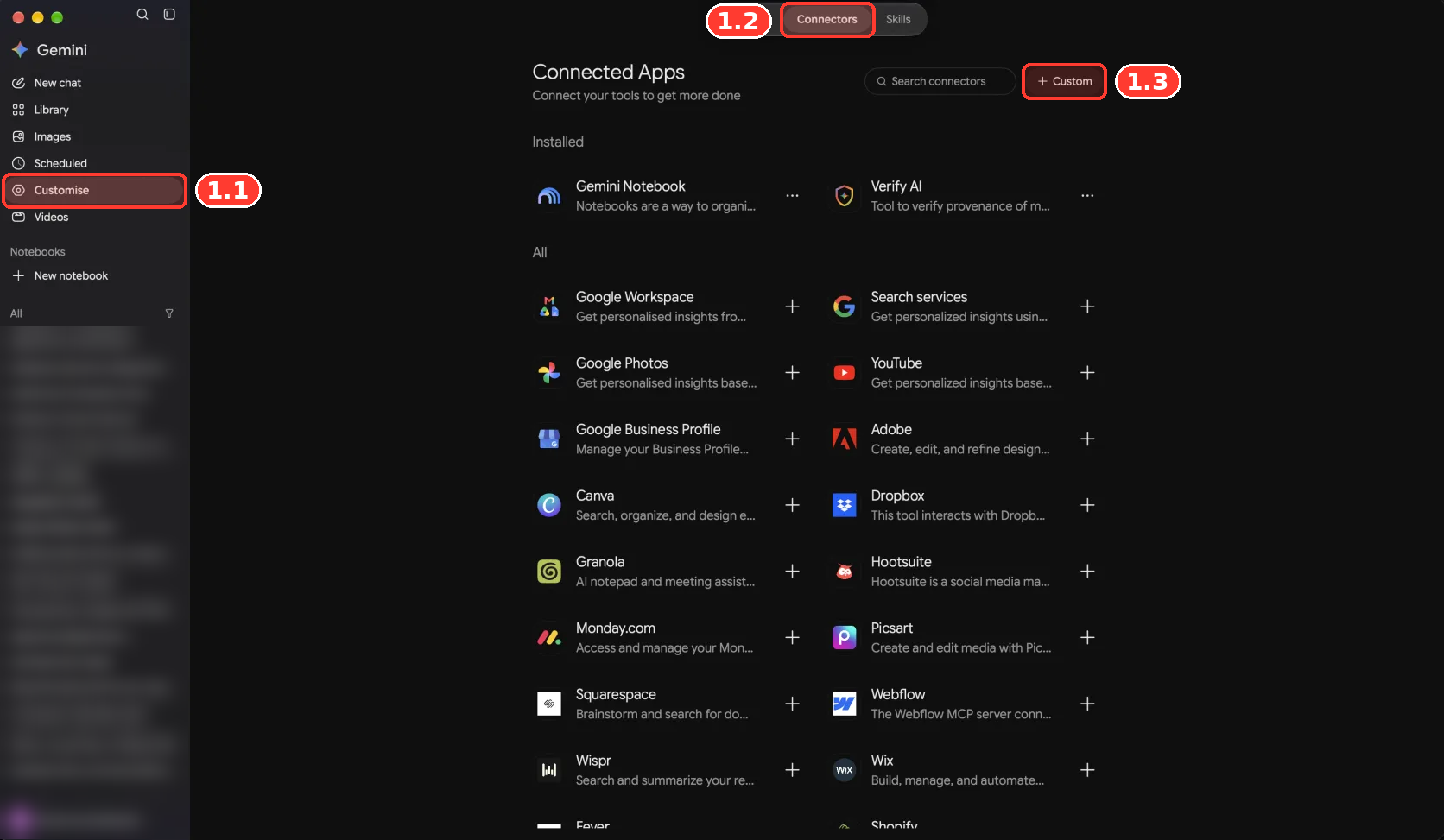
The menu may look different across Gemini versions. Google’s current help also describes Settings → Connected Apps.
Enter PostDovo’s MCP Server URL
- 2.1Paste
https://app.postdovo.com/mcpinto Add a custom app link. - 2.2Click Next.
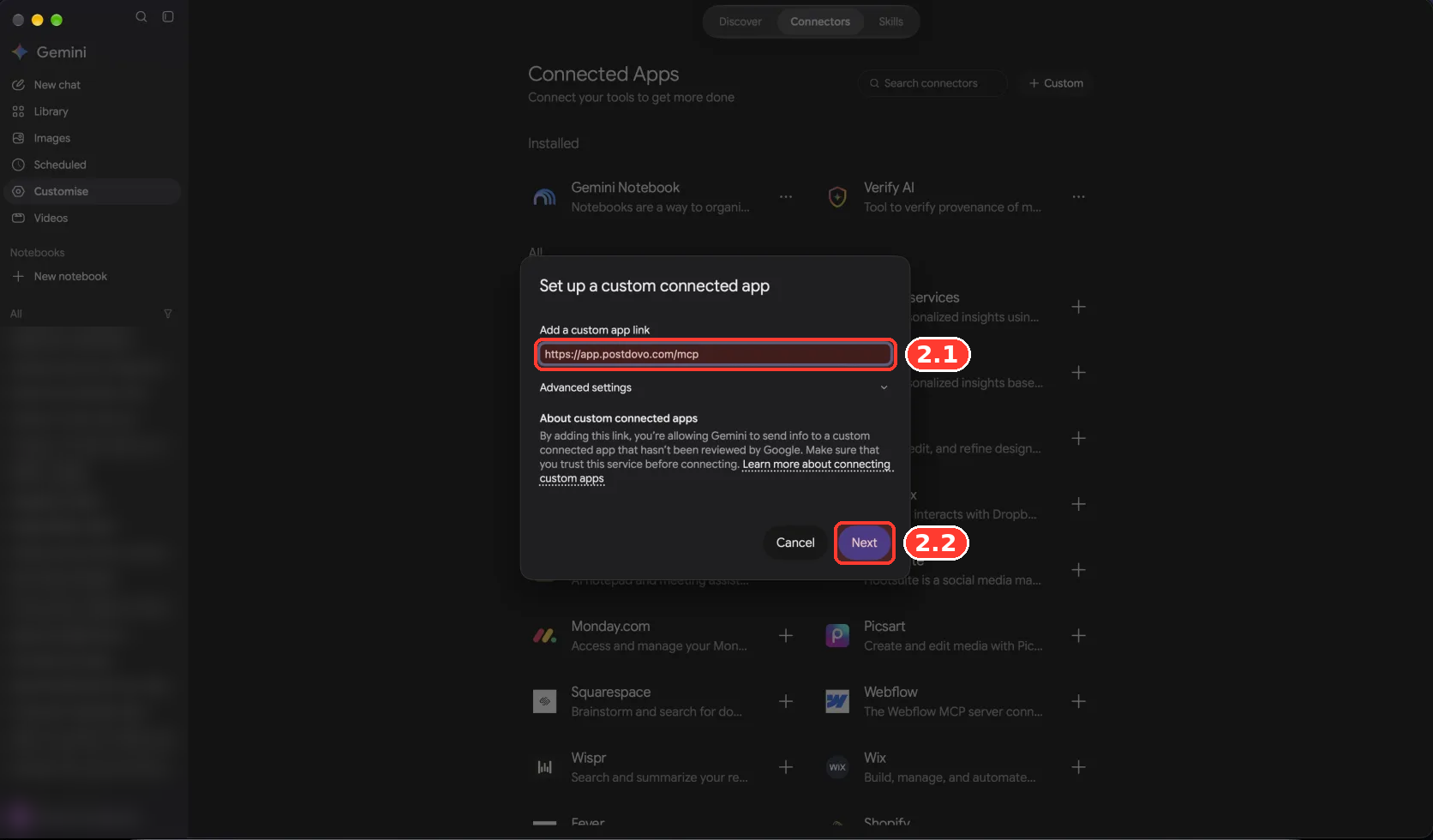
PostDovo hosts the MCP service, so you don’t need to run a server or configure a manual API key.
Review and Allow the MCP Connection
Gemini will explain that a custom app may retrieve information or perform actions through its external tools. Review the notice before continuing.
- 3.1Click Allow if you trust the service and accept the connection.
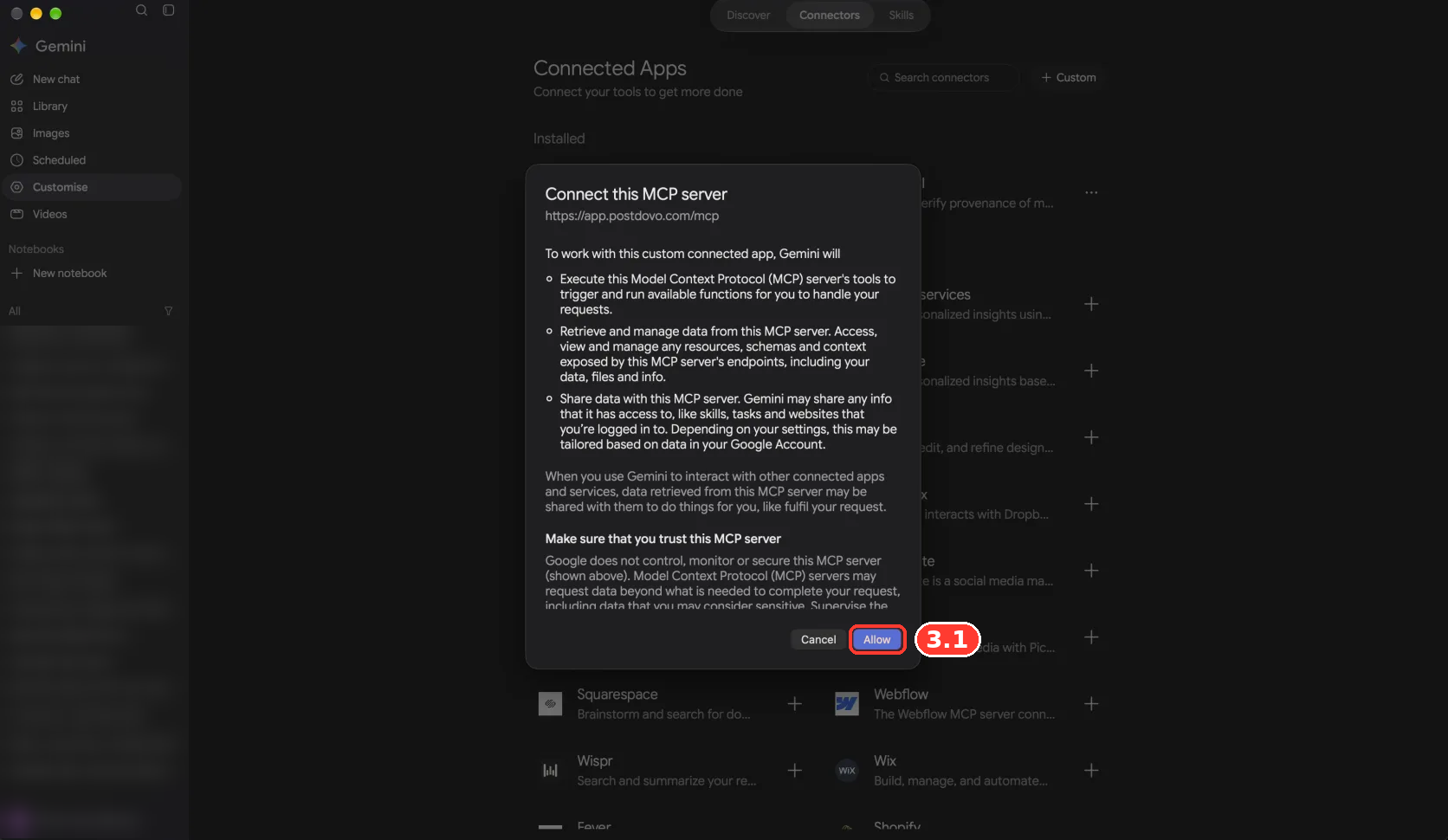
Allowing a connector isn’t permission to publish everything immediately. Review individual actions before they are executed.
Save and Connect PostDovo
Gemini displays the custom app name and the available PostDovo functions.
- 4.1Confirm the app name is PostDovo.
- 4.2Click Connect.
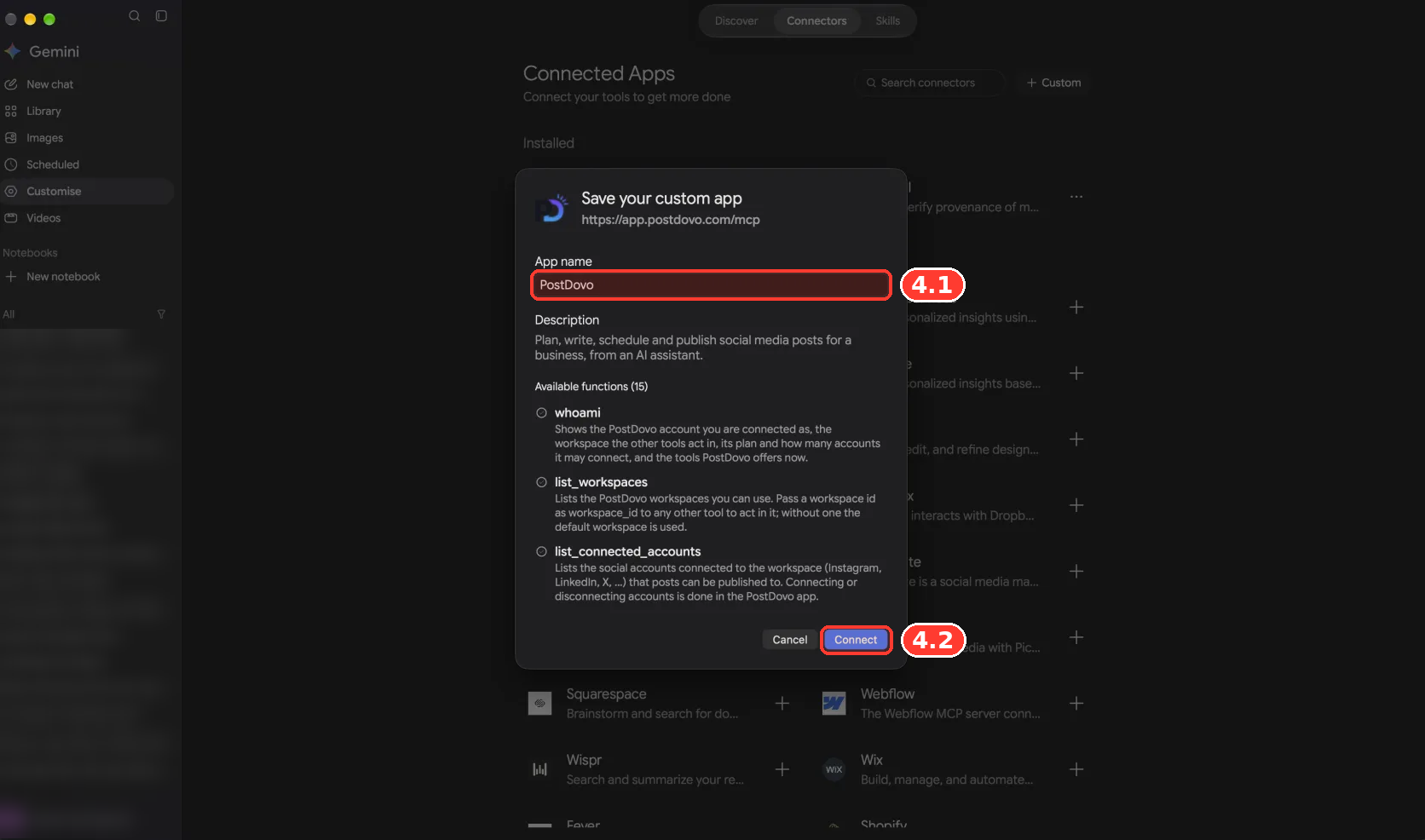
If an additional PostDovo authorization screen appears, sign in to the intended account and review its permissions.
Call PostDovo from a Gemini Conversation
- 5.1Click New chat.
- 5.2Type
@PostDovoand select the connected app. - 5.3Add your request and click Send.
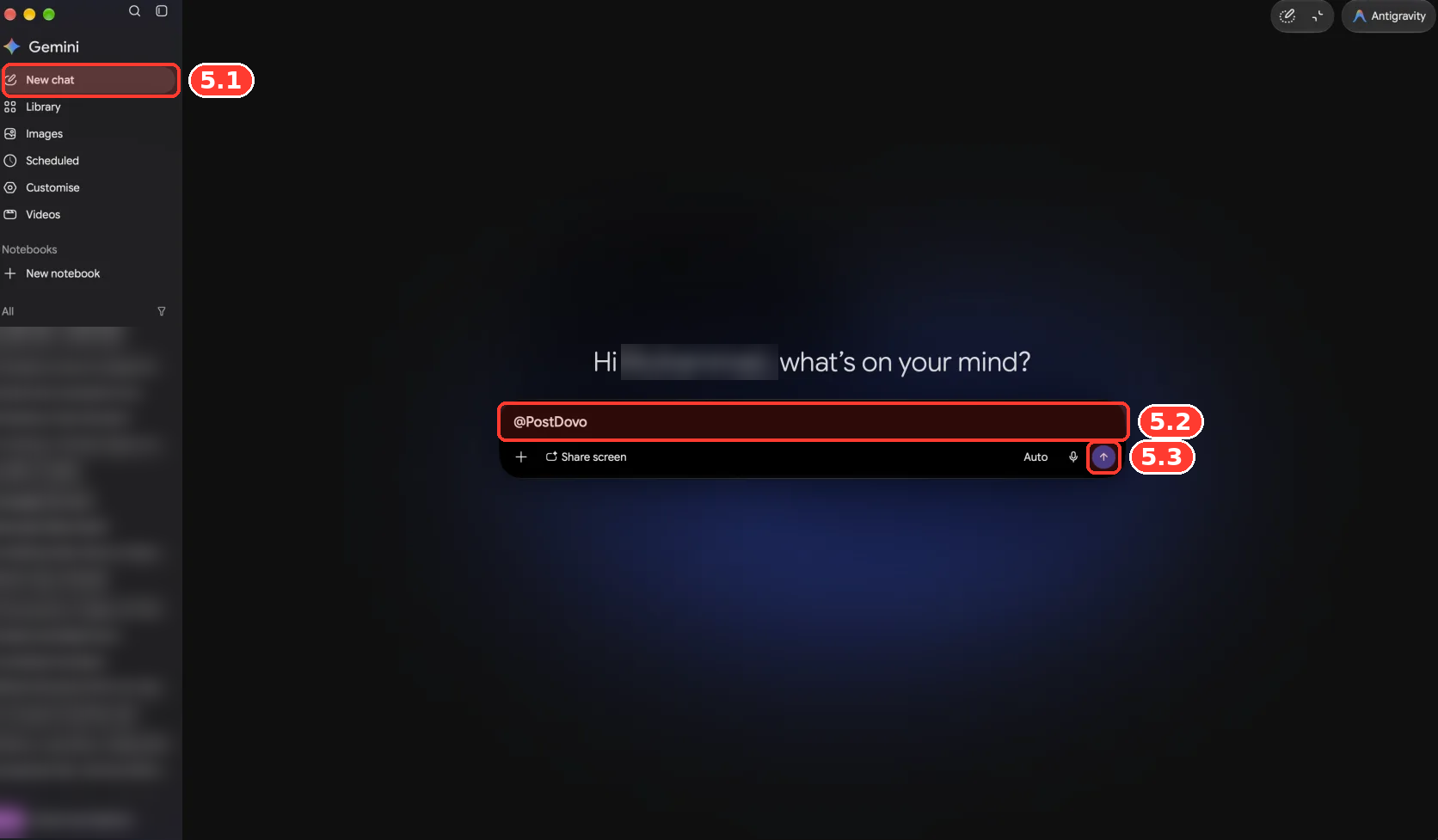
Before creating content, send this read-only request:
If Gemini returns the correct workspace and social accounts, your read-only connection test succeeded.
Watch Gemini Connect to PostDovo
See the custom app setup and the first @PostDovo request in one walkthrough.
Schedule Five Days of Social Posts with Gemini
Use this short prompt to prepare five days of Facebook and LinkedIn posts with unique captions, then review the schedule before approving it.
@PostDovo Create 5 days of text-only posts about https://postdovo.com for Facebook and LinkedIn, with unique captions for each platform.

Schedule daily at 7 PM London time, starting tomorrow. Keep all posts in one group and show me the plan for approval before scheduling.
What the Request Should Prepare
Expected from the prompt: five days of text-only posts for two platforms, scheduled daily at 7 PM London time, with a plan for approval before scheduling. These are requested outcomes, not a claim that the posts have been created.
These tools are part of PostDovo’s Single Post workflow, which can group posts across multiple accounts and dates. Generate Campaign is a separate automated content-generation feature.
Social Media Platforms Supported Through PostDovo
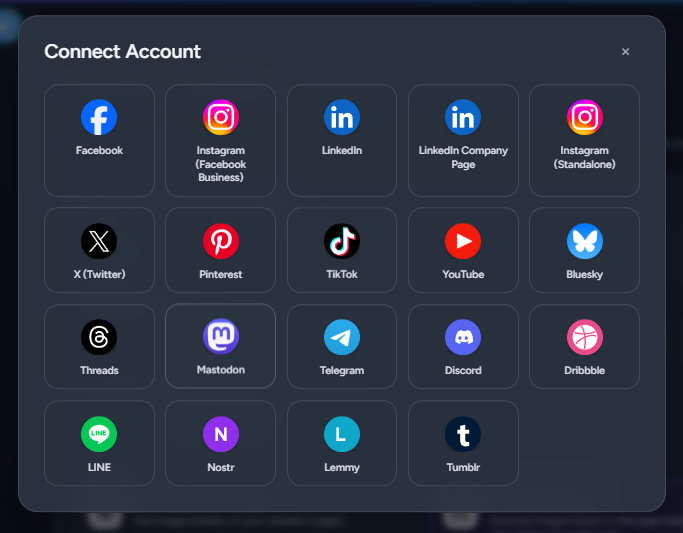
PostDovo supports 19 social media connection options. The table lists supported content creation, scheduling and publishing actions; individual platforms still have different media requirements. The free Starter plan allows up to five social accounts to be connected at once.
| Social platform | Create | Schedule | Publish |
|---|---|---|---|
 Facebook | ✓ | ✓ | ✓ |
 Instagram (Facebook Business) | ✓ | ✓ | ✓ |
 LinkedIn | ✓ | ✓ | ✓ |
| LinkedIn Company Page | ✓ | ✓ | ✓ |
| Instagram (Standalone) | ✓ | ✓ | ✓ |
 X (Twitter)* | ✓ | ✓ | ✓ |
 Pinterest | ✓ | ✓ | ✓ |
 TikTok | ✓ | ✓ | ✓ |
 YouTube | ✓ | ✓ | ✓ |
 Bluesky | ✓ | ✓ | ✓ |
 Threads | ✓ | ✓ | ✓ |
 Mastodon | ✓ | ✓ | ✓ |
 Telegram | ✓ | ✓ | ✓ |
| Discord | ✓ | ✓ | ✓ |
 Dribbble | ✓ | ✓ | ✓ |
 LINE | ✓ | ✓ | ✓ |
 Nostr | ✓ | ✓ | ✓ |
 Lemmy | ✓ | ✓ | ✓ |
 Tumblr | ✓ | ✓ | ✓ |
* X (Twitter): Credits are required to publish posts on X, including scheduled posts. Some destinations require specific images, videos, titles or other fields.
Connect Your Social Accounts
In PostDovo, open Connect Accounts, select the platforms you want and complete their authorizations. Gemini can only use accounts accessible to its authorized workspace.
Is Scheduling with Gemini and PostDovo Free?
PostDovo includes Gemini connectivity in its Starter plan at $0/month. Google’s account eligibility and Gemini usage limits are separate.
| Starter feature | Included |
|---|---|
| Connected social accounts | Up to 5 |
| Workspaces | 1 |
| Single Post creation | Unlimited |
| Single Post scheduling | Unlimited |
| Single Post publishing | Unlimited, except X credit requirements |
| Gemini and supported AI-agent connections | Included |
Some AI-generation features require credits. Free agent connectivity doesn’t include any separate Gemini charges or remove Google’s eligibility requirements.
Work in the terminal? Gemini CLI can use the same PostDovo account.
Gemini MCP Troubleshooting
Custom Connectors Aren’t Available
Check Google’s current eligibility requirements. The feature requires a qualifying personal account, US availability, age 18+, English and Keep Activity enabled.
Gemini Isn’t Using PostDovo
Start a new conversation, type @PostDovo and select the connected app. Check its connection status if the app isn’t listed.
Facebook or Instagram Doesn’t Appear
Ask Gemini which PostDovo workspace is active, then verify the account under PostDovo → Connect Accounts in that workspace.
Image or Video Publishing Fails
Identify whether the media was unavailable, never attached to the draft, or rejected by the destination platform. Check the actual tool error and media requirements before retrying.
Scheduled Dates Are Wrong
Specify the start date, number of posts and a named timezone such as Europe/London or Asia/Karachi. Review the plan before approving execution.
Frequently Asked Questions
Can Gemini schedule social media posts automatically?
Yes, through PostDovo’s supported MCP tools. Gemini can prepare an approval-ready schedule, and PostDovo can publish authorized posts at their scheduled times.
Can Gemini schedule Facebook and Instagram posts?
Yes, when those accounts are connected to PostDovo and the content satisfies each platform’s publishing requirements.
Is Gemini integration free?
PostDovo includes Gemini connectivity with Starter at $0/month. Google’s custom connector eligibility and any Gemini usage costs are separate.
Do I need to write code or generate an API key?
No. Eligible users can add the PostDovo MCP URL through Gemini’s custom app interface and complete the authorization process.
Can Gemini attach and publish images or videos?
PostDovo can attach and publish supported media. Gemini needs an accessible source and a compatible attachment method, and platform-specific rules still apply.
Can I disconnect Gemini from PostDovo?
Yes. Revoke access through PostDovo → AI Agents and manage the custom connected app from Gemini’s settings.