
How to Connect Claude to PostDovo for Free
Create, schedule, and publish social media posts through Claude using PostDovo.
Tell Claude what your business needs, which social accounts to use, and when to publish. PostDovo turns approved requests into drafts, schedules, and supported publishing actions.
Connect Claude on any PostDovo plan, including Starter at $0/month.
Before You Connect Claude
You’ll need a Claude account, a PostDovo account or workspace, and the PostDovo MCP server address.
The connector uses OAuth, so you don’t need to enter a PostDovo API key manually. For image and video publishing in our tested Claude workflow, also complete the network access settings in Step 6.
How to Connect Claude to PostDovo in 6 Steps
Follow the connection and media-publishing setup shown in the annotated screenshots below. The first five steps authorize PostDovo; Step 6 enables network access needed for image and video publishing in our tested Claude workflow.
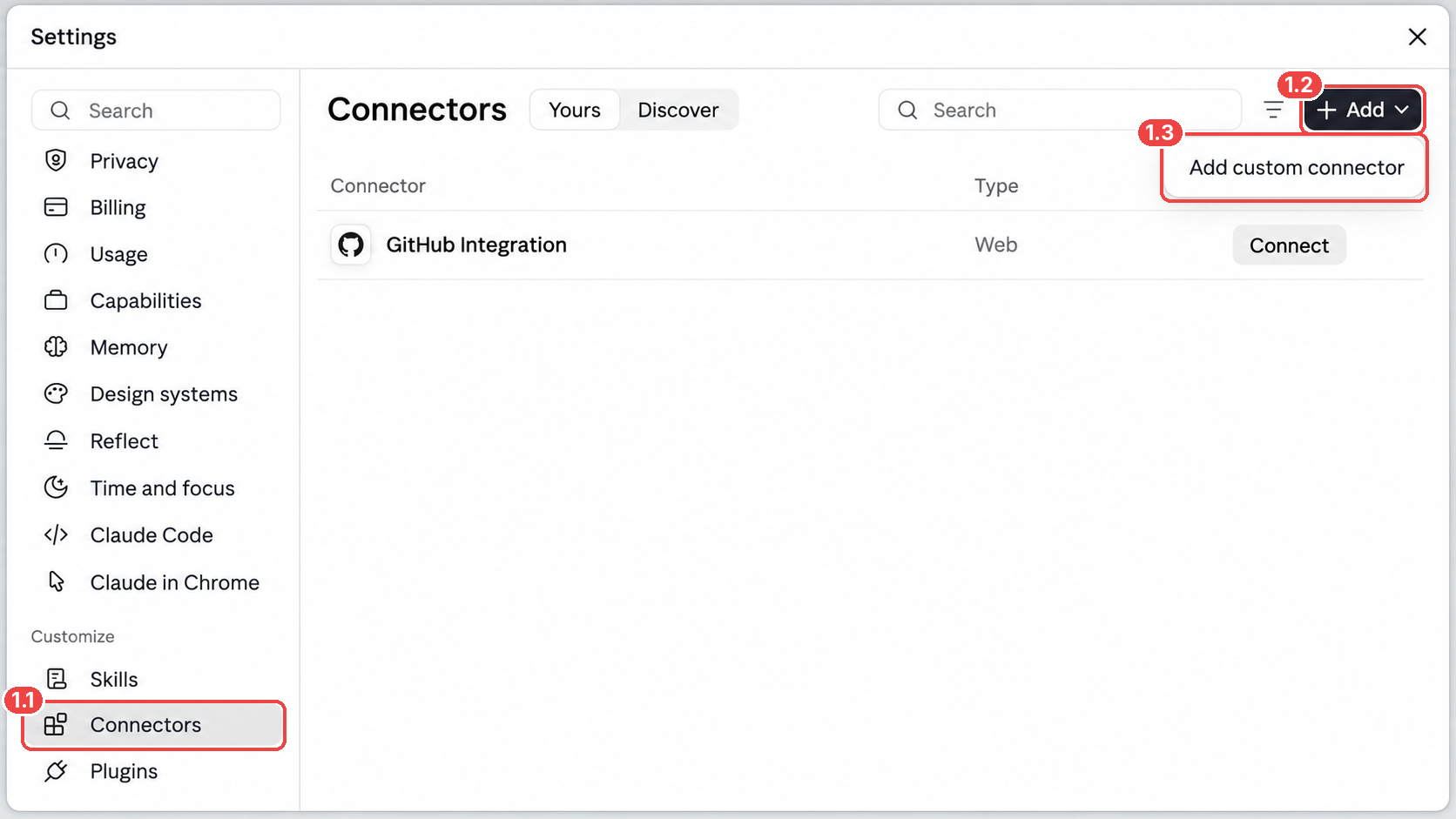
Open Claude’s Connector Settings
In Claude, open Settings.
- 1.1Select Connectors in the sidebar.
- 1.2Click + Add.
- 1.3Choose Add custom connector.
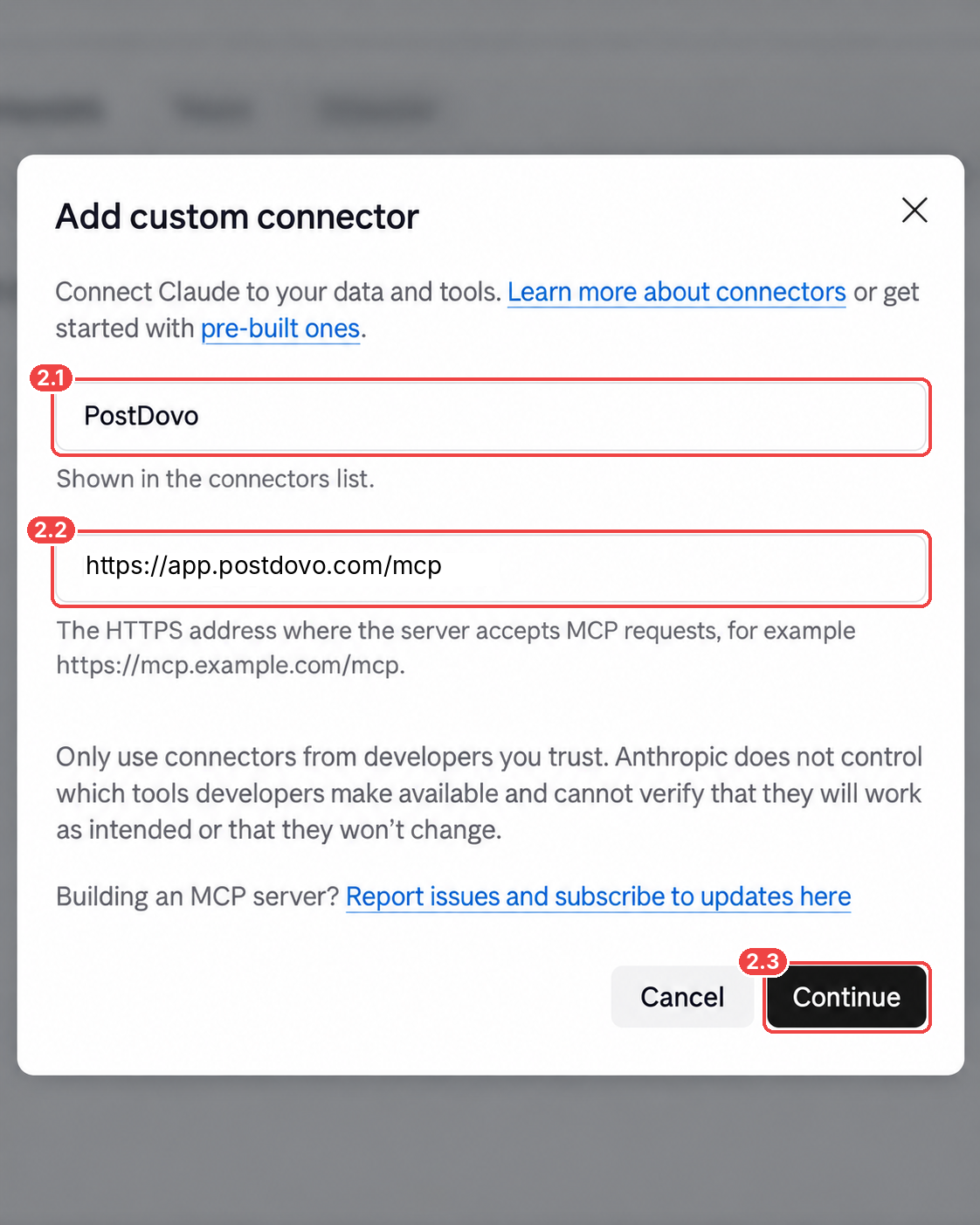
Enter PostDovo’s MCP Address
Claude will ask for a connector name and the server’s HTTPS address.
| Field | Enter |
|---|---|
| Name | PostDovo |
| URL | https://app.postdovo.com/mcp |
- 2.1Type PostDovo.
- 2.2Paste
https://app.postdovo.com/mcp. - 2.3Click Continue.
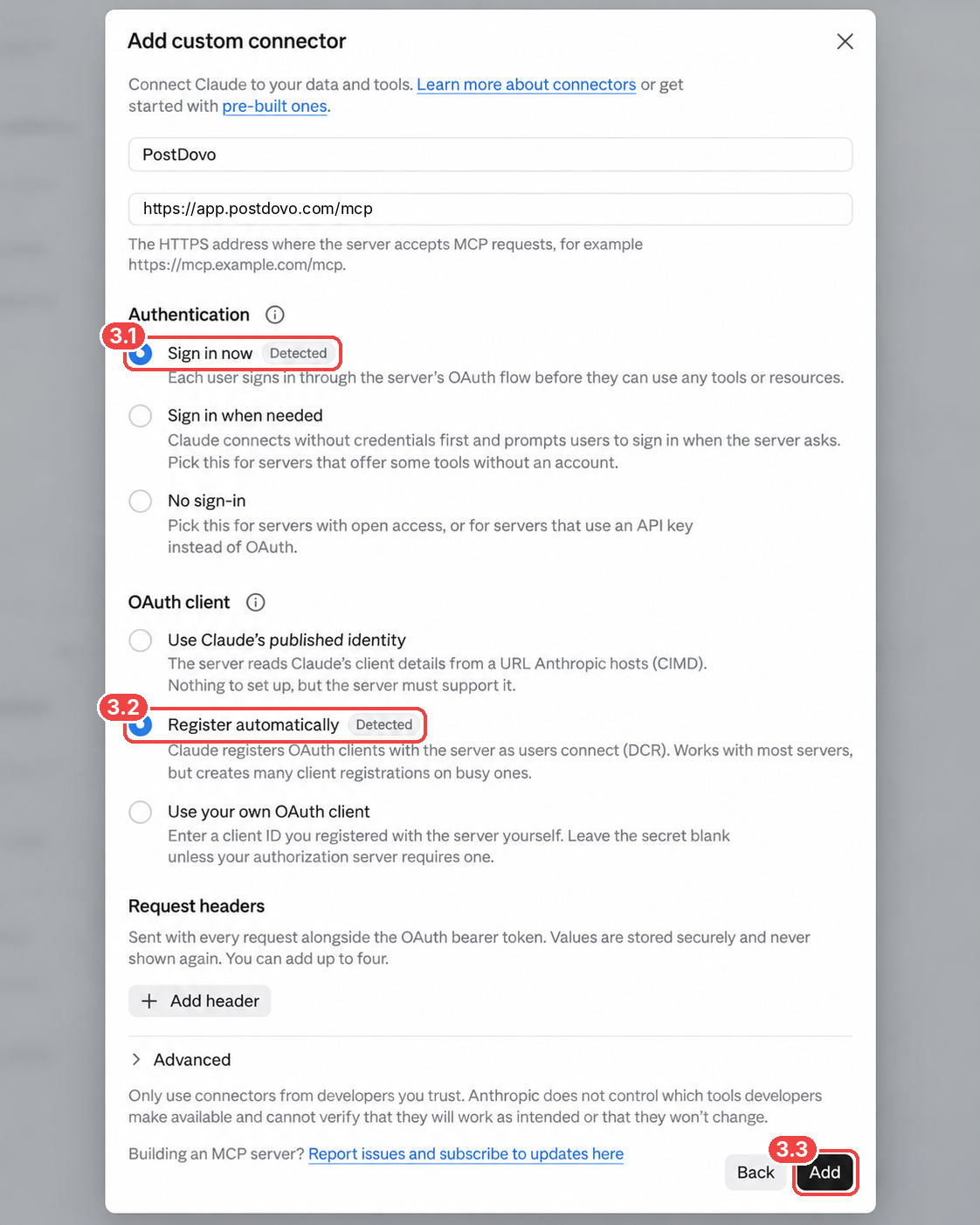
Select the Detected OAuth Options
Claude checks the PostDovo MCP server and shows the authentication methods it supports.
- 3.1Under Authentication, choose Sign in now.
- 3.2Under OAuth client, choose Register automatically.
- 3.3Click Add.
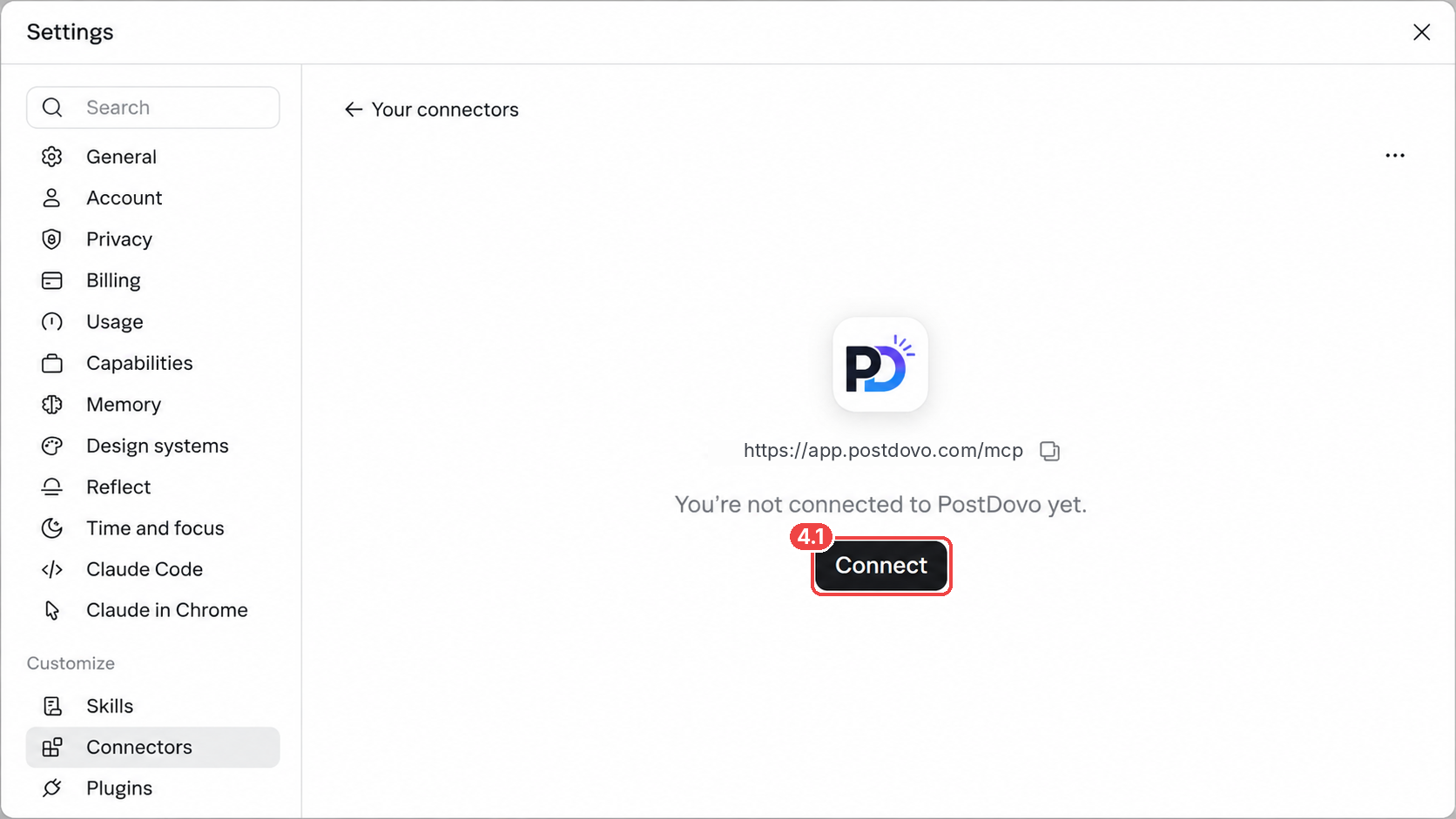
Connect Your PostDovo Account
Adding the connector does not authorize your account by itself. Open the newly added PostDovo connector.
- 4.1Click Connect to start authorization.
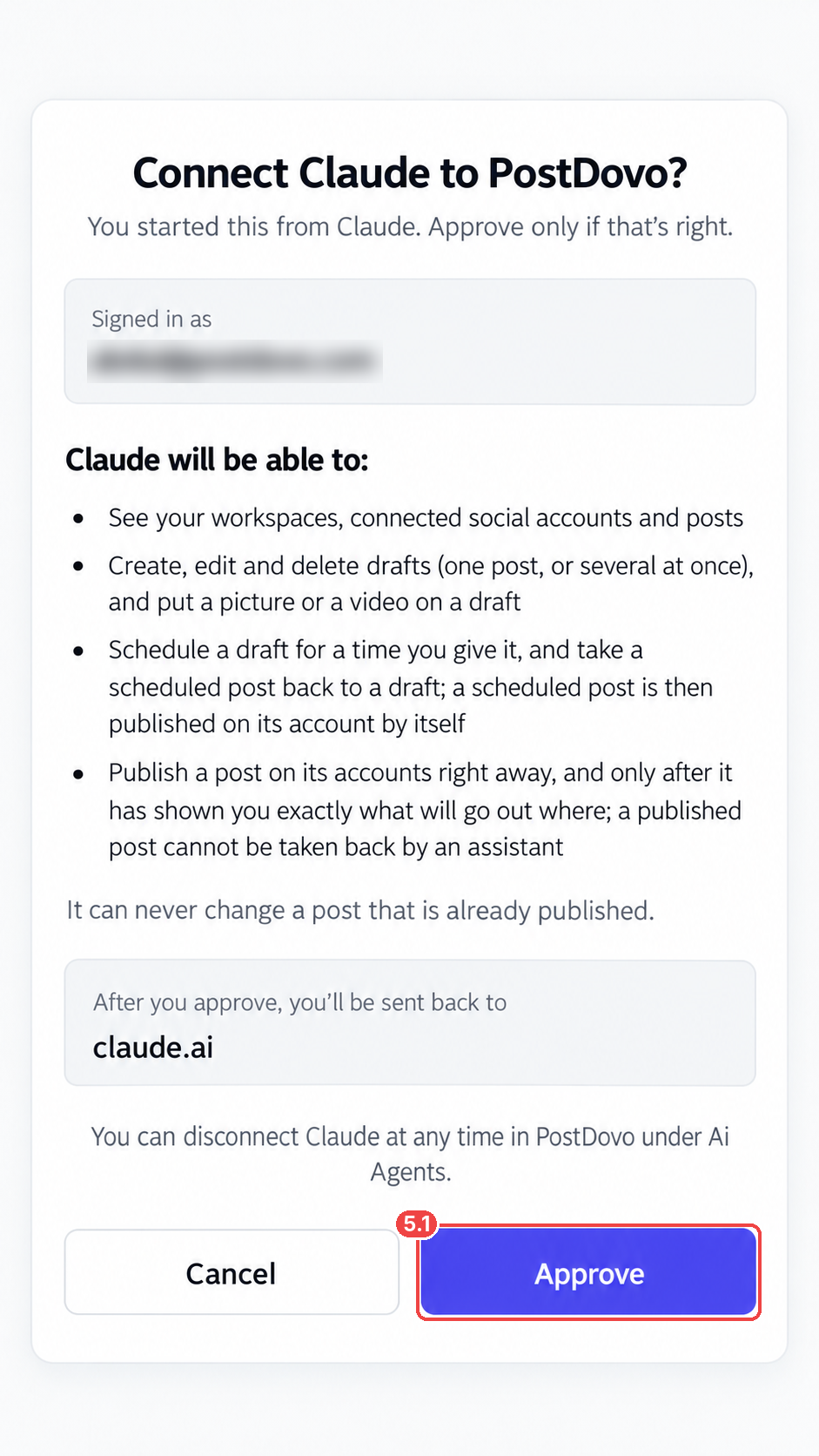
Review Permissions and Approve
PostDovo displays what Claude will be allowed to do. Read the permissions before approving.
- View your workspaces, connected social accounts, and posts.
- Create, edit, or delete drafts, and attach supported images or videos.
- Schedule posts and return scheduled posts to drafts.
- Publish posts after showing the publishing details and receiving the required approval.
- 5.1Click Approve to authorize Claude.
Enable Network Access for Image and Video Publishing
Required for image and video publishing in our tested Claude.ai workflow. The PostDovo MCP connection can be authorized in Steps 1–5, but image and video posting failed in our tests when Claude’s network access was disabled.
To allow Claude’s execution environment to reach PostDovo during media handling, configure the following settings:
- 6.1Open Settings → Capabilities.
- 6.2Enable Allow network egress.
- 6.3Under Additional allowed domains, enter
app.postdovo.com. - 6.4Click Add.
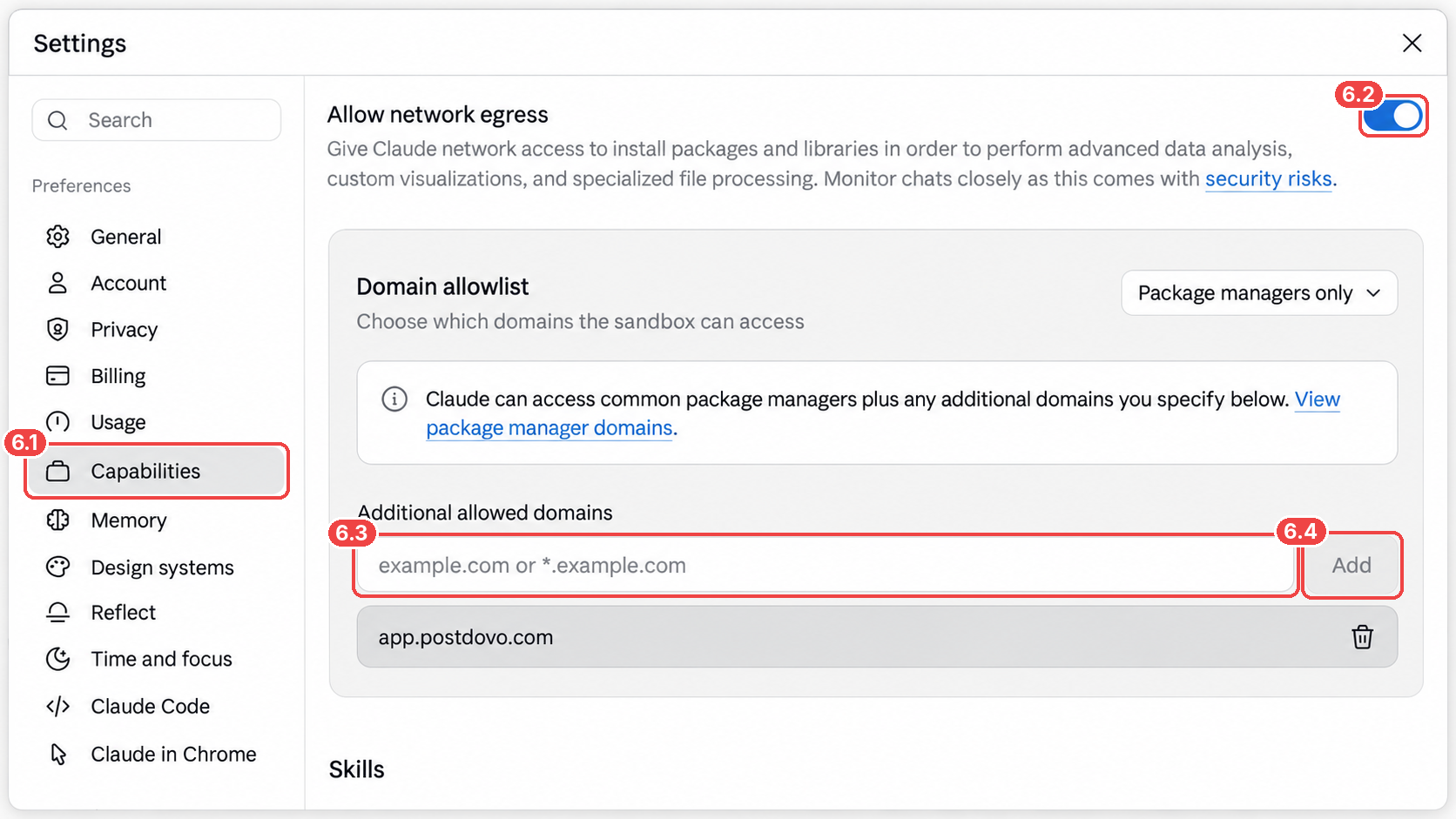
When is this needed? This step is required for the media-publishing workflow we tested. Text-only MCP operations may work without it. Network access expands what Claude’s execution environment can reach, so allow only trusted domains.
Check That Claude Can See Your Accounts
Open a Claude conversation and enable the PostDovo connector if it isn’t already selected. Start with a read-only request:
If Claude returns your connected account information, you can move on to preparing posts. For images and videos, confirm you have also completed Step 6.
Video: Connect Claude to PostDovo
See the connector setup, OAuth authorization, and first request in one walkthrough.
data-youtube-url field above to display the in-page player.Ask Claude to Schedule a Week of Posts
Use this short prompt to request seven different Text + Image posts, with a daily schedule set to London’s local timezone.
Using PostDovo, create 7 daily Text + Image posts about https://postdovo.com for Facebook and Instagram, with unique captions and images.

Schedule at 7 PM London time, starting tomorrow. Keep all posts in one group and show me for approval first.
In the media-publishing workflow we tested, Claude needed Allow network egress enabled with app.postdovo.com on the allowed-domain list. PostDovo can attach supported media to drafts. If Claude cannot generate or attach the requested images through available tools, it should tell you what images are needed instead of assuming they were created.
What Can Claude Manage Through PostDovo?
| Action | What It Means |
|---|---|
| Write for each platform | Prepare different captions for Facebook, Instagram, and other connected accounts. |
| Prepare drafts | Create, review, edit, or delete draft posts. |
| Attach media | Add supported images and videos to drafts. |
| Schedule content | Choose publishing dates, times, and destinations. |
| Manage upcoming posts | Check scheduled content and return scheduled posts to drafts when supported. |
| Publish with approval | Publish supported posts after the required review and authorization. |
These are PostDovo publishing tools, not the separate automated Generate Campaign workflow. Available actions depend on integration permissions and platform requirements.
Social Platforms Supported Through PostDovo
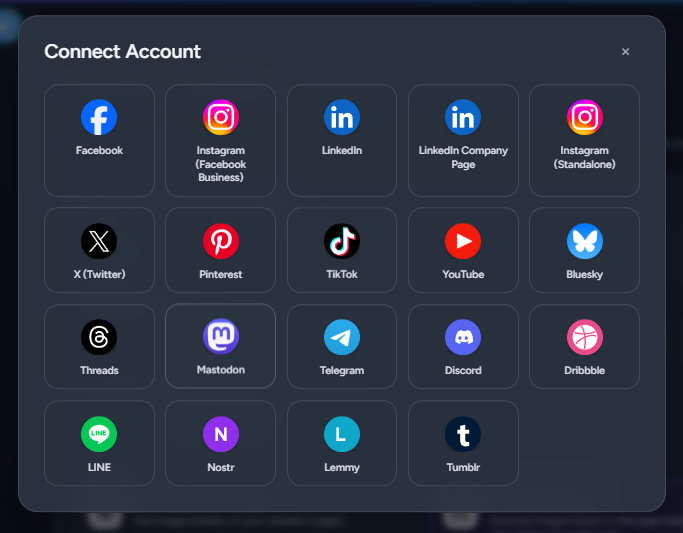
PostDovo offers 19 connection options across social platforms and account types. With supported publishing tools, Claude can help prepare, schedule, and publish to your connected accounts.
| Platform | Create Content | Schedule | Publish |
|---|---|---|---|
 Facebook | ✓ | ✓ | ✓ |
 Instagram (Facebook Business) | ✓ | ✓ | ✓ |
 LinkedIn | ✓ | ✓ | ✓ |
| LinkedIn Company Page | ✓ | ✓ | ✓ |
| Instagram (Standalone) | ✓ | ✓ | ✓ |
 X (Twitter)* | ✓ | ✓ | ✓ |
 Pinterest | ✓ | ✓ | ✓ |
 TikTok | ✓ | ✓ | ✓ |
 YouTube | ✓ | ✓ | ✓ |
 Bluesky | ✓ | ✓ | ✓ |
 Threads | ✓ | ✓ | ✓ |
 Mastodon | ✓ | ✓ | ✓ |
 Telegram | ✓ | ✓ | ✓ |
| Discord | ✓ | ✓ | ✓ |
 Dribbble | ✓ | ✓ | ✓ |
 LINE | ✓ | ✓ | ✓ |
 Nostr | ✓ | ✓ | ✓ |
 Lemmy | ✓ | ✓ | ✓ |
 Tumblr | ✓ | ✓ | ✓ |
* X (Twitter): Credits are required to publish posts on X, including scheduled posts. Other platform-specific content formats and requirements still apply.
Connect Your Social Accounts First
In your PostDovo workspace, open Connect Accounts, choose your social platforms, and complete their authorizations. Claude can only work with accounts that are connected and accessible through your workspace.
Is Claude Integration Free with PostDovo?
Yes. Claude and other supported AI-agent connections are included in every PostDovo plan, including Starter at $0/month.
| Starter Feature | Included |
|---|---|
| Monthly subscription | $0/month |
| Social accounts | Up to 5 |
| Workspaces | 1 |
| Single Post creation | Unlimited |
| Single Post scheduling | Unlimited |
| Single Post publishing | Unlimited, except X credit requirements |
| Claude, ChatGPT, and supported AI agents | Included |
Agent connectivity and manual Single Post publishing are different from credit-based AI content generation. Claude also has its own feature and usage requirements.
Claude + PostDovo FAQs
Is Claude integration free on PostDovo?
Yes. The Starter plan is $0/month and includes AI-agent connectivity. Claude’s own connector or usage limits may apply.
What MCP URL do I enter?
Use https://app.postdovo.com/mcp when adding your custom Claude connector.
Do I need an API key?
No manual PostDovo API key is needed for this setup; the connector uses OAuth authorization.
Why does PostDovo still say “not connected”?
Adding a connector and authorizing your account are separate actions. Open PostDovo in Your connectors, click Connect, and complete approval.
Can Claude schedule posts for multiple accounts?
Yes, for supported connected accounts and with the appropriate permissions. Review dates, timezones, and destinations before scheduling.
Can Claude generate and publish images?
PostDovo supports attaching supported images and videos to drafts. In our tested Claude.ai media workflow, network egress and the allowed domain app.postdovo.com were needed for successful media posting. Image generation itself depends on the tools available in Claude, and platform media requirements still apply.
Why do image or video posts fail in Claude?
In our tested workflow, image and video publishing failed when network access was disabled. Go to Settings → Capabilities, enable Allow network egress, and add app.postdovo.com under Additional allowed domains. Also verify that the media is accessible and meets the destination platform’s requirements. Text-only MCP access may work without this setting.
Can I disconnect Claude later?
Yes. You can disconnect it through PostDovo’s AI Agents section.
Start Scheduling Social Posts from Claude
Connect PostDovo once, then use Claude to prepare captions, organize drafts, schedule posts, and publish approved content across your connected social accounts.
Starter is $0/month, with Claude connectivity included.