
Turn Your Website Into a Complete Social Media Campaign
Your website already contains products, services, articles, images, expertise, brand personality and ideas worth sharing.
PostDovo turns that existing content or any Topic / Niche—into a structured social media campaign with page-aware Post Text, platform-specific post text, relevant visuals, scheduling, review and publishing in one connected workflow.
Select the specific products, services, articles, reviews or pages you actually want to promote.
Product pages, services, articles and editorial content do not have to use the same writing approach.
Use real website images or generate new creative guided by your website and selected-page context.
Many AI tools start with a prompt or URL and return a piece of content. PostDovo is designed around the
campaign workflow instead—from choosing the source to reviewing, scheduling and publishing the final content.
Choose Your Source, Post Format, Visuals, and Platforms
Start with what you want the campaign to talk about, what type of content you want to create, and which connected social accounts should receive it.
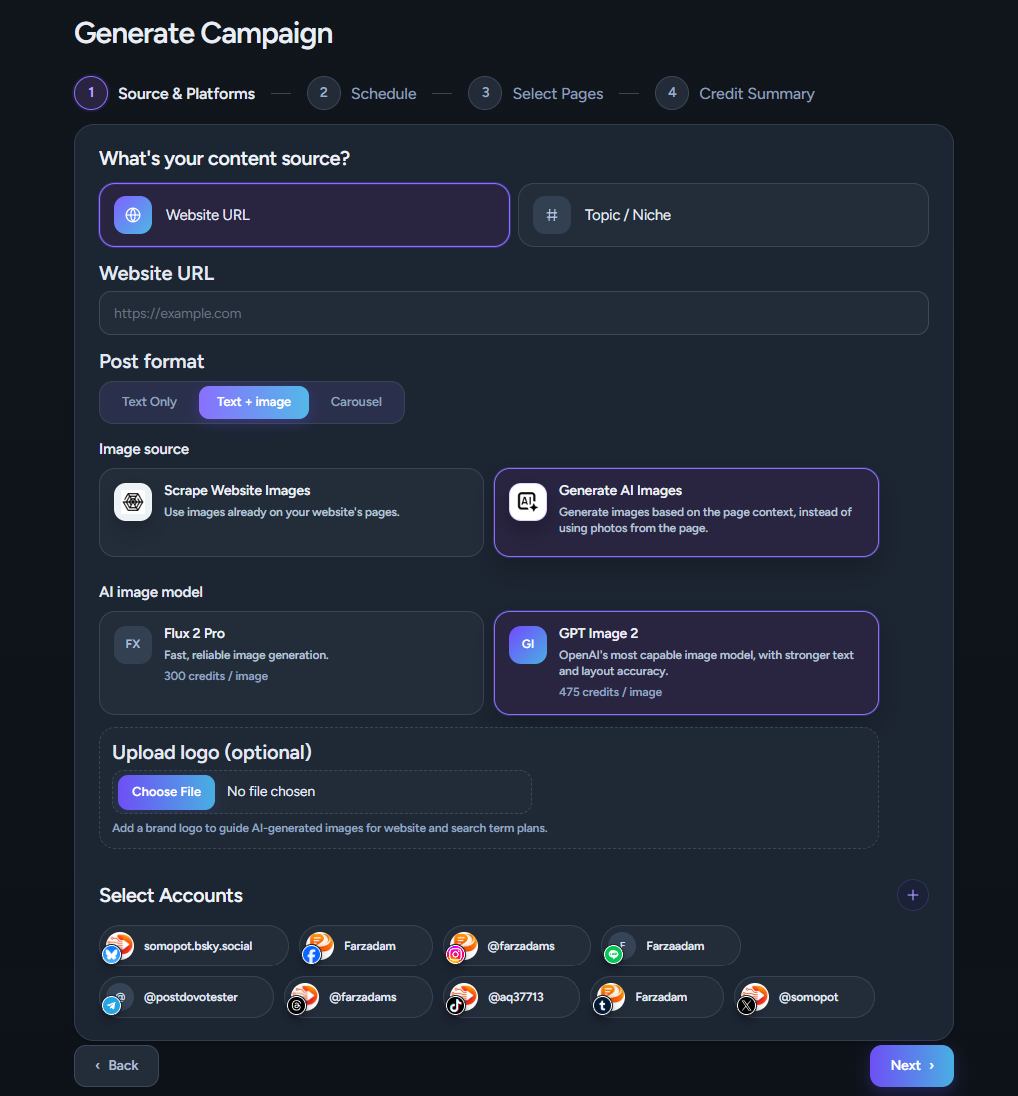
Choose Your Content Source
Turn Existing Website Content Into Social Posts
Use your website when you want to turn existing products, services, articles, reviews, landing pages or other content into social media posts.
PostDovo can discover available pages and later let you choose exactly which ones should power the campaign.
Start Without a Website
Enter a Topic / Niche when you want to create a campaign around an industry, subject, audience interest, idea or content theme.
Choose Your Post Format
Text Only
Create platform-specific Post Text when the written message is the focus.
Text + Image
Combine the Post Text with either a real website image or a newly generated visual.
Carousel
Use multiple frames when the story, product collection, explanation or idea needs more room.
Choose Where Your Images Come From
Scrape Website Images
Use website imagery when the real visual matters. This is especially useful for ecommerce products, property listings, hotel rooms, restaurant dishes, portfolios and other real-world subjects.
If you are promoting a specific product, the social post can show the same product customers will see on the website.
If visual accuracy matters, use Scrape Website Images.
Generate Brand-Aware AI Images
PostDovo’s generated visuals do not have to start from a generic image prompt. For website campaigns, PostDovo can use visual signals from the website and selected pages, including brand colors, existing imagery, product photography, visual style, theme, design direction and selected-page context.
You can also choose from available image-generation models and optionally provide a logo where appropriate.
Select Your Social Accounts
Choose the connected social accounts that should receive the campaign. PostDovo can adapt the content for each destination instead of publishing the exact same writing everywhere.
A LinkedIn post, for example, can use a different structure, tone, length, formatting, CTA and hashtag approach from an Instagram post.
Inside PostDovo, Post Text is the written content of the social post, including the main message and CTA where appropriate.
Build the Campaign Around Your Publishing Plan
Instead of generating posts first and organizing them later, define the structure of the campaign before generation.
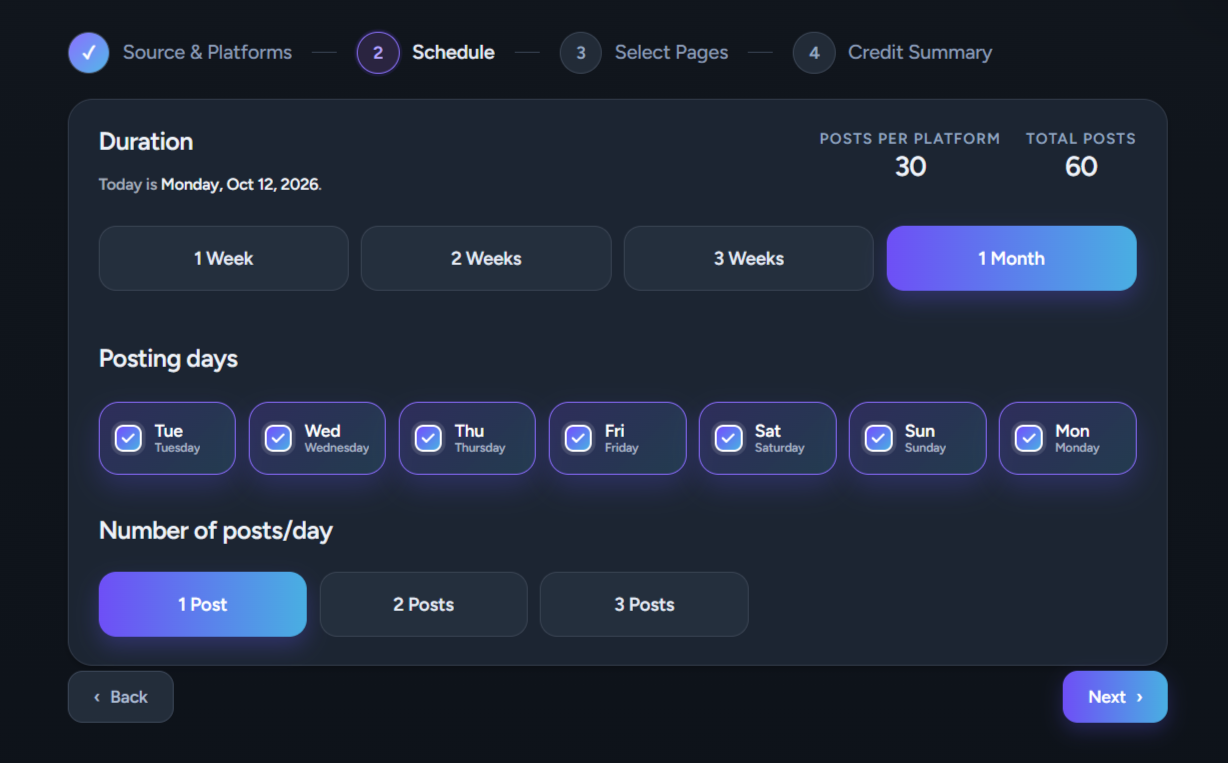
Choose:
- Campaign duration
- Publishing days
- Posts per day
PostDovo shows the resulting Posts per Platform and Total Posts, so you know the size of the campaign before generating it.
Your schedule also helps determine how deeply PostDovo works with the selected source material.
If the campaign needs more posts than the number of selected pages, PostDovo can return to those pages and develop additional content angles.
Choose Exactly Which Website Pages Power the Campaign
Website-based content generation becomes much more useful when you control the source. PostDovo lets you choose the specific content you want to promote.
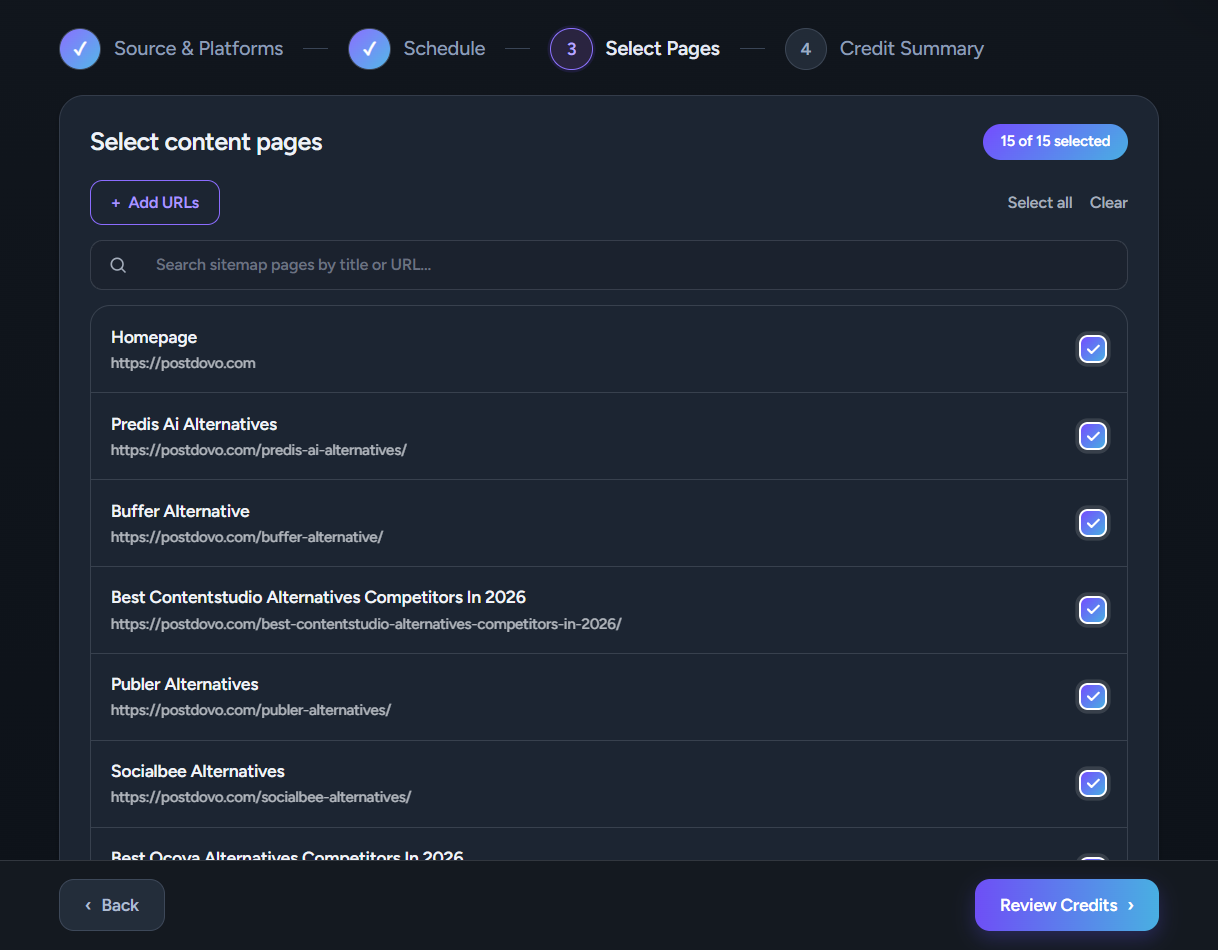
Discover, Search, and Select Pages
PostDovo can discover website pages and display their titles and URLs. You can search, select individual pages, select multiple pages, select all available pages, clear the selection and see how many pages are currently selected.
Add URLs Manually
If a page is not discovered automatically—or you already know exactly which source you want—you can add its URL manually.
Choose Breadth or Depth
Broader Coverage
Select more pages when you want the campaign to cover a wider range of products, services, articles or topics.
Deeper Coverage
Select fewer pages when you want stronger focus on a smaller set of products, services or ideas.
For example, if you select 8 pages and your publishing plan requires 16 posts, PostDovo can revisit those pages and create additional posts using different useful angles.
Different Pages Get Different Treatment
PostDovo does not force every website page through the same content template. It can adapt the tone, messaging and content angles according to what the source actually is.
Product Pages
Benefits, features, product details, customer problems, use cases and promotional angles.
Service Pages
Professional, trust-building, problem-solution, benefit-led or conversion-focused messaging.
Blog Articles
Educational posts, useful insights, key takeaways, thought leadership and editorial repurposing.
Reviews & Editorial Pages
A more editorial or opinion-sensitive approach that preserves the personality of the source.
A product page should be treated like a product page. An article should be treated like an article—not pushed through the same generic AI template.
Review Usage and Generate the Campaign
Before generation starts, PostDovo shows the expected campaign usage. It then analyzes the selected source material before creating the campaign.
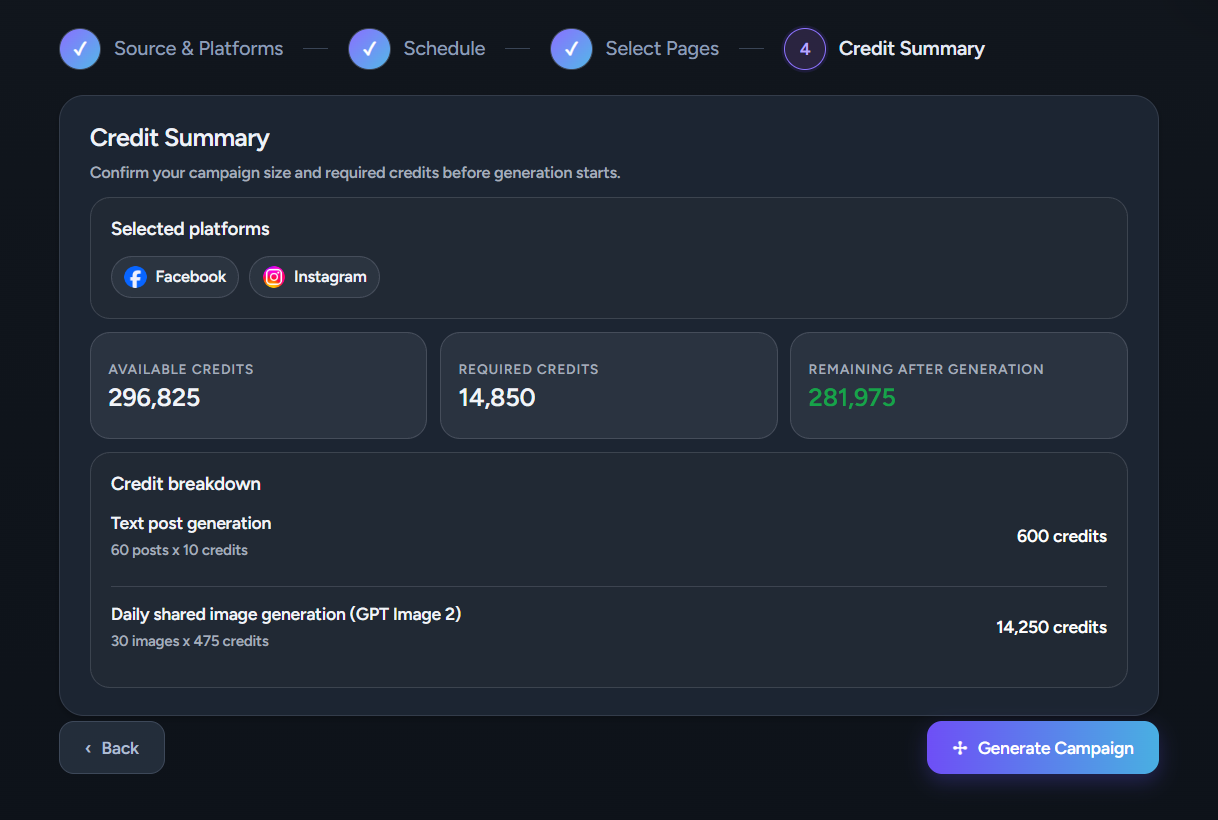
Review Campaign Usage
Depending on your configuration, usage can include:
- Social post generation
- Website image fetching
- AI image generation
You can review available credits, required credits, remaining credits and the usage breakdown before continuing.
PostDovo Analyzes Before It Writes
The workflow is not simply:
PostDovo can first analyze the selected source to understand:
- What the source is about
- What type of page it is
- Who the likely audience is
- Which messages are important
- Which content angles are useful
- How those ideas fit the campaign
- How the Post Text should change by platform
- Which visual fits the content
The resulting Post Text can therefore reflect the source information, page purpose, audience, content angle, destination platform and brand personality.
Post Text and Visuals Share the Same Context
When you choose Scrape Website Images, PostDovo can connect generated social content with relevant imagery from the selected source.
When you choose Generate AI Images, the website’s visual identity and selected-page imagery can help guide the new creative.
This keeps the campaign connected to its source instead of producing unrelated AI outputs.
Review, Edit, Schedule, and Publish
Once the campaign is generated, review its posts together, make final adjustments, preview the result and decide what should be saved, scheduled or published.
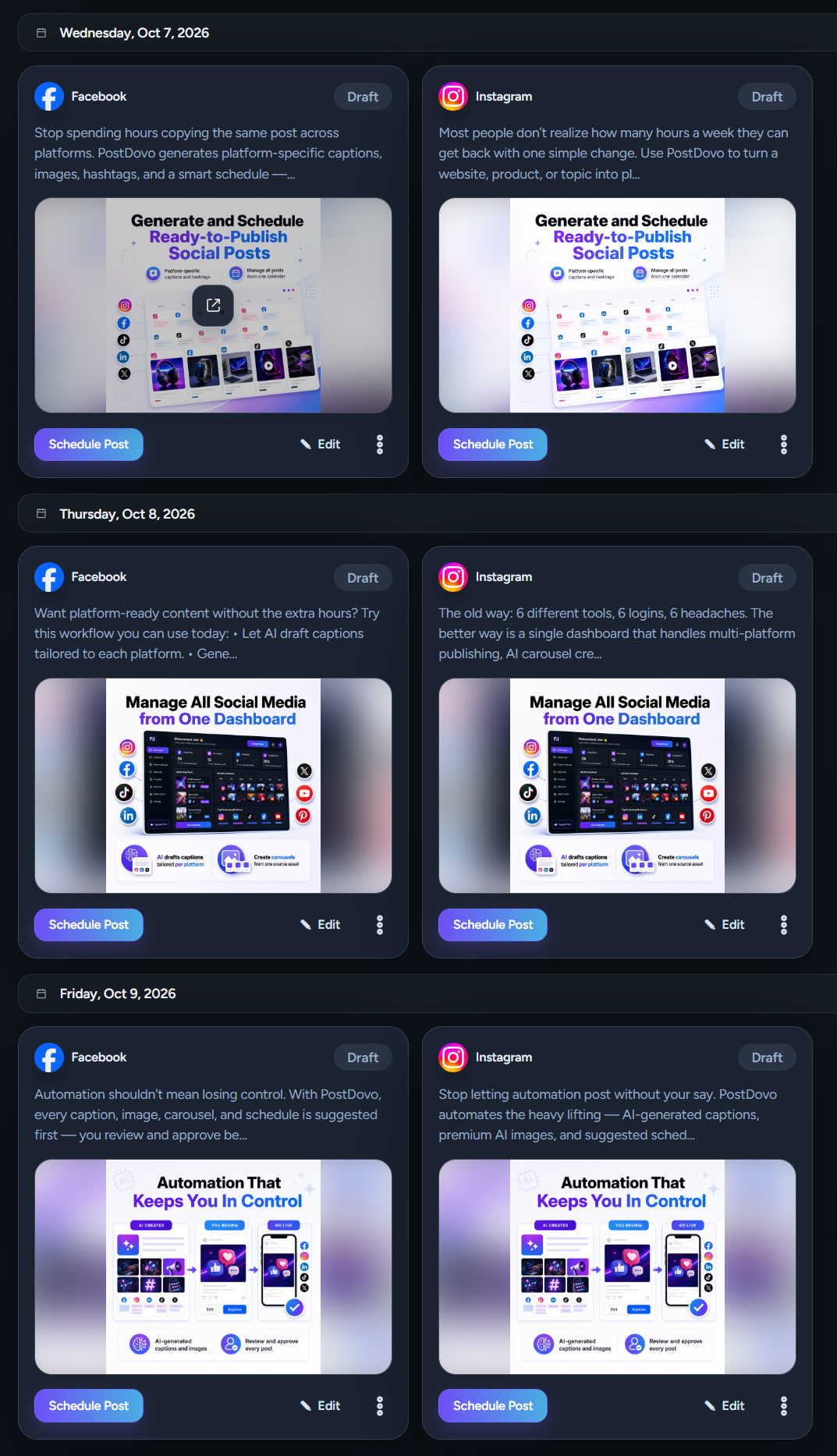
Review the Complete Campaign
Open the campaign in the Campaign Library to see its posts together. Posts are organized by date and show their social platform and publishing status.
You can quickly identify what is:
- Published
- Scheduled
- Draft
- Still waiting for attention
You can also filter campaign posts by platform, status and date.
Move Quickly Between Posts
The Edit Post screen lets you move through the campaign with Previous and Next Post controls instead of repeatedly returning to the Campaign Library.
A position indicator such as Post 3 of 6 shows where you are in the campaign.
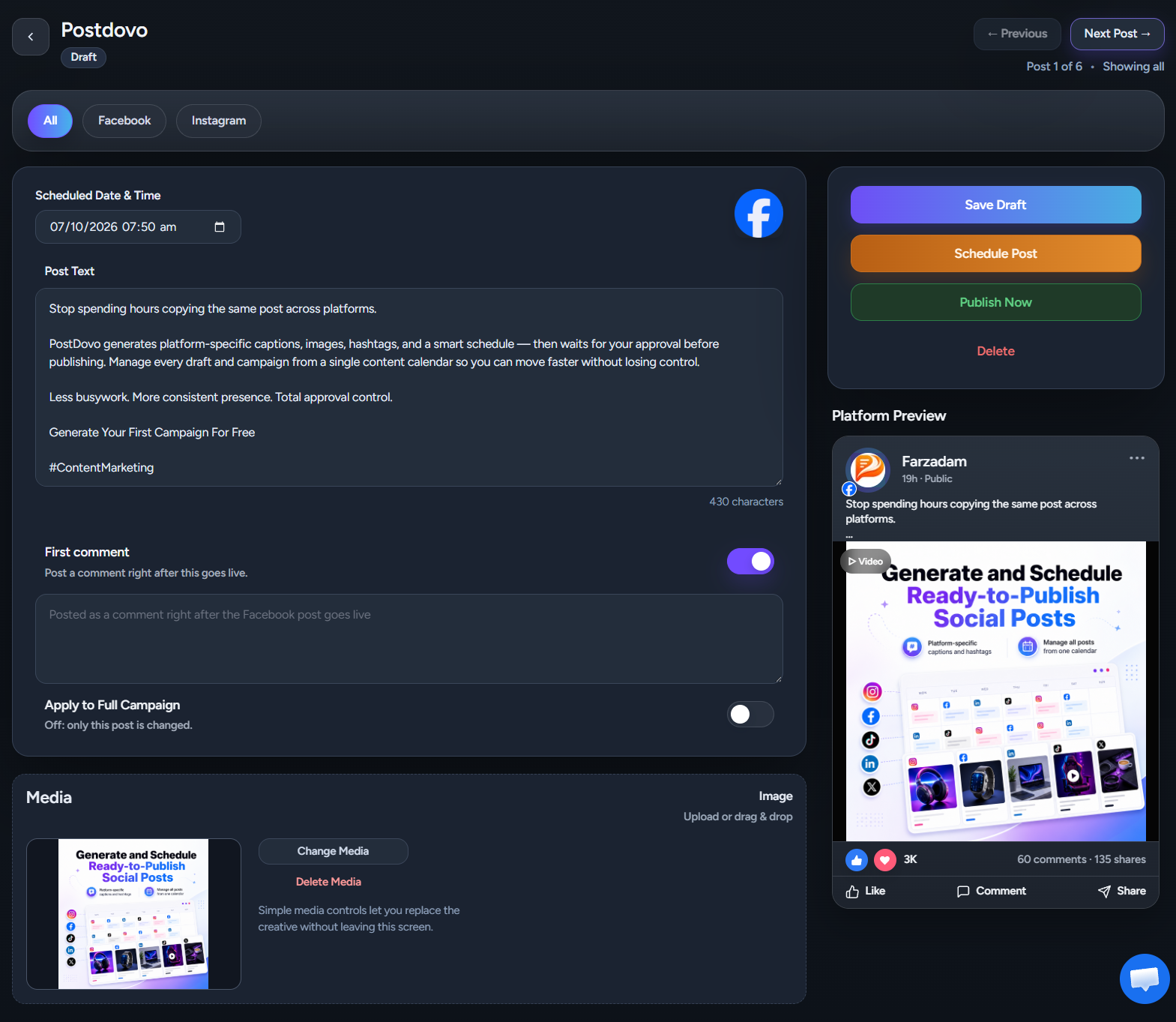
Fine-Tune Before Publishing
From the Edit Post screen, you can adjust:
- Scheduled date and time
- Post Text
- Media
- First comment
You can replace or remove the attached visual when needed.
Preview While You Edit
A Platform Preview lets you see the Post Text and media together while making changes, helping you review the final post before it is scheduled or published.
Use a First Comment When Needed
A first comment can be useful for:
- Links
- Extra context
- Additional information
- Another CTA
You can add it to one post or use Apply to Full Campaign when the same comment should be used across multiple campaign posts. Individual posts can still be excluded where necessary.
Improve Scheduling With Your Own Performance Data
PostDovo can use previous post-performance information to help recommend stronger publishing times. Instead of depending entirely on generic “best time to post” recommendations, scheduling can be informed by how your own content has performed.
Choose What Happens Next
| Action | Purpose |
|---|---|
| Save Draft | Keep the post without publishing it. |
| Schedule Post | Schedule an individual post for its selected date and time. |
| Publish Now | Publish the individual post immediately. |
| Delete | Remove a post you no longer need. |
| Schedule Campaign | Schedule the prepared campaign together. |
| Stop Campaign | Pause campaign-level scheduling when plans change. |
Continue From the Publishing Calendar
Once campaign posts are scheduled, they become part of the Publishing Calendar,
where you can see upcoming publishing activity and continue managing scheduled content.
You can filter posts by social account, campaign or publishing status and open a post when changes are needed.
The Publishing Calendar has its own planning and management capabilities, which can be explored separately in the dedicated Publishing Calendar feature.
Your Website Is Already Full of Social Content
Your website already contains products, services, articles, images, expertise, brand colors, visual style, messaging and ideas. PostDovo helps turn those existing assets into page-aware Post Text, platform-specific social content and relevant visuals, then connects the campaign directly with review, scheduling and publishing.
Instead of starting every post from a blank prompt, start with the content and brand you have already built.
What is an AI social media campaign generator?
An AI social media campaign generator turns a source or idea into multiple related social media posts organized around a campaign. PostDovo connects source analysis, platform-specific Post Text, visuals, review, scheduling and publishing in one workflow.
Can PostDovo turn website content into social media posts?
Yes. PostDovo can discover website pages and let you choose which products, services, articles, reviews or other pages should power the campaign.
Can one page generate multiple social media posts?
Yes. When the campaign requires more posts than the number of selected pages, PostDovo can develop additional posts from those pages using different content angles.
Does PostDovo use the same writing style for every page?
No. PostDovo can adapt the tone, messaging, Post Text and content angle according to the page type and source material. A product page can therefore be handled differently from a service page, article or review.
Should I use website images or AI-generated images?
Use Scrape Website Images when the exact original visual matters. Use Generate AI Images when you need new creative, conceptual imagery or additional visual variety.
Are PostDovo’s generated images based on the brand?
For website campaigns, PostDovo can use website colors, imagery, visual style, selected-page context
and other brand cues to help guide newly generated visuals.
Does PostDovo create different content for different social platforms?
Yes. Campaign content can be adapted to the selected social platforms instead of using one identical piece of Post Text everywhere.
Can I schedule the entire campaign?
Yes. You can schedule posts individually or use campaign-level scheduling after reviewing the campaign.
Where do scheduled campaign posts appear?
Scheduled posts appear in the Publishing Calendar, where you can review publishing activity and open posts when changes are needed.
Do I need to sign up before trying Generate Campaign?
No. You can start a free campaign without creating an account first.