
How to Connect Cue by Manus to PostDovo for Social Media Automation
Connect Cue to PostDovo to plan, write, schedule and publish social media posts.
Cue is Manus’s personal agent. Add PostDovo as a custom MCP server, sign in through your browser and approve access. No access token is needed for browser sign-in.
Starter is $0/month and includes AI agents and full automation; Analytics is excluded.
Quick Setup
Open Connectors → Create → Add MCP by URL. Enter PostDovo as the server name and paste:
https://app.postdovo.com/mcp
Save the connector, click Connect, then sign in to PostDovo and approve access. Return to Cue and ask it to list your connected social accounts.
Connect Cue to PostDovo
Sign in to PostDovo and connect the social accounts you want to use before checking the agent connection.
The screenshots below show the Manus connector interface used for this setup.
Open Connectors and Add PostDovo
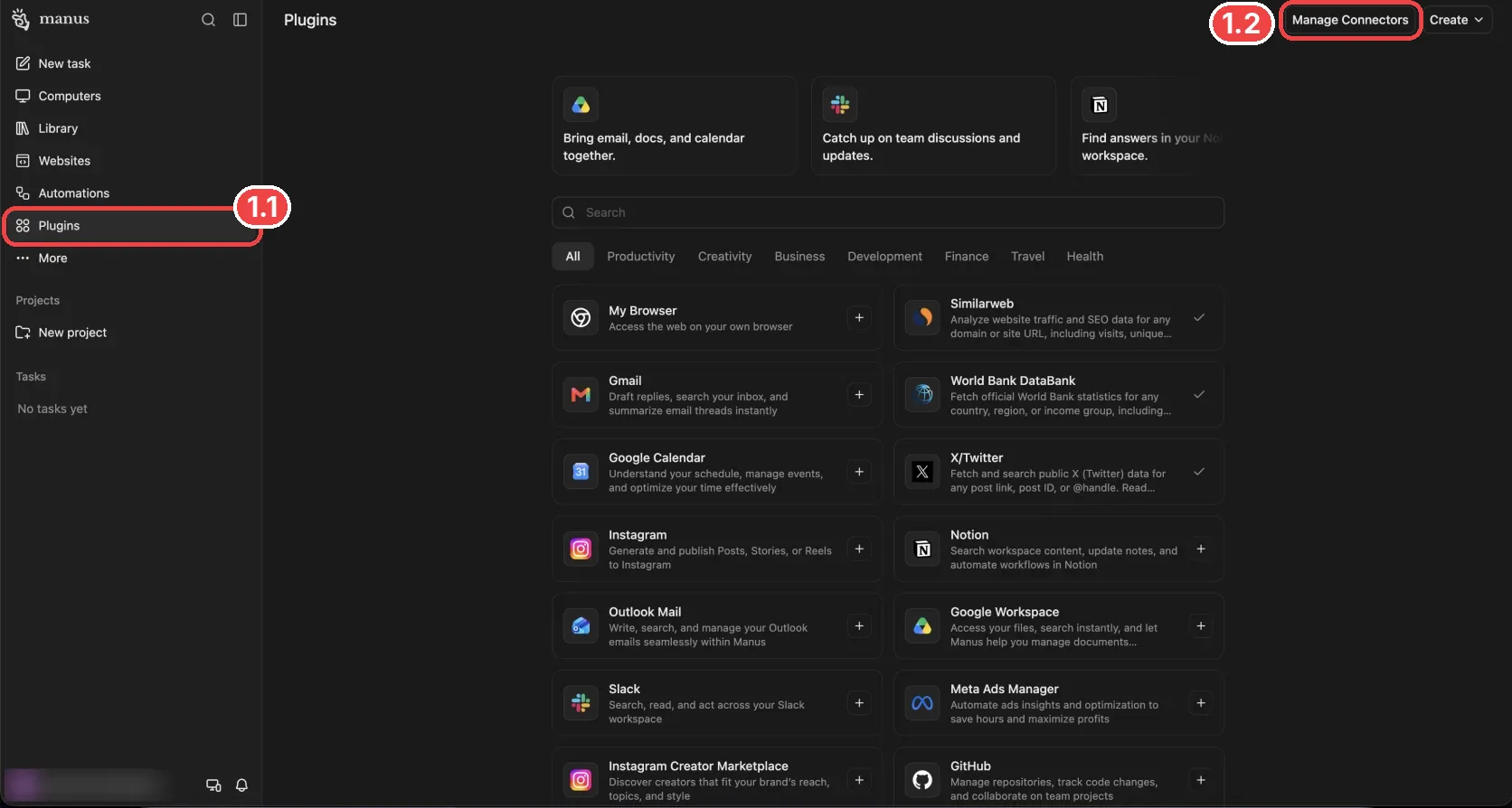
Open Plugins (1.1) and click Manage Connectors (1.2).
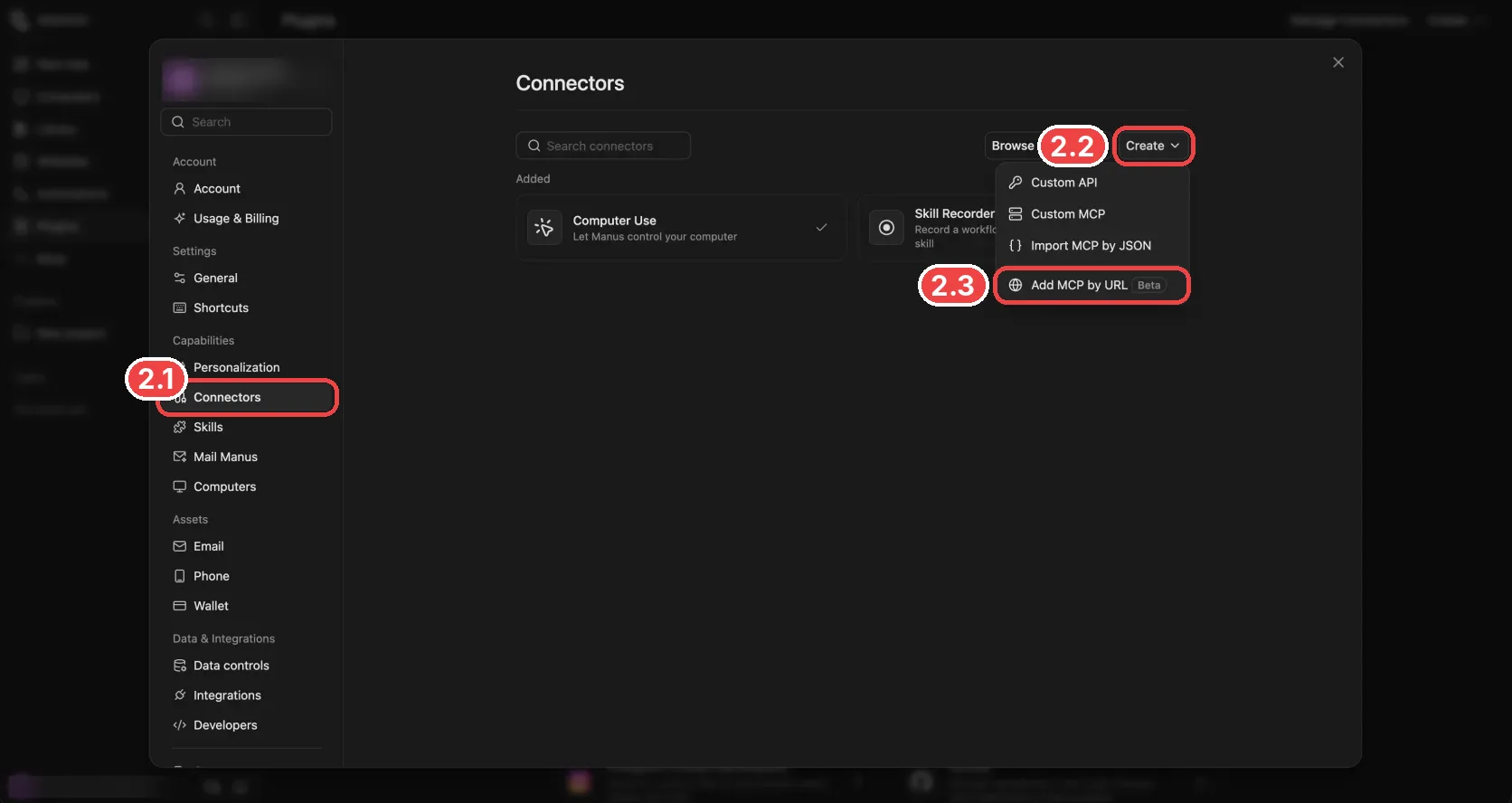
On the Connectors page (2.1), click Create (2.2) and choose Add MCP by URL (2.3).
Enter PostDovo as the Server name (3.1) and paste the URL below as the Server URL (3.2). Leave Advanced settings unchanged for browser authorization. Click Save and Publish (3.3).
https://app.postdovo.com/mcp
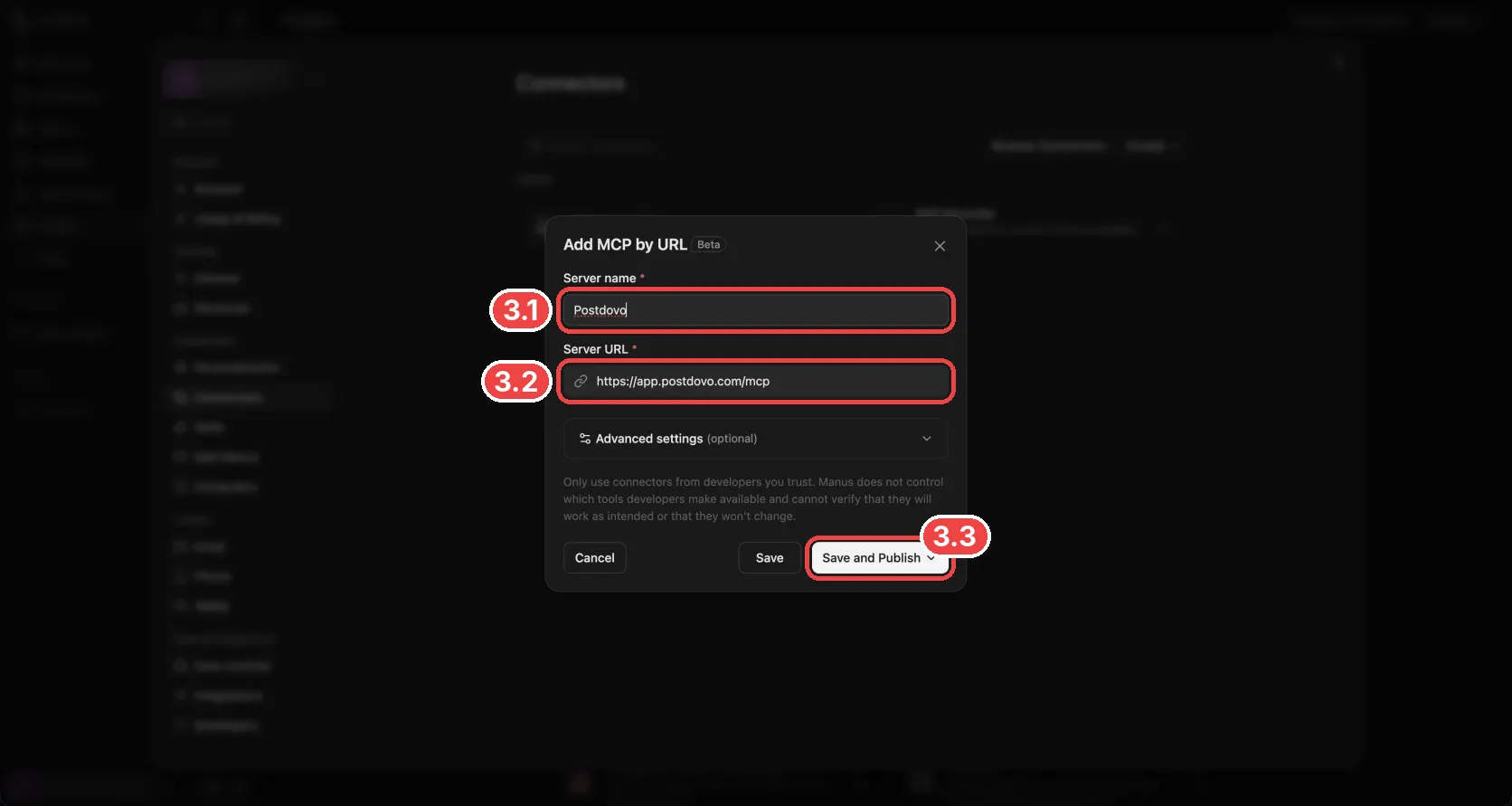
Use the exact endpoint: include /mcp and do not add a trailing slash. The homepage is not the MCP server. A different path or a redirect can prevent discovery or connection.
Connect and Approve Access
Open the PostDovo connector and press Connect (4.1).
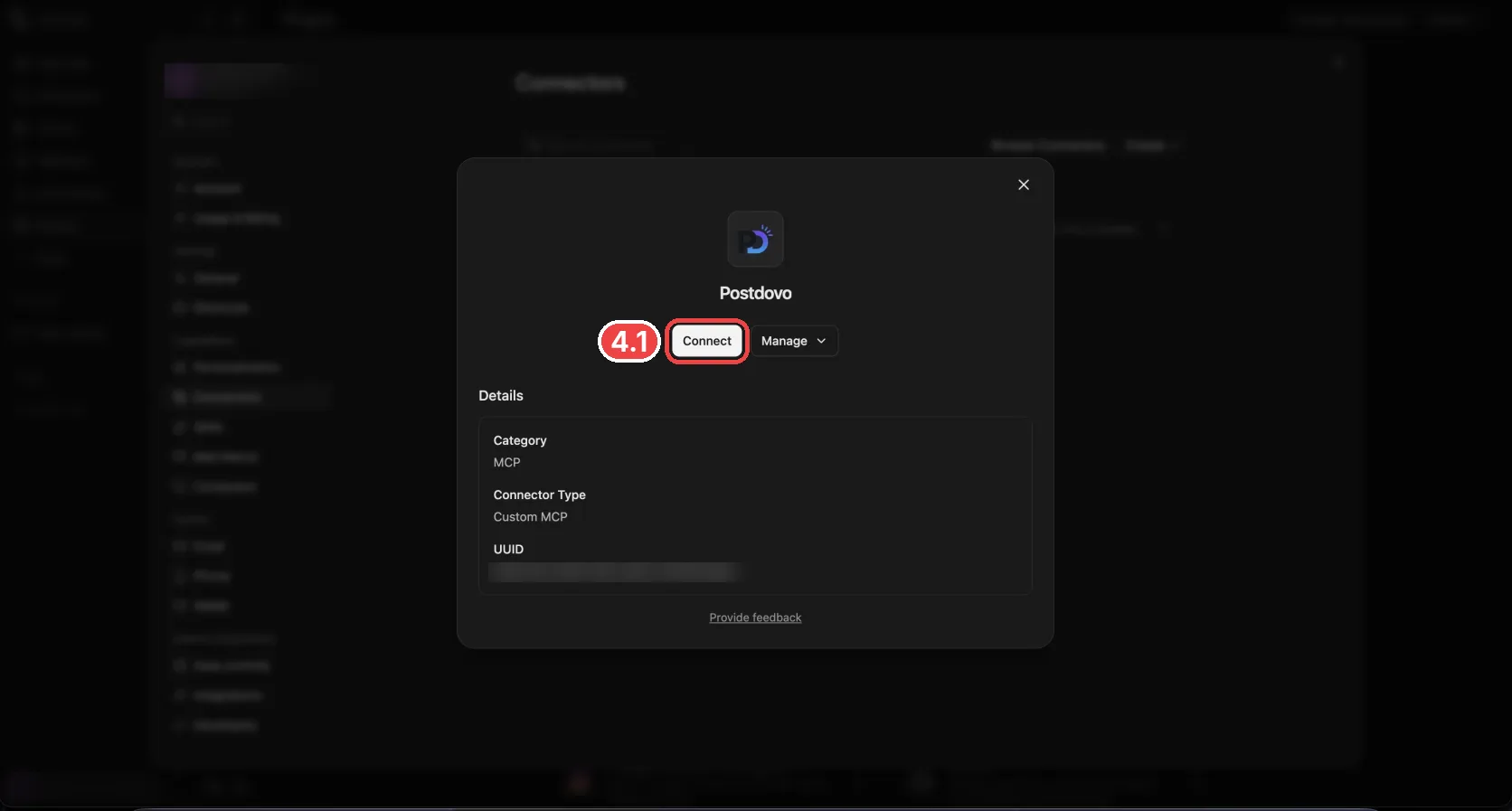
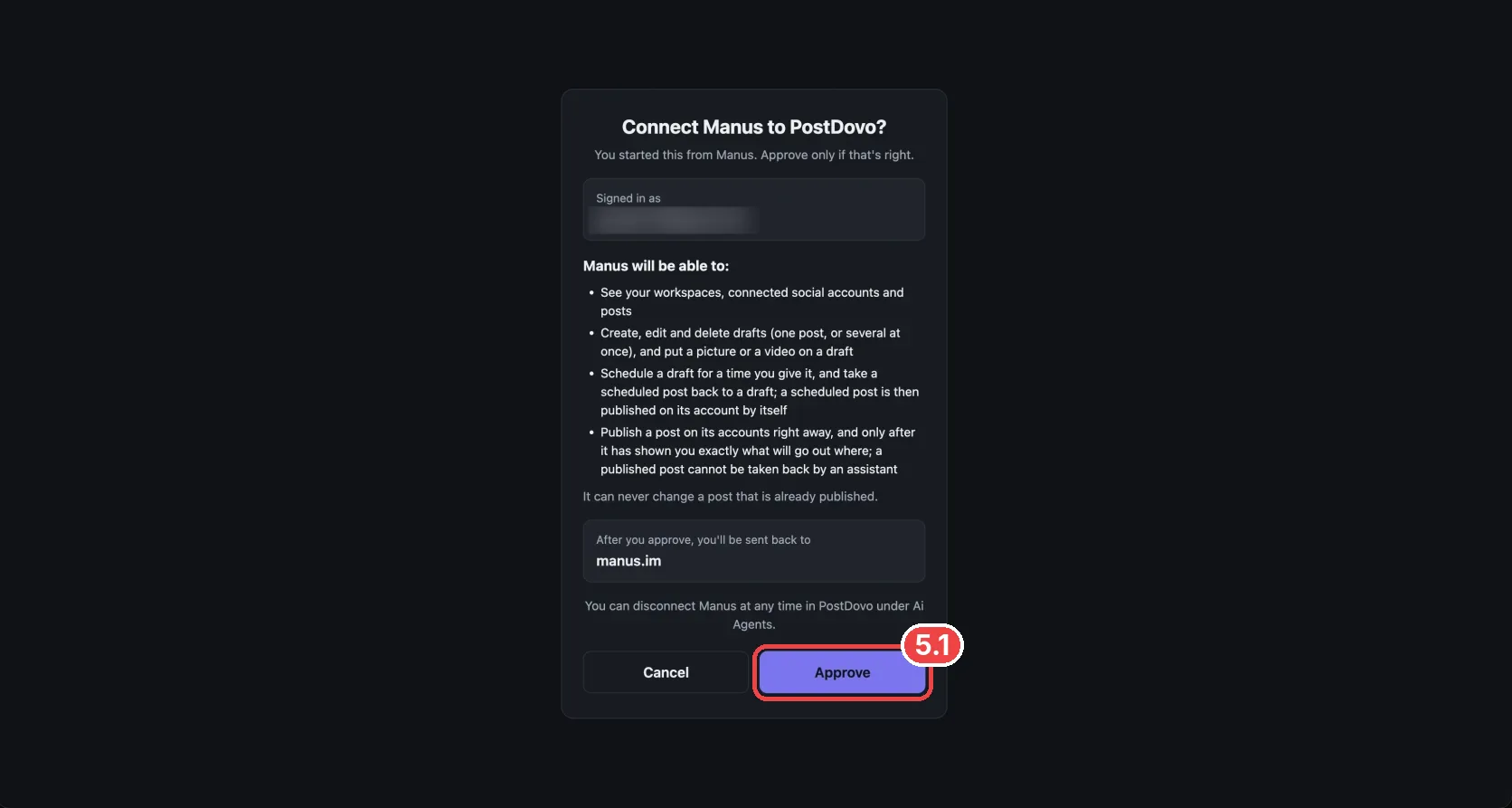
A PostDovo authorization window opens. Sign in if asked, review the requested access and click Approve (5.1). This completes authorization and returns you to the app.
Use PostDovo in Cue
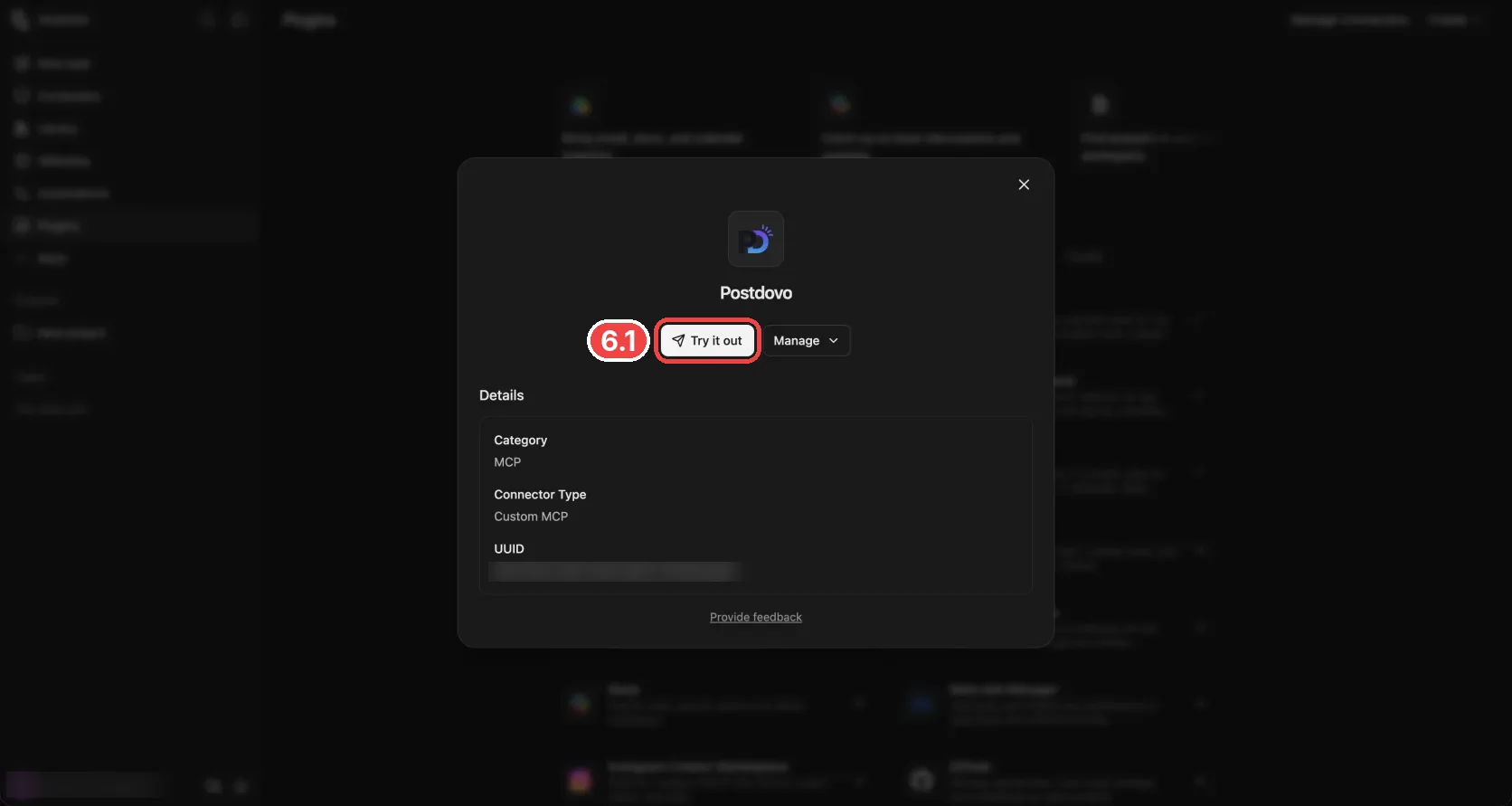
The connected connector shows Try it out (6.1). Click it, or return to Cue and start a task with the prompt below.
Using PostDovo, which social accounts do I have connected?
Cue uses PostDovo’s tools to retrieve your connected social accounts.
If Cue cannot connect, check the saved server URL and reconnect. If browser sign-in does not finish, use the access token alternative below.
Alternative: Use a PostDovo Access Token
If browser sign-in does not work, connect with an access token using the Custom MCP form.
Configure the Custom MCP Form
- Open PostDovo Access tokens. Create a token and copy it when shown.
- In Connectors, choose Create → Custom MCP.
- Enter PostDovo as the Server name, select HTTP for Transport type and paste the MCP URL below. PostDovo requires streamable HTTP, not SSE.
- Under Custom headers, click Add. Enter Authorization as the header name.
- For the value, enter Bearer, followed by one space and your actual token.
- Keep the OAuth switch off and press Save. Connect or enable the connector if prompted, then repeat the connection check.
https://app.postdovo.com/mcp
Bearer YOUR_TOKEN
Replace YOUR_TOKEN with your PostDovo token. Keep it private and revoke it in PostDovo when it is no longer needed.
Go to Access TokensCue and PostDovo Video Guide
Try Your First Social Media Prompt
After connecting, ask Cue for a draft:
Using PostDovo, help me create a social media post for my business. Ask for my business details and target account, prepare a draft, and show it to me before scheduling or publishing.
Review the draft and selected accounts in PostDovo. When you are ready to schedule, provide the exact date, time and timezone. You can also ask the connected agent to plan a series of posts and prepare the drafts for review.
PostDovo Starter Includes AI-Agent Automation
Starter supports up to five connected social accounts in one workspace, with unlimited Single Post scheduling and publishing. Its AI-agent access covers planning, drafts, media, scheduling and publishing; Analytics is excluded.
PostDovo AI generation uses credits, and X publishing requires credits. Manus or Cue subscription costs and usage limits apply separately.
Using Manus directly? See the Manus setup.
Troubleshooting and FAQs
Does browser sign-in require a token?
No. Browser sign-in connects PostDovo without a manually created token. The access token method is an alternative if browser authorization fails.
Why does discovery or connection fail?
Check that the URL is exactly https://app.postdovo.com/mcp, with no trailing slash. Confirm authorization completed. If the interface supports Custom MCP, try the token alternative for an authentication failure.
Can I schedule images or videos?
After verifying tool access, use media supported by the destination platform and the tools available to the connected agent. Review the draft and its target accounts before scheduling.
How do I disconnect?
Revoke the relevant app connection on PostDovo’s AI Agents page and remove or disconnect the connector in the app where you added it. Revoke any access token you no longer need.
Prepare Your First Social Post with Cue
Connect PostDovo, approve access and check your social accounts. Ask Cue for a draft, review it, then give the date, time and timezone when you are ready to schedule.