
How to Post to Social Media from Cursor AI Using MCP
Turn code changes, release notes, and product updates into social media drafts—right from Cursor.
Connect Cursor to PostDovo once, then prepare platform-specific captions, attach supported media, schedule posts, and publish with approval from your coding workspace.
AI-agent connectivity is included with PostDovo Starter at $0/month.
Why Connect Cursor AI to PostDovo?
Software teams already track features, fixes, and releases in their code repositories. With PostDovo connected, Cursor can help turn that verified project information into announcements without repeatedly switching between your editor and social publishing tools.
PostDovo exposes its publishing capabilities through a remote Model Context Protocol (MCP) server. Cursor connects to the server using its mcp.json configuration and authorizes access through OAuth.
Before You Connect Cursor
You will not need to generate a PostDovo API key. Cursor requests authorization after you save the server configuration.
How to Connect Cursor to PostDovo in 2 Steps
Add the PostDovo MCP Server
Open Cursor, then follow the numbered actions shown in the first screenshot.
- 1.1 Click Customize in the left sidebar.
- 1.2 Choose the MCPs tab.
- 1.3 Click New MCP Server to open the
mcp.jsonfile.
1.4. Enter the following configuration in the file:
{
  "mcpServers": {
    "postdovo": {
      "url": "https://app.postdovo.com/mcp"
    }
  }
}| Setting | Purpose |
|---|---|
mcpServers | Contains Cursor’s MCP server configurations. |
postdovo | The name of your PostDovo connection. |
url | PostDovo’s remote MCP endpoint. |
postdovo inside your existing mcpServers object. Do not overwrite your other server entries; keep the JSON syntax valid.- 1.5 Choose Save File, or press Ctrl + S on Windows (Cmd + S on macOS).
- 1.6 Return to the MCPs list and click Authenticate next to PostDovo under Needs Attention.
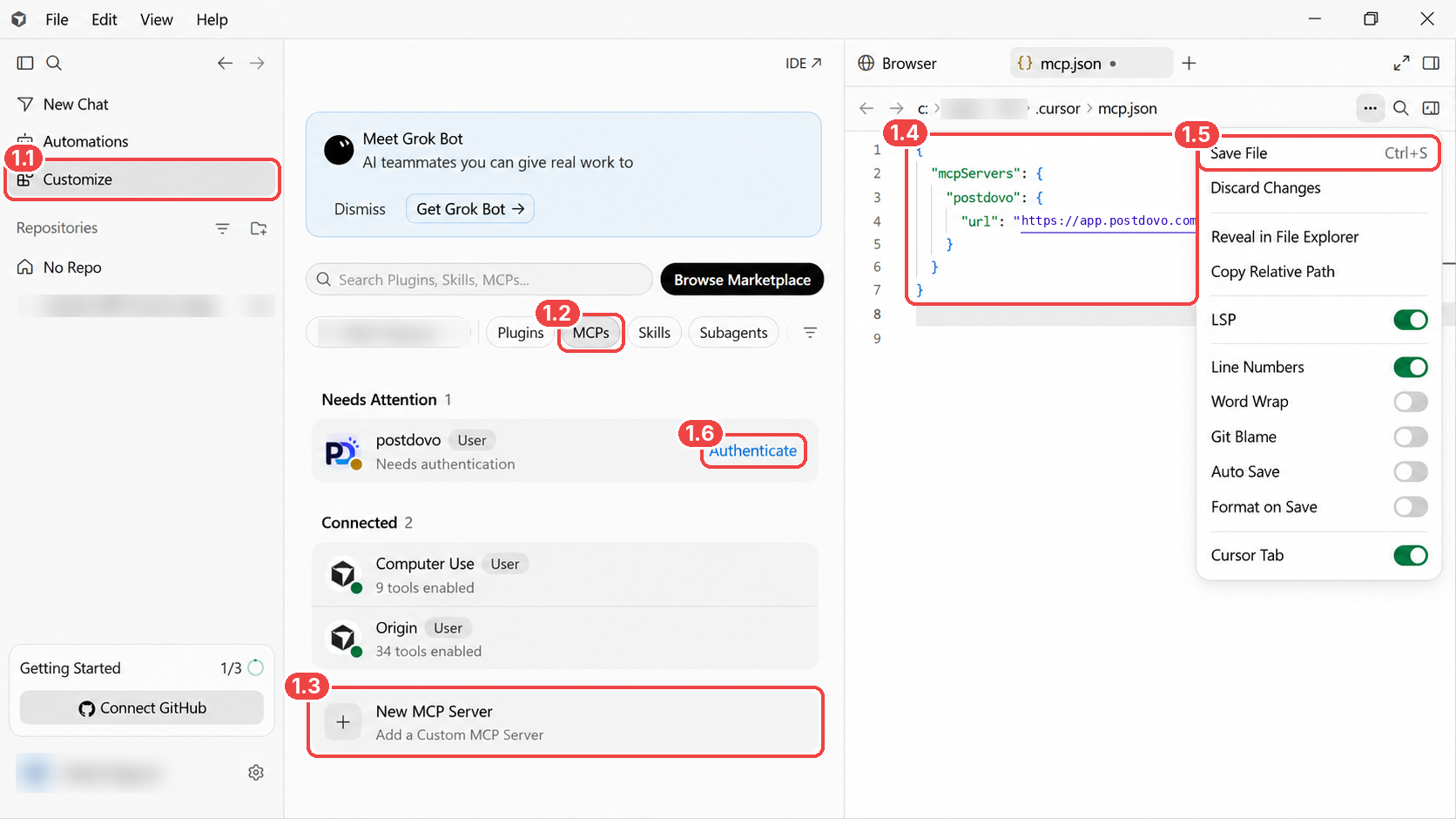
mcp.json, and click Authenticate.Approve Cursor’s Access to PostDovo
Cursor opens the PostDovo OAuth authorization page. It explains the permissions requested by the integration, including the ability to:
- View your workspaces, connected social accounts, and posts.
- Create, edit, or delete drafts, and attach supported pictures or videos.
- Schedule drafts and return scheduled posts to drafts.
- Publish immediately only after showing the publishing details and receiving approval.
Published posts cannot be edited through these MCP tools. Review the application name and permissions before continuing.
- 2.1 Click Approve to complete authorization and return to Cursor.
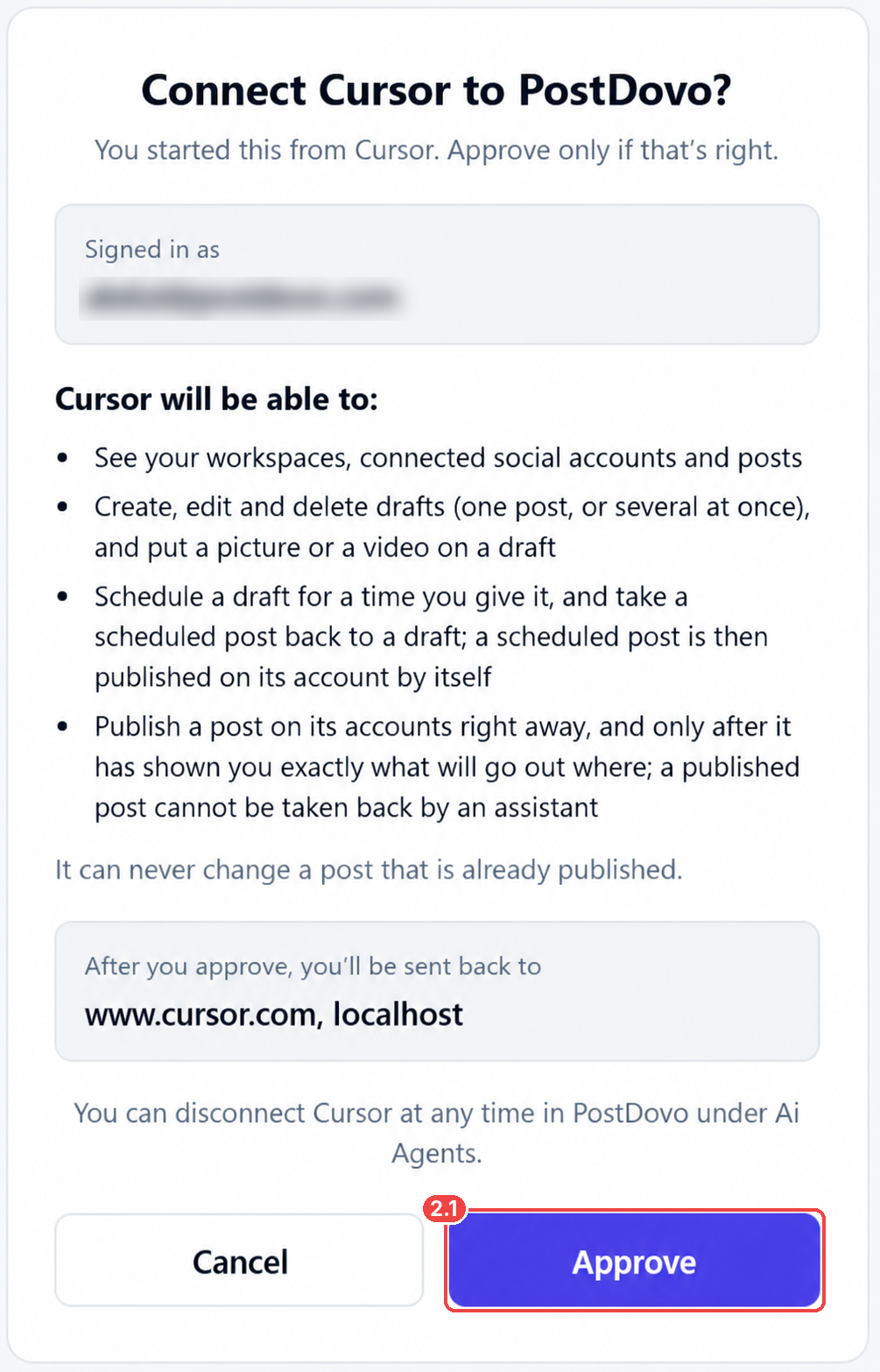
Verify Your Cursor and PostDovo Connection
Open a Cursor Agent conversation and ask for a read-only account check:
If Cursor returns your connected account information, authentication is working. If no accounts appear, confirm they are connected in the correct PostDovo workspace.
Watch: Connect Cursor AI to PostDovo
Follow the MCP setup, OAuth authentication, and first publishing request in the embedded tutorial.
Try Cursor AI Social Media Automation
Start with an example that does not require a project’s changelog. It asks Cursor to write two posts about PostDovo’s free Starter plan and save them as drafts for review.
Using PostDovo, prepare two posts introducing PostDovo Starter at $0/month.

Write a different caption for Facebook and LinkedIn. Mention up to 5 connected social accounts, unlimited Single Post creation and scheduling, and AI-agent connectivity.

Use https://app.postdovo.com as the call to action. Save both posts as drafts for review. Do not publish.
Turn Your Own Release Notes into Social Media Drafts
Once the first test works, use Cursor’s project awareness to draft posts about real software updates. Keep your current project’s README and changelog up to date so the content reflects confirmed changes.
Using PostDovo, review the README and latest changelog in my current Cursor project.

Identify only confirmed product improvements and prepare 3 social media announcements for Facebook, LinkedIn, and Threads. Use a unique caption for each platform and include the project's official website as the CTA.

If an approved product announcement image is available and can be attached through PostDovo's supported tools, attach it. Otherwise, save text-only drafts and tell me which media is needed.

Save all posts as drafts. Do not schedule or publish. Ask me if release details, the website, or social accounts are unclear.
Review the final captions, destinations, and any image attachments in PostDovo. If the image cannot be attached through the available tools, Cursor should explain the missing requirement rather than claim it was uploaded.
Schedule Social Media Posts from Cursor
Cursor can also help plan a series of posts through PostDovo’s supported Single Post tools. For example:
Review the plan before approving it. Single Post is PostDovo’s manual and agent-assisted publishing flow; it is different from the automated Generate Campaign feature.
What Can Cursor Manage Through PostDovo?
| Capability | What Cursor Can Do |
|---|---|
| Write captions | Prepare platform-specific text for connected social accounts. |
| Manage drafts | Create, review, edit, and delete supported drafts. |
| Attach media | Add supported images and videos when suitable files or URLs are accessible. |
| Schedule posts | Set dates, times, time zones, and publishing destinations. |
| Manage scheduled content | Review scheduled posts and return scheduled posts to drafts. |
| Publish posts | Publish with the required preview and approval. |
| View workspace data | See accessible workspaces, posts, and connected social accounts. |
Available actions depend on the MCP tools authorized in your session and each platform’s publishing rules.
Social Media Platforms Supported by PostDovo
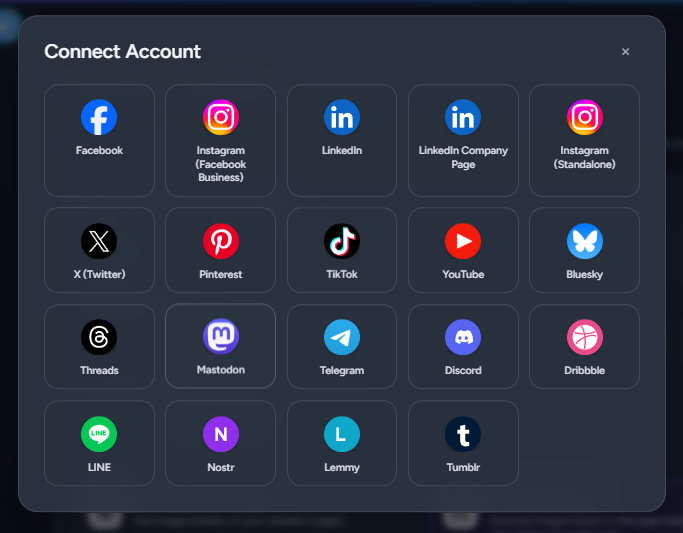
PostDovo offers 19 social media connection options for supported creation, scheduling, and publishing actions.
| Platform | Create Content | Schedule Posts | Publish Posts |
|---|---|---|---|
 Facebook | ✓ | ✓ | ✓ |
 Instagram (Facebook Business) | ✓ | ✓ | ✓ |
 LinkedIn | ✓ | ✓ | ✓ |
| LinkedIn Company Page | ✓ | ✓ | ✓ |
| Instagram (Standalone) | ✓ | ✓ | ✓ |
 X (Twitter)* | ✓ | ✓ | ✓ |
 Pinterest | ✓ | ✓ | ✓ |
 TikTok | ✓ | ✓ | ✓ |
 YouTube | ✓ | ✓ | ✓ |
 Bluesky | ✓ | ✓ | ✓ |
 Threads | ✓ | ✓ | ✓ |
 Mastodon | ✓ | ✓ | ✓ |
 Telegram | ✓ | ✓ | ✓ |
| Discord | ✓ | ✓ | ✓ |
 Dribbble | ✓ | ✓ | ✓ |
 LINE | ✓ | ✓ | ✓ |
 Nostr | ✓ | ✓ | ✓ |
 Lemmy | ✓ | ✓ | ✓ |
 Tumblr | ✓ | ✓ | ✓ |
Connect Your Social Media Accounts First
Open your PostDovo workspace, select Connect Accounts, choose the platforms you want, and complete each authorization. Cursor can only post to connected accounts available in the authorized workspace.
Is Cursor AI Integration Free with PostDovo?
Yes. PostDovo includes supported AI-agent connectivity with its Starter plan at $0/month. You don’t need a paid PostDovo subscription simply to connect Cursor.
| Starter Feature | Included |
|---|---|
| Monthly subscription | $0/month |
| Connected social accounts | Up to 5 |
| Workspaces | 1 |
| Single Post creation | Unlimited |
| Single Post scheduling | Unlimited |
| Single Post publishing | Unlimited, except X credit requirements |
| Cursor AI connectivity | Included |
| Claude, ChatGPT, and other supported AI agents | Included |
Cursor’s own account, subscription, or model usage charges are separate. AI generation and other credit-based PostDovo features may have independent limits.
If you also use Claude Code, you can connect it the same way and keep one PostDovo workspace for both.
Troubleshooting Cursor MCP and PostDovo
PostDovo Shows “Needs Authentication”
Return to Customize → MCPs, locate PostDovo, and click Authenticate. Complete the browser-based OAuth approval.
PostDovo Does Not Appear in the MCP List
Check that mcp.json was saved with valid JSON, including the mcpServers object and the exact PostDovo URL. Reopen the MCP settings or restart Cursor if necessary.
Cursor Cannot Find Connected Accounts
Confirm that the accounts are connected to the PostDovo workspace Cursor is currently accessing. Start with the read-only workspace check above.
Images or Videos Cannot Be Attached
Confirm that the media is available through a supported file or URL attachment method, meets the destination platform’s requirements, and is reachable from the workflow. Cursor’s network settings differ from Claude’s separate network-egress controls.
Cursor Cannot Call a PostDovo Tool
Check that PostDovo is authenticated and its tools are enabled. Review the tool approval prompt or inspect Cursor’s MCP logs for connection errors.
Cursor AI + PostDovo FAQs
1. How do I connect Cursor to PostDovo?
Open Customize → MCPs → New MCP Server. Add https://app.postdovo.com/mcp in your mcp.json, save, select Authenticate, and approve Cursor in PostDovo.
2. Why does PostDovo say “Needs Authentication”?
Cursor recognized the server but OAuth is incomplete. Click Authenticate next to PostDovo and approve its requested permissions.
3. Can Cursor publish images and videos?
Yes, through supported PostDovo media tools when the file is accessible and the destination platform accepts its format. Image generation is a separate capability.
4. Can Cursor schedule posts across multiple accounts?
Yes. Cursor can use PostDovo’s supported scheduling tools for connected accounts, with the appropriate approvals and platform requirements.
5. Is Cursor integration free?
PostDovo includes Cursor connectivity with Starter at $0/month. Cursor’s own usage charges are separate, and publishing to X requires credits.
6. How do I disconnect Cursor from PostDovo?
Revoke access in PostDovo → AI Agents. You can also disable or remove the PostDovo MCP configuration within Cursor.