
How to Connect NanoClaw to PostDovo for Social Media Automation
Give a NanoClaw agent group access to PostDovo so you can prepare drafts, schedule posts and publish through your agent.
This guide connects PostDovo’s remote MCP server to a dedicated agent group and routes terminal messages to it. Authentication uses a PostDovo access token in an Authorization header.
Starter is $0/month and includes AI agents and full automation; Analytics is excluded.
Quick Setup Overview
Create a token, create or choose an agent group, add PostDovo’s MCP server, then wire the group to the Local CLI messaging group. Send your first message from the NanoClaw project folder.
https://app.postdovo.com/mcp
The endpoint uses streamable HTTP. The setup below uses token authentication rather than a browser OAuth flow.
Before You Start
Have NanoClaw installed and running, with its container runtime and agent provider configured. Run these commands on the computer hosting NanoClaw. On Windows, use a terminal inside WSL2.
Use a Node.js release supported by your NanoClaw version. Current NanoClaw releases require Node.js 22 or newer and may enforce a newer patch level during setup. The supplied terminal screenshot shows a Node 20 warning; do not treat that warning as the recommended configuration.
Connect your social accounts in PostDovo first. The supplied screenshots show this setup returning connected accounts; the commands have not been independently run for this article. CLI options can change, so check your installed command’s help if an option is rejected.
About token storage: NanoClaw’s recommended credential path is the OneCLI vault. The direct –headers method shown here stores the token in the group’s configuration; it is not a vault configuration. Use a dedicated, revocable PostDovo token. The command and configuration output can expose it, including in terminal history. For a vault-managed deployment, configure the token through your installed OneCLI credential workflow instead.
| Placeholder | Replace it with |
|---|---|
| YOUR_TOKEN | The access token created in PostDovo. |
| YOUR_GROUP_ID | The agent-group id returned by NanoClaw. |
| MESSAGING_GROUP_ID | The Local CLI messaging-group id. |
| THAT_WIRING_ID | An existing wiring id, only for the optional trigger adjustment. |
Connect NanoClaw to PostDovo in Seven Steps
Create a PostDovo Access Token
Open PostDovo’s Access tokens page, create a token and copy it when it appears. The token is shown once.
Go to Access TokensKeep it ready for Step 3. Do not put it in messages to your agent or share it in screenshots.
Create an Agent Group for PostDovo
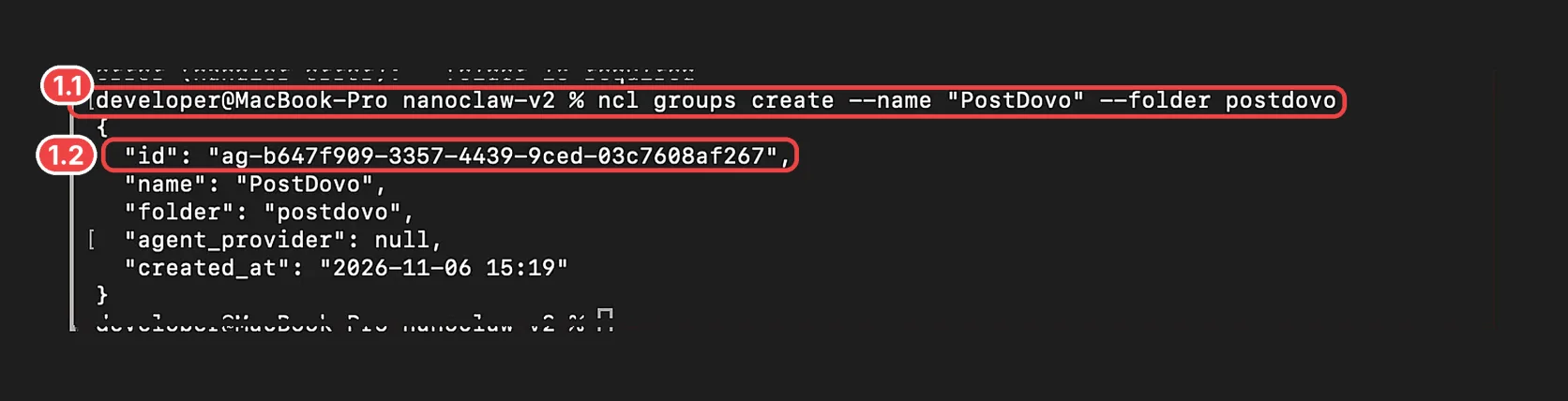
Run the command at 1.1. NanoClaw returns JSON; copy the id at 1.2. In the example it starts with ag-. Use your returned value wherever a command says YOUR_GROUP_ID.
ncl groups create --name "PostDovo" --folder postdovo
If ncl is not found, open the NanoClaw checkout and prefix the command with pnpm:
pnpm ncl groups create --name "PostDovo" --folder postdovo
If NanoClaw cannot be reached, start its host service first. To reuse a group, run ncl groups list and copy that group’s id. Reusing the same folder may return the existing group; check the returned details before continuing.
Add PostDovo’s MCP Server to the Group
Replace YOUR_GROUP_ID and YOUR_TOKEN, then run the command at 2.1. Confirm that the response shows the correct URL at 2.2.
ncl groups config add-mcp-server --id YOUR_GROUP_ID --name postdovo --url https://app.postdovo.com/mcp --headers '{"Authorization":"Bearer YOUR_TOKEN"}'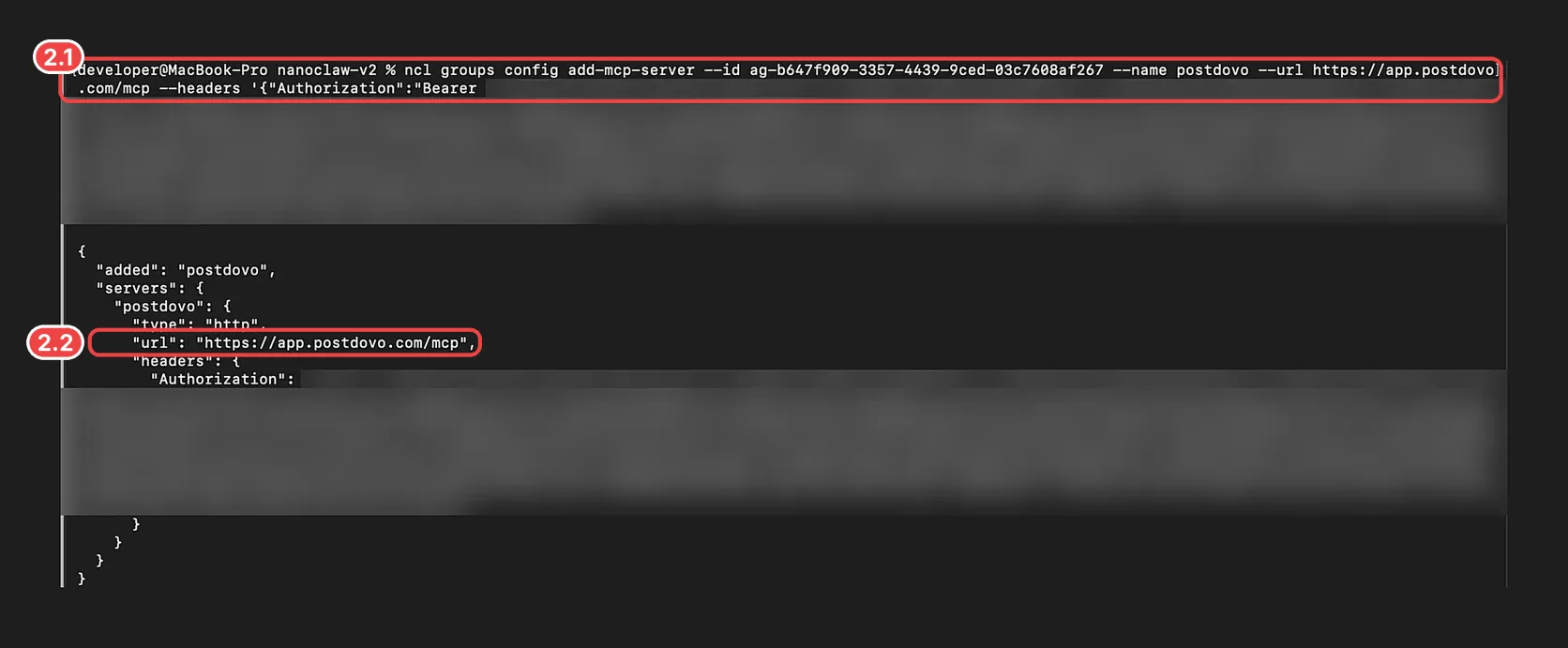
Keep Bearer, followed by one space and the token. Use the HTTPS URL exactly as shown. This header method saves the credential in group settings, as explained above.
A new group loads its configuration when it first starts. If the group is already running, restart it after adding or changing the server:
ncl groups restart --id YOUR_GROUP_ID
Find the Local CLI Messaging Group
Run the command at 3.1. Find the row whose platform_id is local and copy its id at 3.2. Use it for MESSAGING_GROUP_ID.
ncl messaging-groups list --channel-type cli

If the list is empty, create the Local CLI chat and copy the returned id:
ncl messaging-groups create --channel-type cli --platform-id local --name "Local CLI" --unknown-sender-policy public
The public sender policy above applies to this local CLI messaging group. Configure sender access separately when adding a shared chat channel.
Wire the Agent Group to Terminal Chat
Replace both ids and run 4.1. The pattern shown at 4.2 routes messages beginning with the word postdovo to this group.
ncl wirings create --messaging-group-id MESSAGING_GROUP_ID --agent-group-id YOUR_GROUP_ID --engage-mode pattern --engage-pattern '^[Pp]ost[Dd]ovo\b'
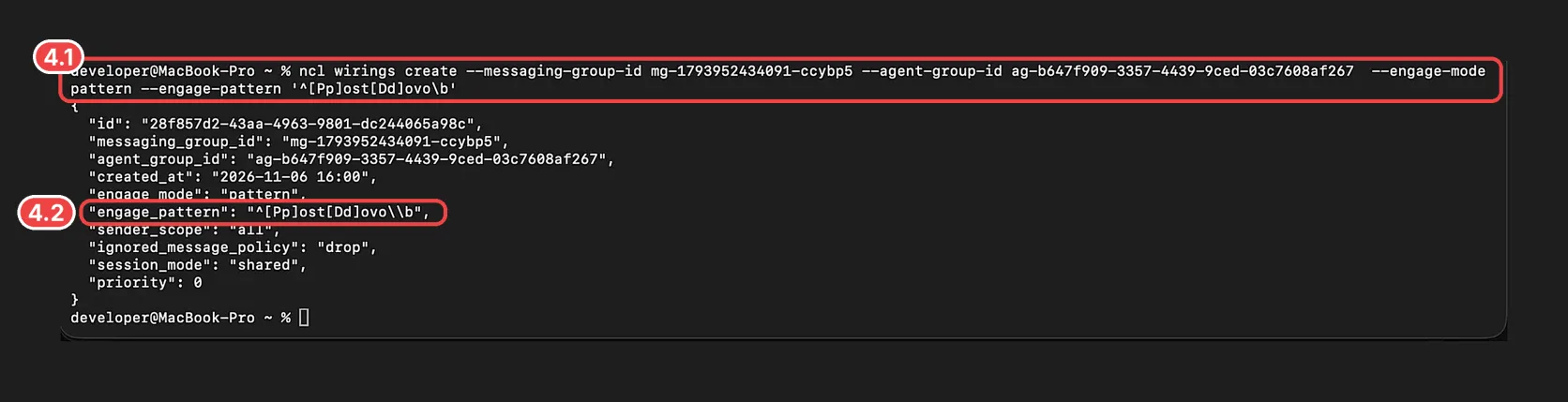
The pattern matches postdovo, PostDovo and the other case combinations expressed by its character classes. The word boundary prevents a longer word such as postdovotest from matching.
If Another Agent Also Answers
List the wirings, identify the setup agent’s wiring, then narrow that existing wiring so it ignores messages starting with postdovo. Check the wiring belongs to the intended agent before changing it.
ncl wirings list
ncl wirings update --id THAT_WIRING_ID --engage-pattern '^(?![Pp]ost[Dd]ovo\b)'
This optional change is for an existing pattern-based wiring. Confirm its engagement mode and your version’s update syntax before applying it.
Talk to the PostDovo Agent
Open your NanoClaw project folder and send the message at 5.1. Change the folder path if you cloned NanoClaw elsewhere.
cd ~/nanoclaw-v2
pnpm run chat postdovo list my connected social accounts in PostDovo
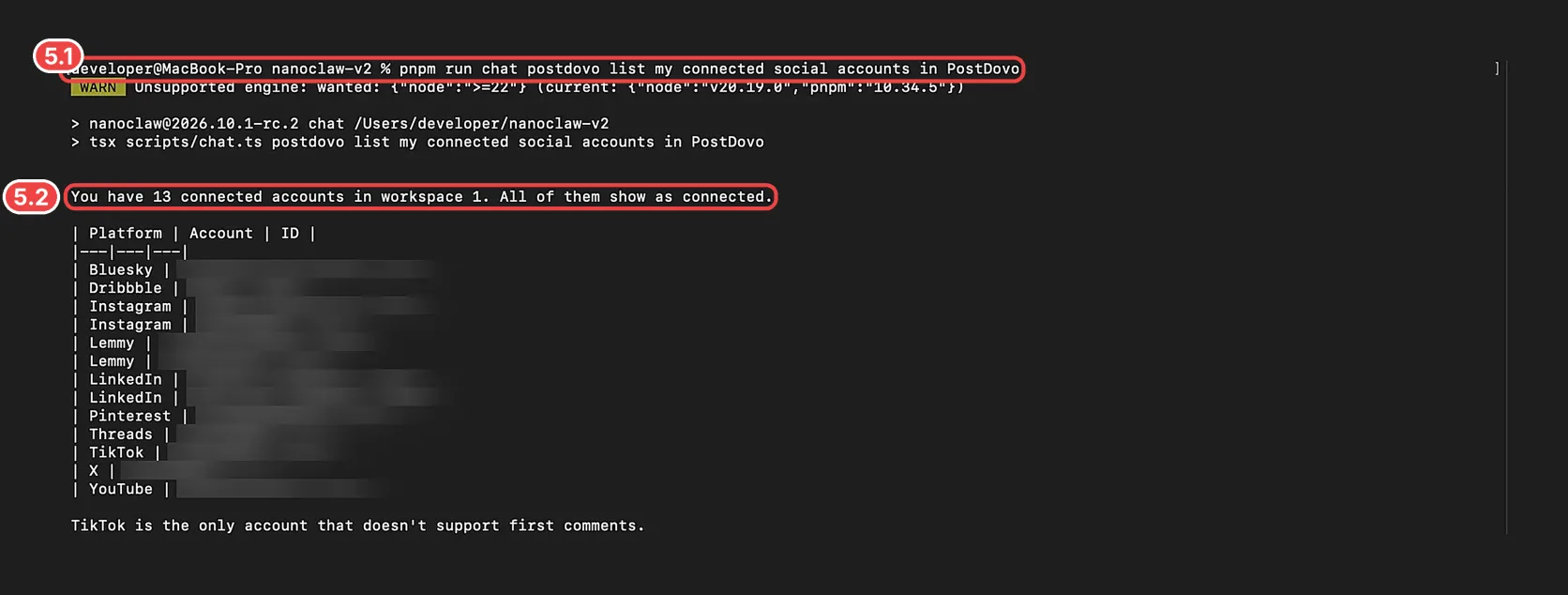
Everything after chat is sent as one message. Begin with postdovo so it matches the wiring. A first reply may take around 30–60 seconds while the container starts; timing depends on your installation.
Confirm the response at 5.2 lists your own connected accounts. The example’s account count is specific to that account, not the free-plan allowance. With the server name used here, PostDovo tools are typically exposed with the prefix mcp__postdovo__.
If you see Missing script: chat, run the command from the actual NanoClaw checkout. If you do not remember its location, the following shortcut works when setup created the expected ncl symlink:
cd "$(dirname "$(dirname "$(readlink ~/.local/bin/ncl)")")"
If your installation uses another ncl location or launcher, open the checkout directly instead.
Check the Saved MCP Configuration
Show the group settings and confirm postdovo appears under mcp_servers with the correct URL.
ncl groups config get --id YOUR_GROUP_ID
Configuration output may include the Authorization header. Keep it private. A saved entry confirms configuration; the account-list response in Step 6 checks the live connection.
Remove the MCP Server
ncl groups config remove-mcp-server --id YOUR_GROUP_ID --name postdovo
Restart an already running group after removal. Revoke the dedicated token in PostDovo when it is no longer needed.
Watch the NanoClaw Setup Tutorial
Try Your First Social Media Prompt
Keep the postdovo prefix when sending terminal messages to this wiring. Start with a draft:
pnpm run chat postdovo help me draft a social media post for my business. Ask for the business details and target account. Show me the draft before scheduling or publishing.
Plan a Campaign
pnpm run chat postdovo help me plan a seven-day social media campaign. Ask for my website, campaign goal, target accounts, start date and timezone. Prepare the drafts and media plan for my review before scheduling.
Review drafts and selected accounts in PostDovo. Include an exact date, time and timezone when you ask the agent to schedule. Images and videos must meet the destination platform’s requirements.
Use a Chat Channel Later
After adding a channel such as WhatsApp or Slack to NanoClaw, wire that channel’s messaging group to the PostDovo agent group. Use the messaging-group id and sender controls for that channel, rather than the Local CLI id. Configure the reply destination as required by your NanoClaw version.
PostDovo Starter Includes Agent Automation
Starter supports up to five connected social accounts in one workspace, with unlimited Single Post scheduling and publishing. Agent connections and full automation are included; Analytics is excluded.
PostDovo AI generation uses credits, and X publishing requires credits. Your NanoClaw hosting and AI provider costs apply separately.
Running OpenClaw as well? It can connect to PostDovo too.
Troubleshooting and FAQs
Why is ncl not found?
Open the NanoClaw checkout and use pnpm ncl before the command arguments. Check that setup completed and its launcher is on your PATH.
Why does NanoClaw say it cannot reach the host?
Start the NanoClaw host service on the machine where you are running these commands, then retry.
Why does the chat command return no reply?
Begin the message with postdovo, confirm both wiring ids and allow for container startup. Run the dropped-message check below. If the agent processes the request but no reply returns, check its return destination.
ncl dropped-messages list
A no_agent_engaged row means no agent matched the message. Check the saved pattern and the messaging-group id.
If the Agent Runs but the Terminal Receives No Reply
Some NanoClaw versions do not create a return destination with the wiring. If yours requires one, add a channel destination pointing to the Local CLI messaging group. Check your installed help before running:
ncl destinations add --agent-group-id YOUR_GROUP_ID --local-name terminal --target-type channel --target-id MESSAGING_GROUP_ID
Why does PostDovo reject the token?
Check that the token is active and that the header value is Bearer, one space, then the token. If needed, create a new token, update the MCP entry and restart the running group.
Is the token stored in OneCLI by this command?
No. The shown –headers command stores it in group settings. Use NanoClaw’s OneCLI credential workflow for a vault-managed deployment.
Does this setup use browser sign-in?
No. This guide uses a PostDovo access token as a Bearer header.
Can I reuse an existing agent group?
Yes. Run ncl groups list, copy its id and add the MCP server to that group. Restart it if it is already running. Check existing wirings before adding another one.
What does the Node.js WARN line mean?
The screenshot’s runtime was Node 20, below the required major version. Use a supported Node release and patch level for your installed NanoClaw version.
Prepare Your First Social Post with NanoClaw
Connect the MCP server, wire your agent group and check the account list. Then create a draft and review it before scheduling or publishing.