
How to Connect Manus to PostDovo for Social Media Automation
Plan, write, schedule and publish social media posts with Manus using your connected PostDovo accounts.
Add PostDovo as a custom MCP server by URL, then sign in through your browser and approve access. No access token is needed for this setup.
Starter is $0/month and includes AI agents and full automation; Analytics is excluded.
Quick Setup
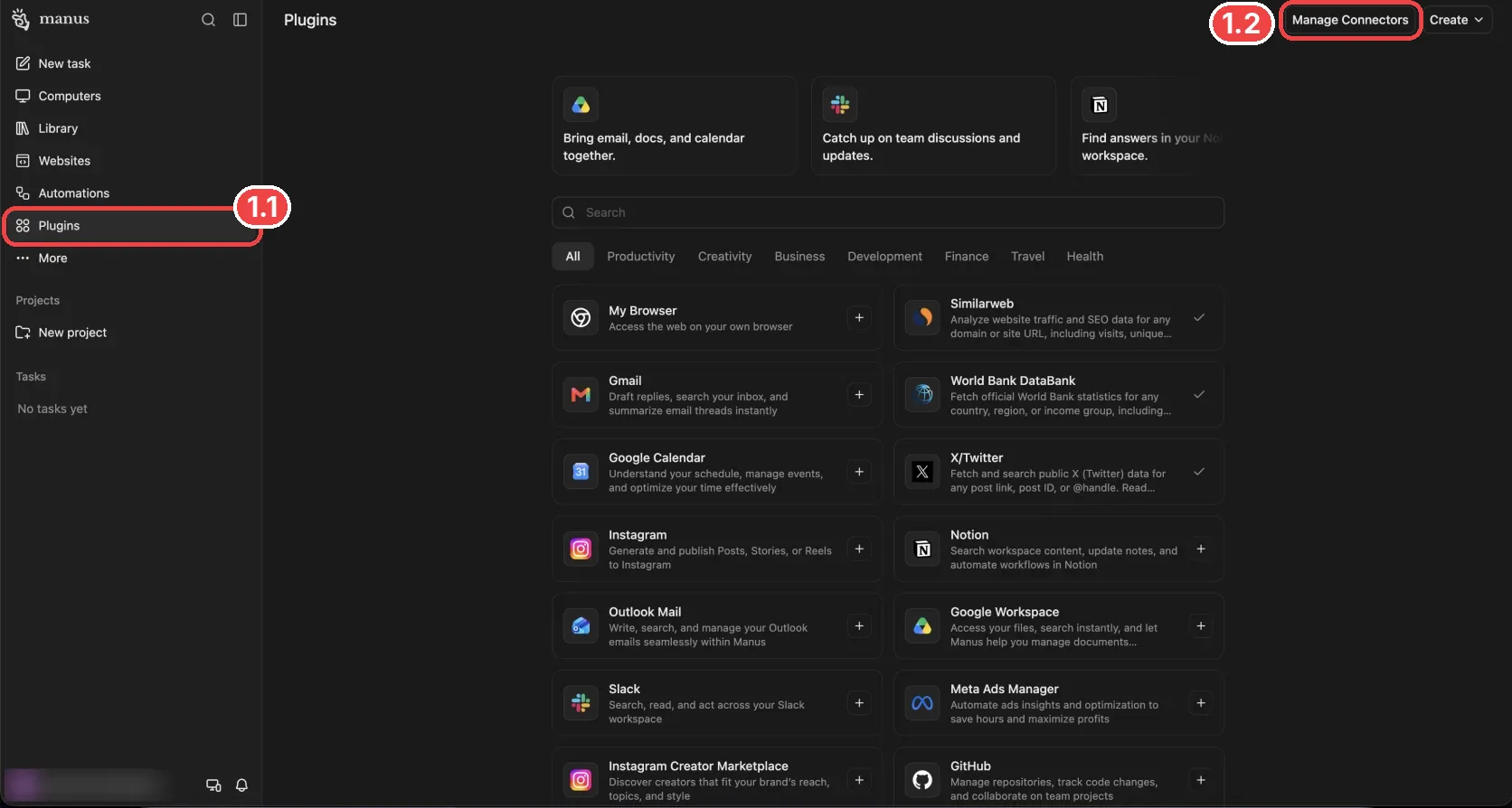
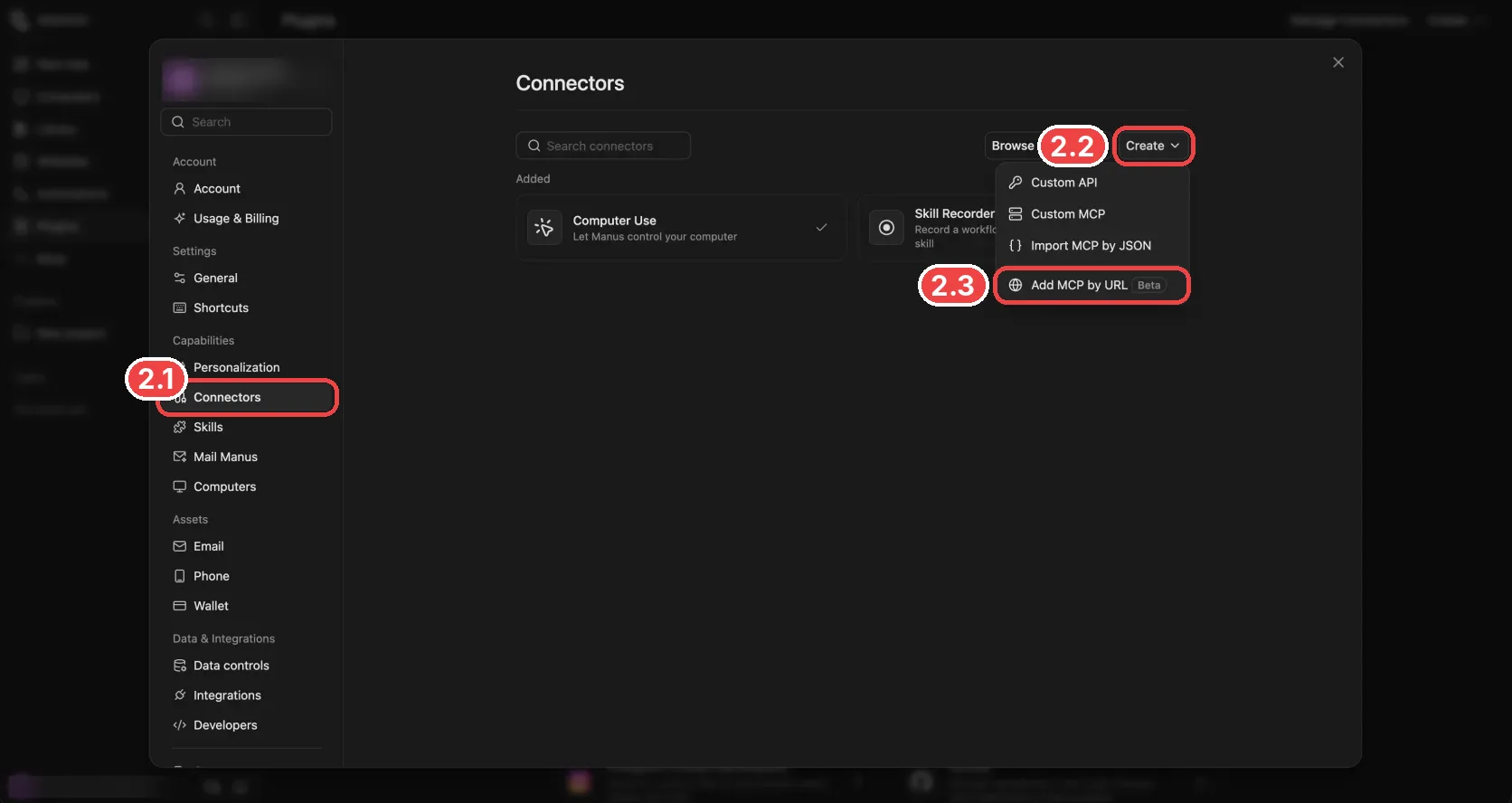
In Manus, open Plugins → Manage Connectors → Create → Add MCP by URL. Enter PostDovo as the server name and use this URL:
https://app.postdovo.com/mcp
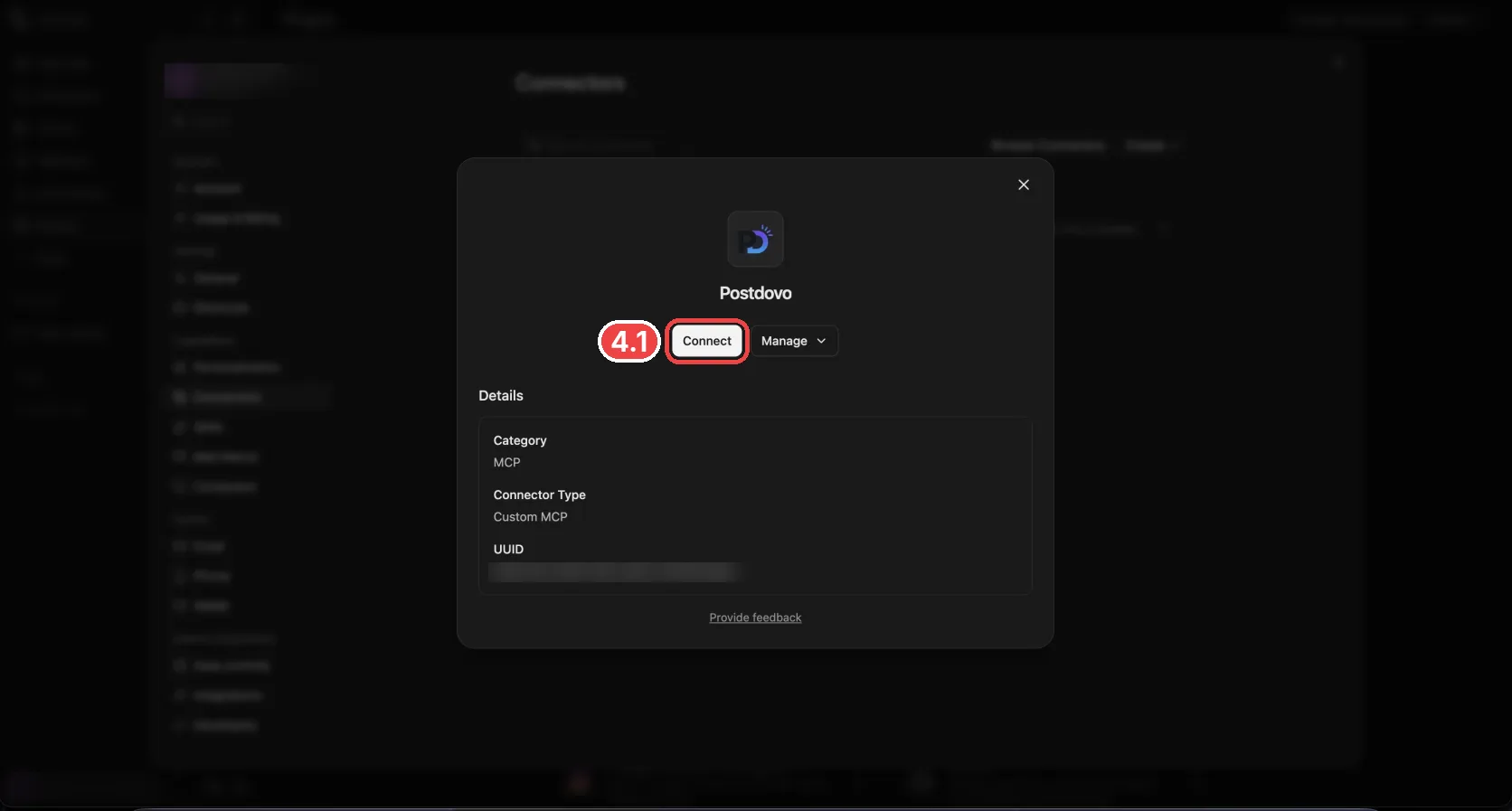
Click Save and Publish, then Connect. Sign in to PostDovo and press Approve. Return to Manus and ask it to list your connected social accounts.
Before You Start
Sign in to Manus and PostDovo. Connect the social accounts you want to use inside PostDovo first. You will approve Manus’s access to your PostDovo account during setup.
Manus account permissions, available connector options and usage limits can vary. Use the options shown in your account. The screenshots below show the browser authorization workflow.
Connect Manus to PostDovo in Six Steps
Open Plugins and Manage Connectors
In the Manus sidebar, click Plugins (1.1). Then click Manage Connectors (1.2) at the top right.
Choose Add MCP by URL
The Connectors page (2.1) opens. Click Create (2.2), then choose Add MCP by URL (2.3), marked Beta in the screenshot.
Enter PostDovo’s MCP Address
Enter PostDovo in Server name (3.1). Paste the following address in Server URL (3.2). Leave Advanced settings unchanged, then click Save and Publish (3.3).
https://app.postdovo.com/mcp
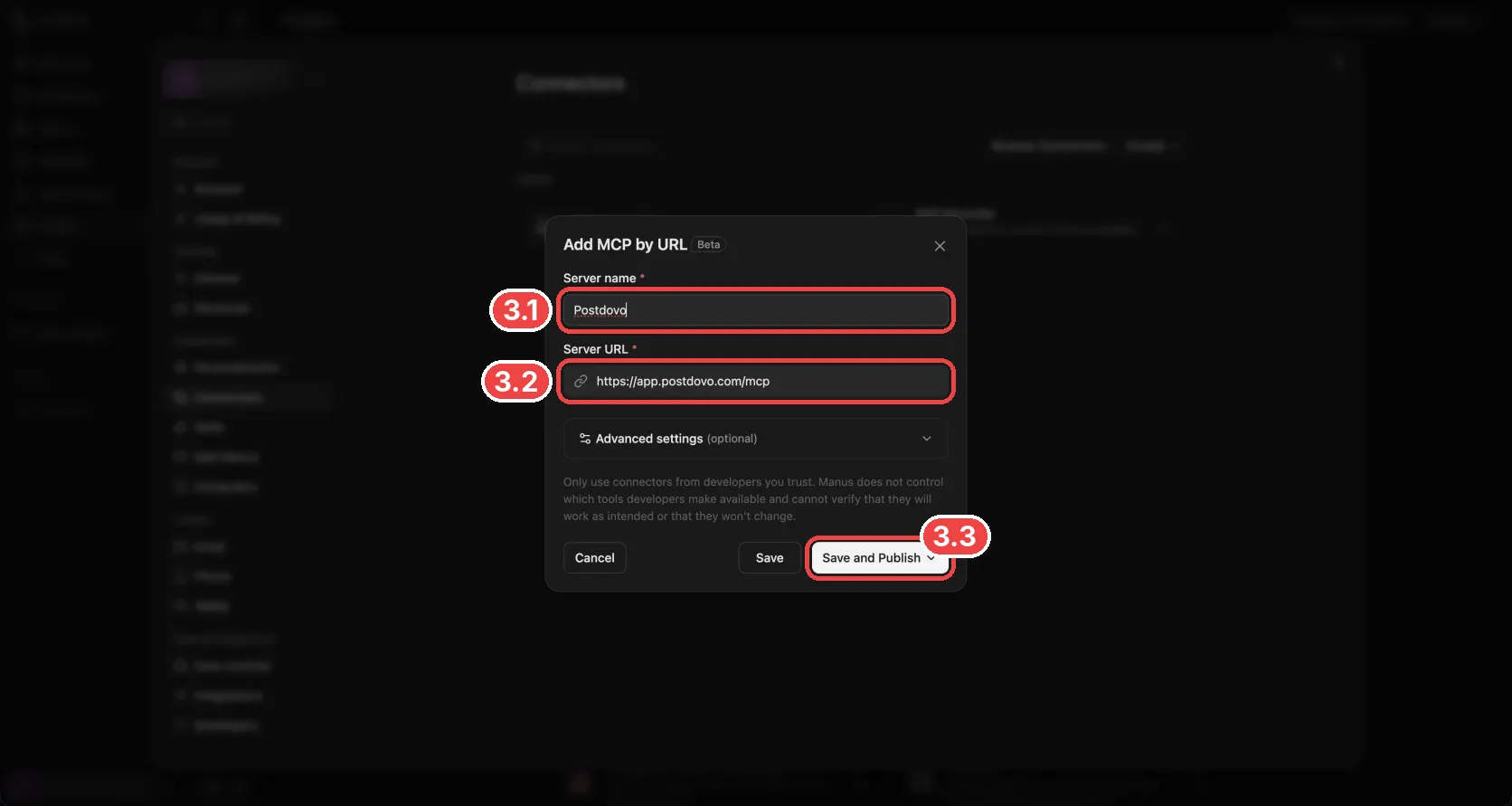
Use the exact URL: include https:// and the ending /mcp, with no trailing slash. The website homepage is not the MCP endpoint. An incorrect address or a redirect can prevent discovery or connection.
Press Connect
Manus opens the PostDovo connector. Click Connect (4.1) to start browser authorization.
Sign In to PostDovo and Approve
PostDovo opens in your browser. Sign in if asked, review the permissions, and click Approve (5.1). This completes authorization and sends you back to Manus with PostDovo connected.
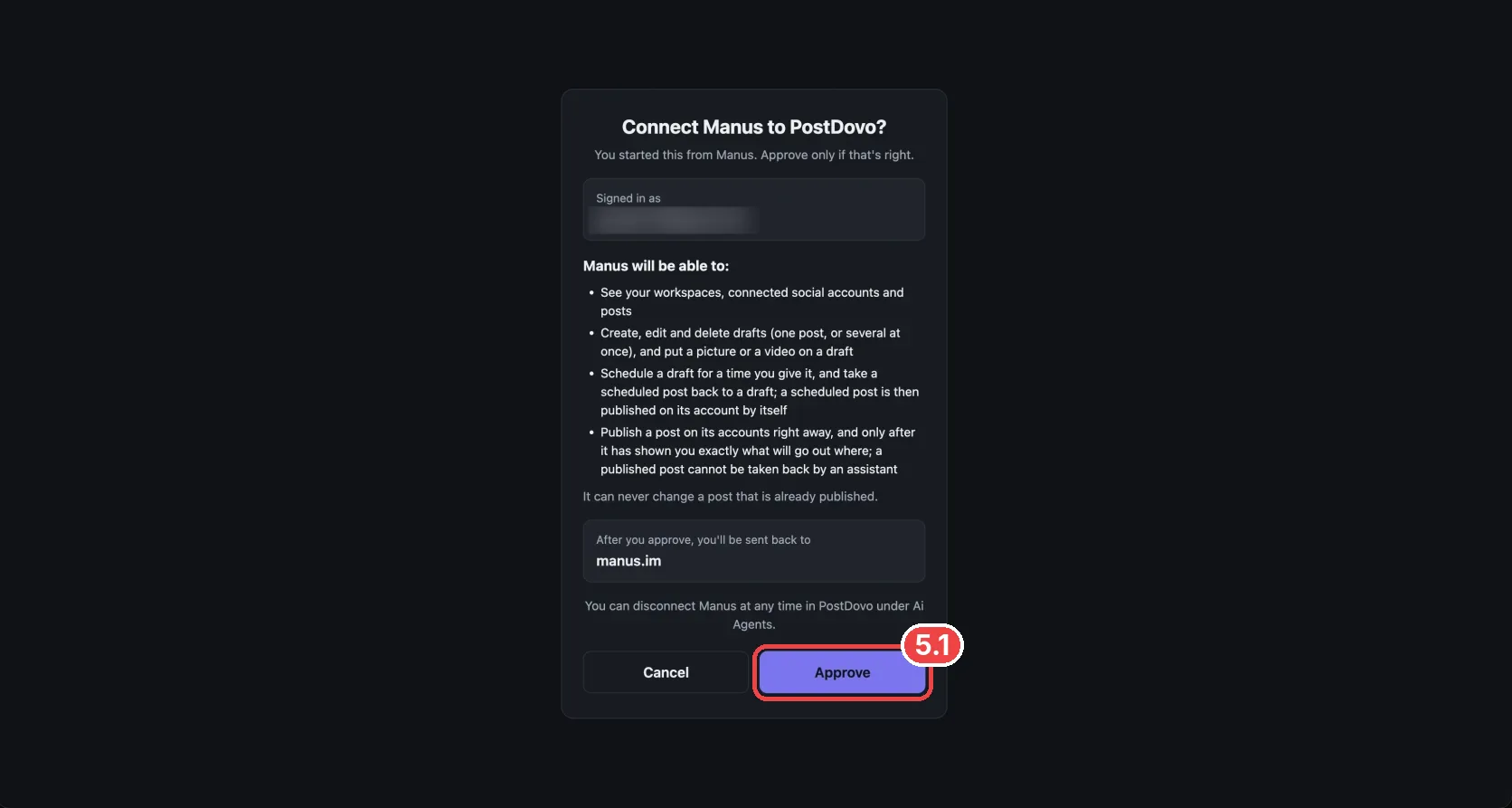
The approval screen explains that Manus can work with your workspaces, connected accounts, drafts, media and schedules, and publish posts when instructed. It also states that the assistant cannot change a post that is already published.
Check Your Connected Accounts
The connector now shows Try it out (6.1). Click it or start a new task, then paste this prompt:
Using PostDovo, which social accounts do I have connected?
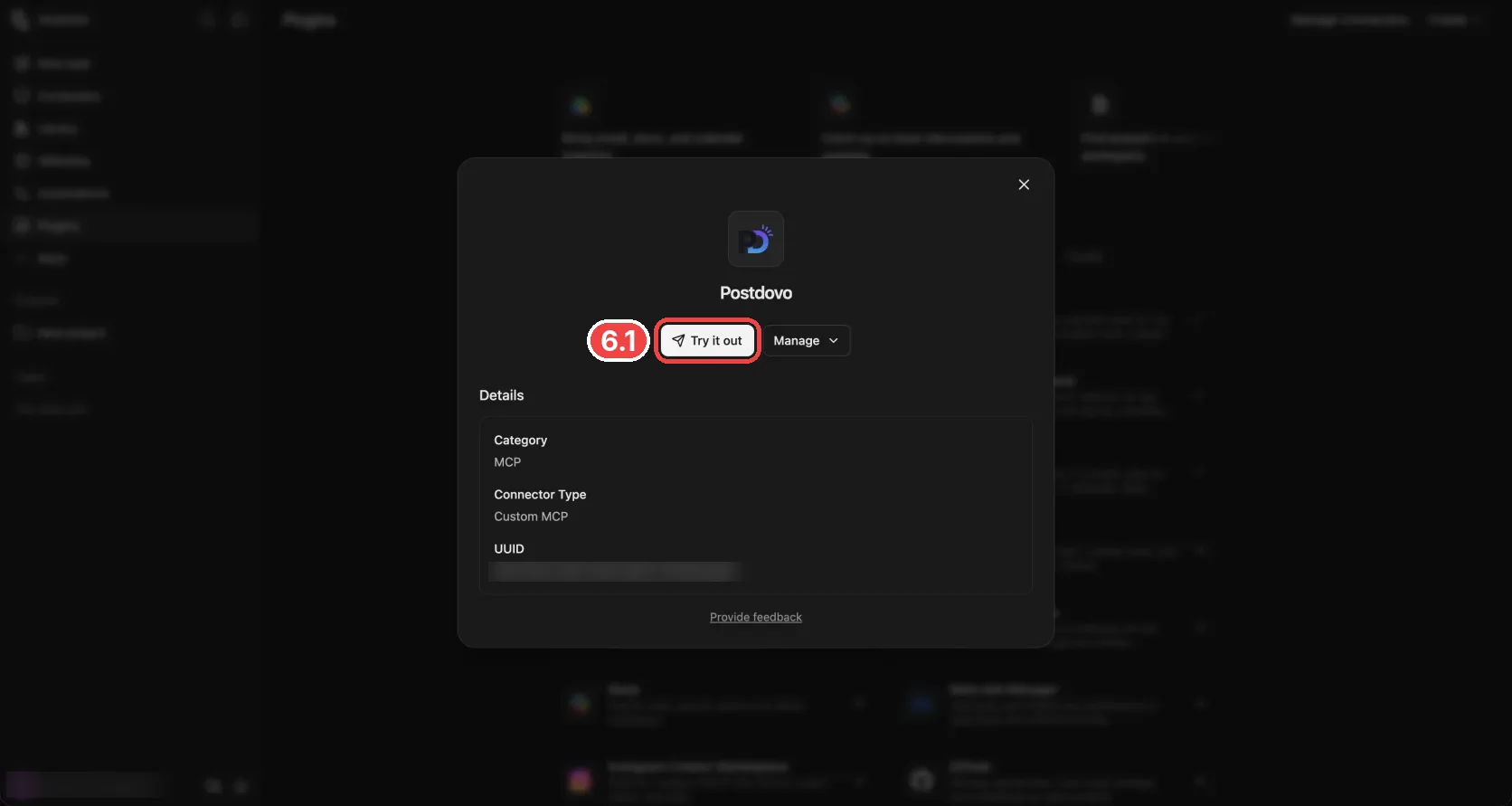
A successful check lists the accounts connected in PostDovo. If there are no accounts, connect one in PostDovo and ask again. If Manus cannot connect, check the URL and authorization before removing and adding the connector again.
Alternative: Connect with a PostDovo Access Token
If browser sign-in does not finish, use Manus’s fuller Custom MCP form with an Authorization header.
- Open PostDovo Access tokens, create a token and copy it when shown.
- In Manus, open Manage Connectors → Create → Custom MCP.
- Enter PostDovo as the Server name. Choose HTTP for Transport type and enter the MCP URL below. PostDovo uses streamable HTTP; do not select SSE.
- Under Custom headers, click Add. Set the header name to Authorization and its value to Bearer, followed by one space and your token.
- Keep the OAuth switch off and click Save. Open the connector and connect or enable it if prompted.
- Start a task and run the connection check from Step 6.
https://app.postdovo.com/mcp
Bearer YOUR_TOKEN
Replace YOUR_TOKEN with your actual access token. Keep the token private and revoke it in PostDovo when you no longer need it.
If Manus offers secret references using @name, follow its current secret-storage instructions. The direct header value above is the token format required by PostDovo.
Go to Access TokensWatch the Manus Setup Tutorial
Try Your First Manus Social Media Prompt
Start with a draft so you can review the text, media and destination before scheduling or publishing.
Using PostDovo, show my connected social accounts. Ask which account I want to use, then draft a social media post promoting my business. Ask me for any details you need and show me the finished draft before scheduling or publishing.
Plan a Multi-Day Campaign
Manus can help prepare a series of posts and schedule them through PostDovo. Include the business, campaign goal, target accounts and timezone.
Using PostDovo, help me plan a seven-day social media campaign. Ask for my business website, campaign goal, target accounts, start date and timezone. Prepare the captions and media plan, show me the drafts, and wait for my approval before scheduling.
Images and videos can be part of the workflow when supported by the destination platform and the tools available to Manus. Review each post’s selected accounts and media in PostDovo.
Supported Social Media Platforms
PostDovo provides 19 social connection options. Connect your accounts inside PostDovo before asking Manus to use them. Available formats vary by platform.
| Platform or connection | Supported |
|---|---|
| ✓ | |
| Instagram (Facebook Business) | ✓ |
| Instagram (Standalone) | ✓ |
| ✓ | |
| LinkedIn Company Page | ✓ |
| X (Twitter) | ✓ |
| TikTok | ✓ |
| ✓ | |
| YouTube | ✓ |
| Threads | ✓ |
| Bluesky | ✓ |
| Dribbble | ✓ |
| LINE | ✓ |
| Nostr | ✓ |
| Lemmy | ✓ |
| Tumblr | ✓ |
| Telegram | ✓ |
| Discord | ✓ |
| Mastodon | ✓ |
Posting on X requires credits.
Is PostDovo Free to Use with Manus?
Starter includes AI-agent connections and full automation for content creation, campaign planning, drafts, scheduling and publishing. Analytics is excluded.
Use up to five connected social accounts in one workspace, with unlimited Single Post scheduling and publishing. PostDovo AI generation uses credits separately from automation access. Manus’s own subscription and usage limits apply separately.
Working in Cue? Cue by Manus has its own short setup.
Troubleshooting and FAQs
Does Manus need a PostDovo access token?
No token is needed for the browser sign-in method. The Custom MCP token method is an alternative if authorization does not finish.
Why does Manus show “Auto-discovery not supported”?
Check that the URL is exactly https://app.postdovo.com/mcp. Include /mcp and remove any trailing slash. If the address is correct and the error continues, reconnect or try the token alternative.
What if the browser sign-in does not finish?
Return to the connector and try Connect again. Check that you approved access in PostDovo. If it still fails, use the Custom MCP token method above.
Why can Manus not see my social accounts?
Confirm that you authorized the intended PostDovo account and connected your social accounts in PostDovo. Ask Manus to list your workspaces and check the intended workspace.
Can Manus schedule image and video posts?
Yes, when the media and post format meet the destination platform’s requirements and the necessary tools are available. Review the draft before scheduling.
Is PostDovo Starter free?
Starter is $0/month and includes AI agents and full automation; Analytics is excluded.
How do I disconnect Manus?
Disconnect Manus on PostDovo’s AI Agents page and remove or disconnect its connector in Manus. If you used a token, revoke it in PostDovo when it is no longer needed.
Prepare Your First Social Post with Manus
Connect PostDovo, check your social accounts and ask Manus for a draft. Review it, then give the exact date, time, timezone and target accounts when you are ready to schedule.
Reference: Manus’s connector setup guide.