
How to Schedule Social Media Posts with Perplexity.ai
Connect the Perplexity website to PostDovo to create, schedule, and publish social posts through conversation.
Import the PostDovo plugin from GitHub and approve browser sign-in, or use an access token with a custom remote MCP connector if that option appears in your account.
Starter is $0/month and includes AI agents and full automation; Analytics is excluded.
Quick Setup: Choose the Menu Option You See
| Add custom option | What to do | Authentication |
|---|---|---|
| Import plugin from GitHub | Import the PostDovo repository | Browser sign-in and Approve |
| Add MCP connector | Add a Remote connector | API Key with a PostDovo access token |
https://github.com/postdovo/postdovo-perplexity
Connect your social accounts inside PostDovo first. This guide covers perplexity.ai in your browser. For the app interface, see the Perplexity Computer desktop guide.
Which Perplexity Account Can Use These Options?
The available setup depends on what your Add custom menu offers. In the Free-account workflow supplied for this guide, the menu shows Upload plugin or skill, Create skill with Computer, and Import plugin from GitHub, rather than Add MCP connector.
Perplexity documents plugin imports on individual plans, while its custom remote connector announcement lists Pro, Max, and Enterprise. Those are distinct entry points: do not assume the paid-plan rule for direct MCP connectors also describes GitHub plugin imports. Perplexity’s public information does not establish every menu item for every account.
The PostDovo plugin contains a connector and no skills. In PostDovo’s supplied workflow, the Computer-plan prompt applied to plugins containing skills, rather than this connector-only package. Use the options and access messages shown in your own account.
Enterprise accounts: an administrator must allow member-added custom connectors. Check Organization settings → Connectors → Allow members to add custom connectors; role permissions may also affect plugin and connector access.
Method A: Import the Plugin and Sign In Through Your Browser
Open Plugins and Add Custom
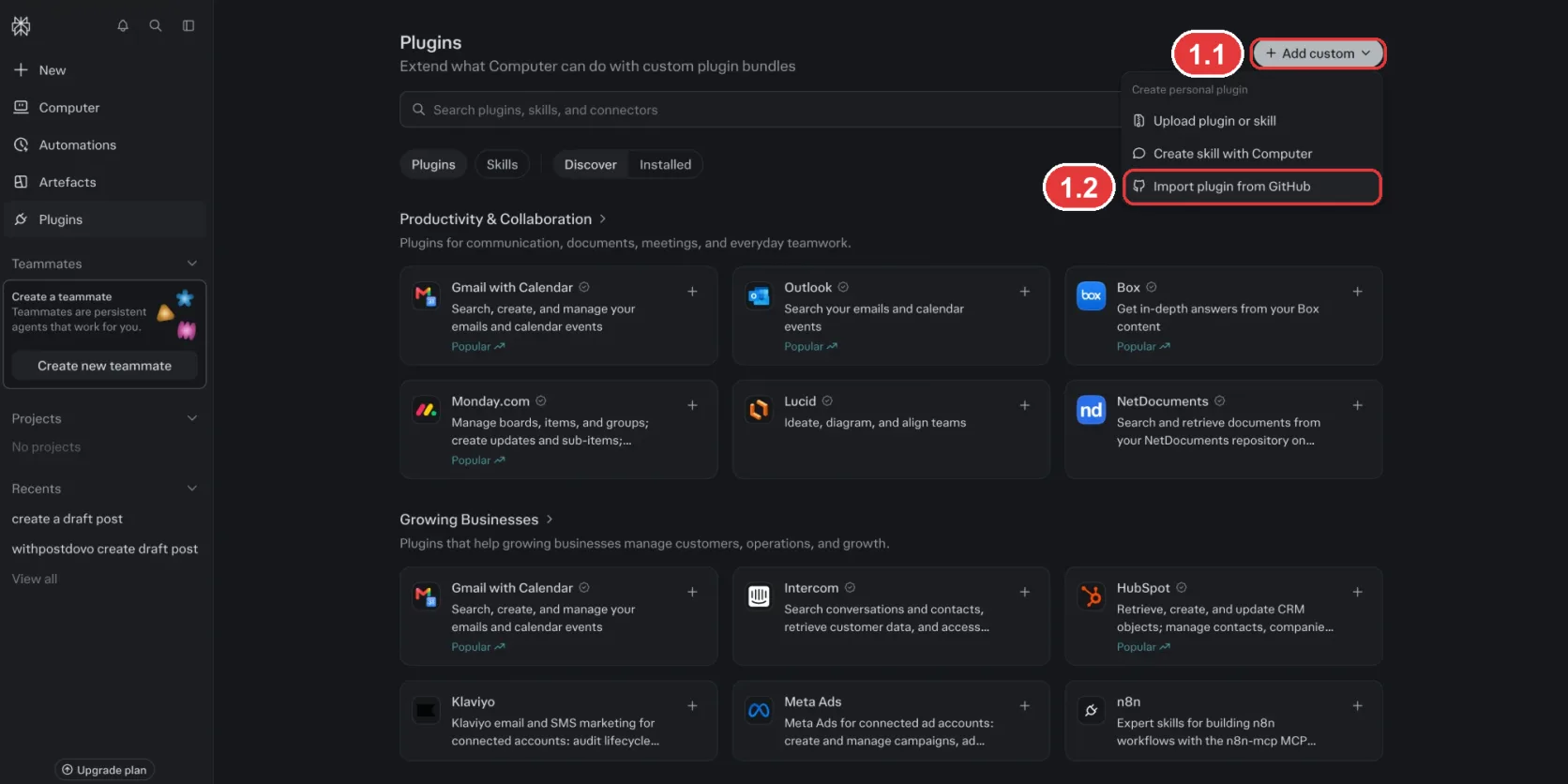
On perplexity.ai, open Plugins in the sidebar and click Add custom (1.1). If you see Import plugin from GitHub (1.2), continue below. If you see Add MCP connector and prefer token authentication, go to Method B.
Import the PostDovo Plugin from GitHub
Choose Import plugin from GitHub (1.2). Paste this address into Repository URL (2.1) and click Import (2.2):
https://github.com/postdovo/postdovo-perplexity
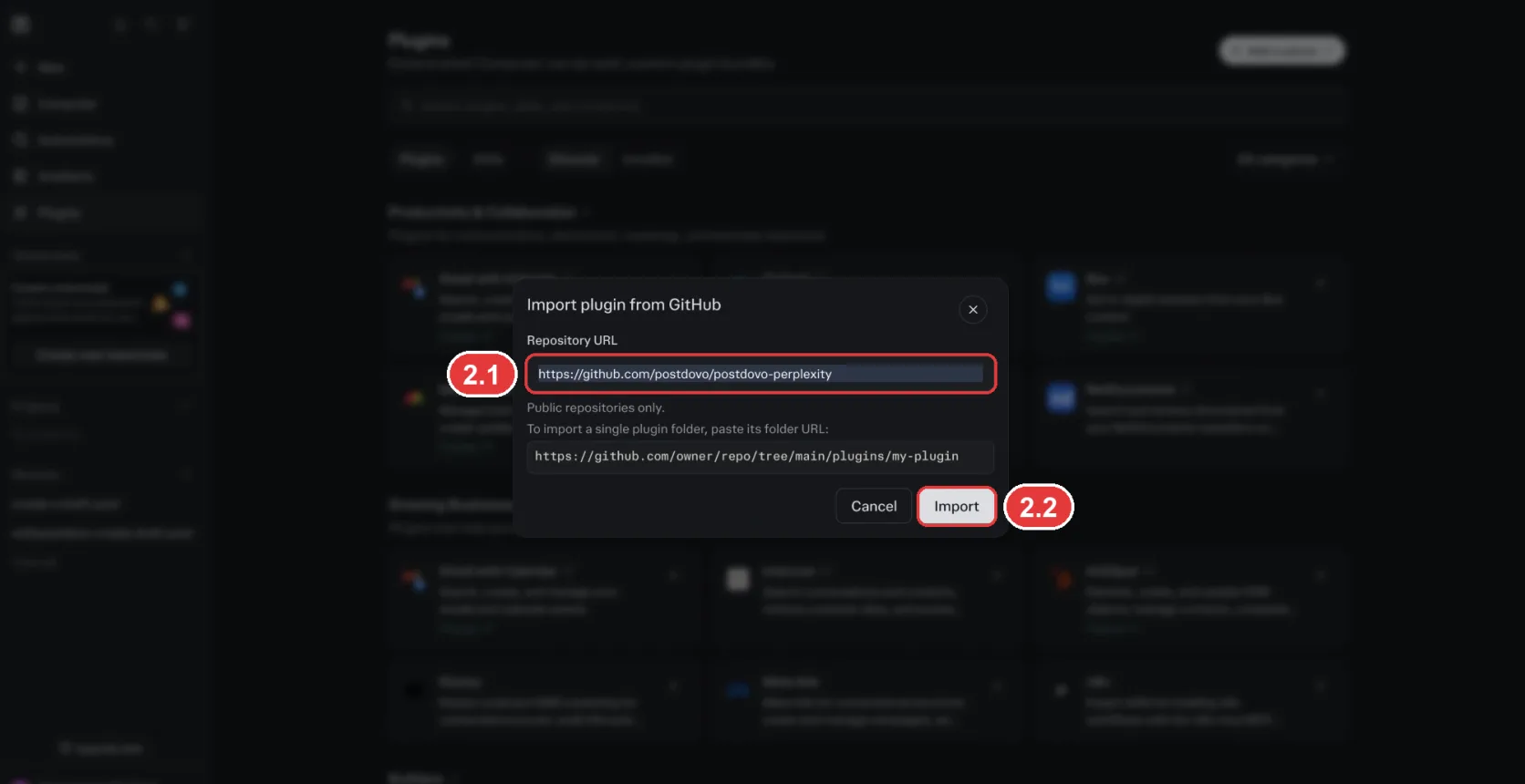
The public plugin holds no password, access token, or API key. Its MCP configuration points to PostDovo’s server. Perplexity copies the repository when importing it, so future repository changes do not automatically update your imported copy.
Connect PostDovo and Approve Access
A plugin containing one connector can open its connection flow automatically. When PostDovo opens, sign in if asked, review the requested access, and click Approve. If no authorization window opens, find PostDovo under Plugins → Installed and choose Connect.
If authorization fails: PostDovo has previously encountered “Failed to enable connector” during Perplexity browser sign-in. This is a known failure observed in that workflow, not a guarantee it will fail for every account. If it happens, remove the failed PostDovo plugin and use Method B if your menu offers Add MCP connector.
Check Your Connected Accounts
Start a new thread and name PostDovo in your request:
Using PostDovo, which social accounts do I have connected?
If Perplexity does not use PostDovo, open Plugins → Installed and confirm the plugin is installed and its connector is connected. An imported plugin alone does not confirm account authorization.
Method B: Connect with an Access Token (Paid Perplexity Plan)
Create a PostDovo Access Token
Open PostDovo’s access-token settings, create a token, and copy it. The token is displayed once.
Go to Access TokensKeep your token private. Paste it into Perplexity’s authentication field, not into a conversation or screenshot.
Add a Custom Remote MCP Connector
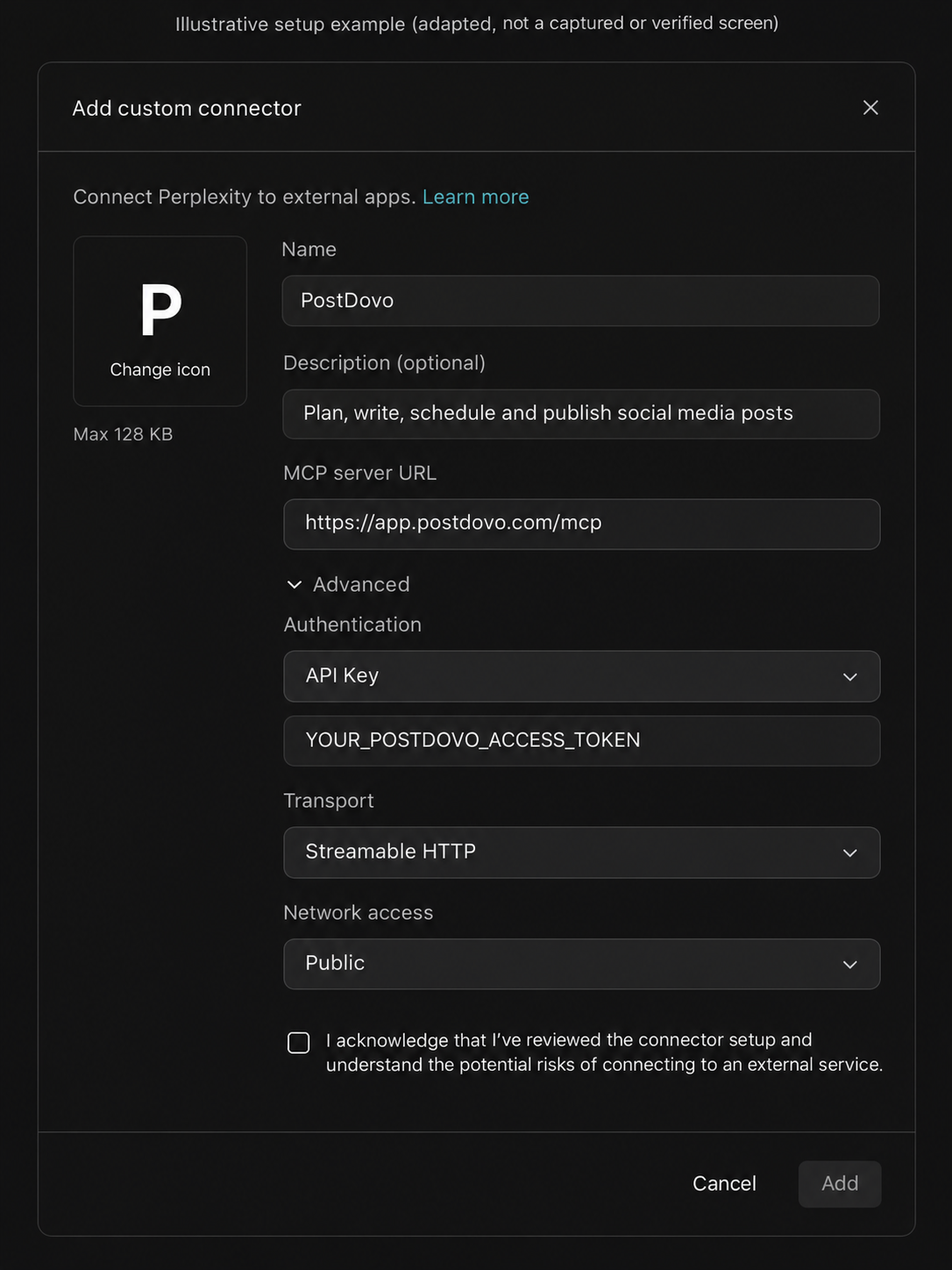
On perplexity.ai, open Plugins. If Plugins is not visible, try Customize → Connectors. Choose Add custom → Add MCP connector → Remote.
Enter PostDovo as the name and use this MCP server URL:
https://app.postdovo.com/mcp
If Add MCP connector is absent, this token setup route is unavailable in that menu. Use Method A where offered, or check your account and organization access.
Choose API Key and Enter Your Token
Open Advanced and set the fields below:
| Field | Value |
|---|---|
| Authentication | API Key |
| api-key | Your PostDovo access token |
| Transport | Streamable HTTP |
| Network access | Public |
Read and acknowledge the custom-connector notice, then click Add. Use API Key for this token method, rather than OAuth: PostDovo’s supplied direct-connector test did not complete using Perplexity OAuth.
Connect and Enable the Token Connector
Find PostDovo among your connectors, select its card, and connect or enable it. If it shows an error tag, open the three-dot menu, choose Modify, and check the server address and authentication details.
Test the Token Connection
Start a new thread and ask:
Using PostDovo, which social accounts do I have connected?
Confirm that the returned accounts match your PostDovo workspace. If no tool is used, check that the connector is enabled. If authentication fails, create a new token in PostDovo and replace the token in the connector settings.
Watch the Perplexity.ai Setup Tutorial
Try Your First Social Media Request
Once the account check works, try this short draft request:
Using PostDovo, create one post each for Facebook, Instagram, and LinkedIn promoting Zizta at https://app.zizta.com. Save as drafts.
Perplexity can prepare three platform-specific drafts for Zizta. For scheduling, include the exact dates, time, timezone, and target accounts. You can also work with images and videos, including media created through your agent workflow.
PostDovo requires a preview and your approval before immediate publishing. Approved scheduled posts can publish automatically at their scheduled times.
Supported Social Media Platforms
PostDovo provides 19 social connection options. Connect your accounts inside PostDovo before asking Perplexity to use them. Available formats vary by platform.
| Platform or connection | Supported |
|---|---|
| ✓ | |
| Instagram (Facebook Business) | ✓ |
| Instagram (Standalone) | ✓ |
| ✓ | |
| LinkedIn Company Page | ✓ |
| X (Twitter) | ✓ |
| TikTok | ✓ |
| ✓ | |
| YouTube | ✓ |
| Threads | ✓ |
| Bluesky | ✓ |
| Dribbble | ✓ |
| LINE | ✓ |
| Nostr | ✓ |
| Lemmy | ✓ |
| Tumblr | ✓ |
| Telegram | ✓ |
| Discord | ✓ |
| Mastodon | ✓ |
Posting on X requires credits.
Is PostDovo Free to Use with Perplexity.ai?
Starter includes AI-agent connections and full automation for content creation, campaign planning, drafts, scheduling, and publishing. Analytics is excluded.
The plan supports up to five connected social accounts and unlimited Single Post scheduling and publishing. PostDovo AI generation uses credits separately from automation feature access. Perplexity’s own plan, connector availability, and usage limits still apply.
Teammates on ChatGPT can add PostDovo the same way, and everyone shares one workspace.
Troubleshooting and FAQs
Do I need a token for the GitHub plugin?
No manual token is needed for its browser sign-in flow. Approve PostDovo access when prompted.
Which method should I choose?
Use the method shown in your Add custom menu. GitHub import uses browser authorization; Add MCP connector provides the token alternative described above.
Does a Free Perplexity account support this?
The supplied Free-account workflow shows Import plugin from GitHub. This does not establish access to direct custom MCP connectors or every plugin feature. Follow the menu and access messages shown in your account.
What if OAuth shows “Failed to enable connector”?
Use the token connector method if Add MCP connector is available. If it is not, the fallback requires an account or organization configuration that provides that menu option.
How do I update the GitHub-imported plugin?
Perplexity imports a copy of the repository. To pick up later changes, remove the imported plugin and import the repository again, then check authorization.
How do I disconnect Perplexity?
Revoke the connection on PostDovo’s AI Agents page and remove the plugin or connector from Perplexity. If using an access token, revoke it in PostDovo when it is no longer needed.
Connect Perplexity.ai and Prepare Your First Post
Choose the setup path your menu supports, authorize PostDovo, and check your connected accounts. Then start with a draft or plan a multi-day schedule.
References: PostDovo’s Perplexity plugin and Perplexity’s Agent Plugins announcement.