
How to Schedule Social Media Posts with Perplexity Computer
Connect Perplexity Computer to PostDovo and use simple prompts to create, schedule, and publish social posts.
Add PostDovo as a custom connector, authorize your account, and manage content for your connected social profiles from Computer.
Starter is $0/month and includes AI agents and full automation; Analytics is excluded.
Quick Setup
Open your account menu → Settings → Apps → Manage your connectors in Plugins. Choose Add custom, name the connector PostDovo, and enter the server address below. Add it, open the new connector, then choose Connect and complete authorization.
https://app.postdovo.com/mcp
Before You Connect Perplexity Computer
Sign in to Perplexity Computer and have a PostDovo account with the social accounts you want to use already connected. A paid Perplexity account is required to add a custom remote MCP connector. Perplexity lists this feature for Pro, Max, and Enterprise subscribers; it is not included in the Free plan. Enterprise access can also depend on administrator permissions.
The screenshots show the desktop interface. Labels and navigation may differ across versions. This guide follows those screens rather than assuming the same path in every Perplexity interface.
How to Connect Perplexity Computer to PostDovo
Open Your Account Settings
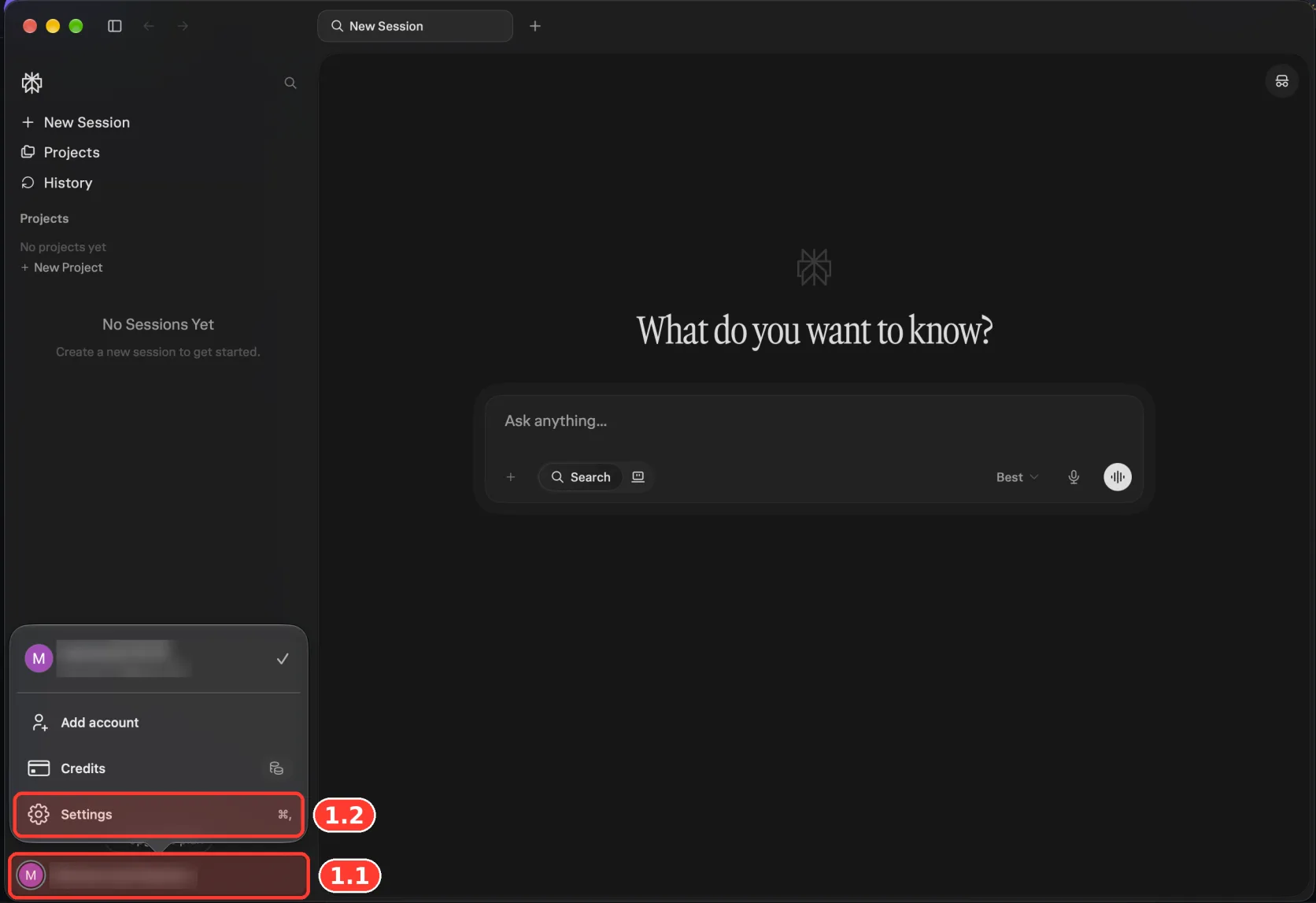
Click your account menu (1.1) at the bottom left, then choose Settings (1.2).
Find Connector Management
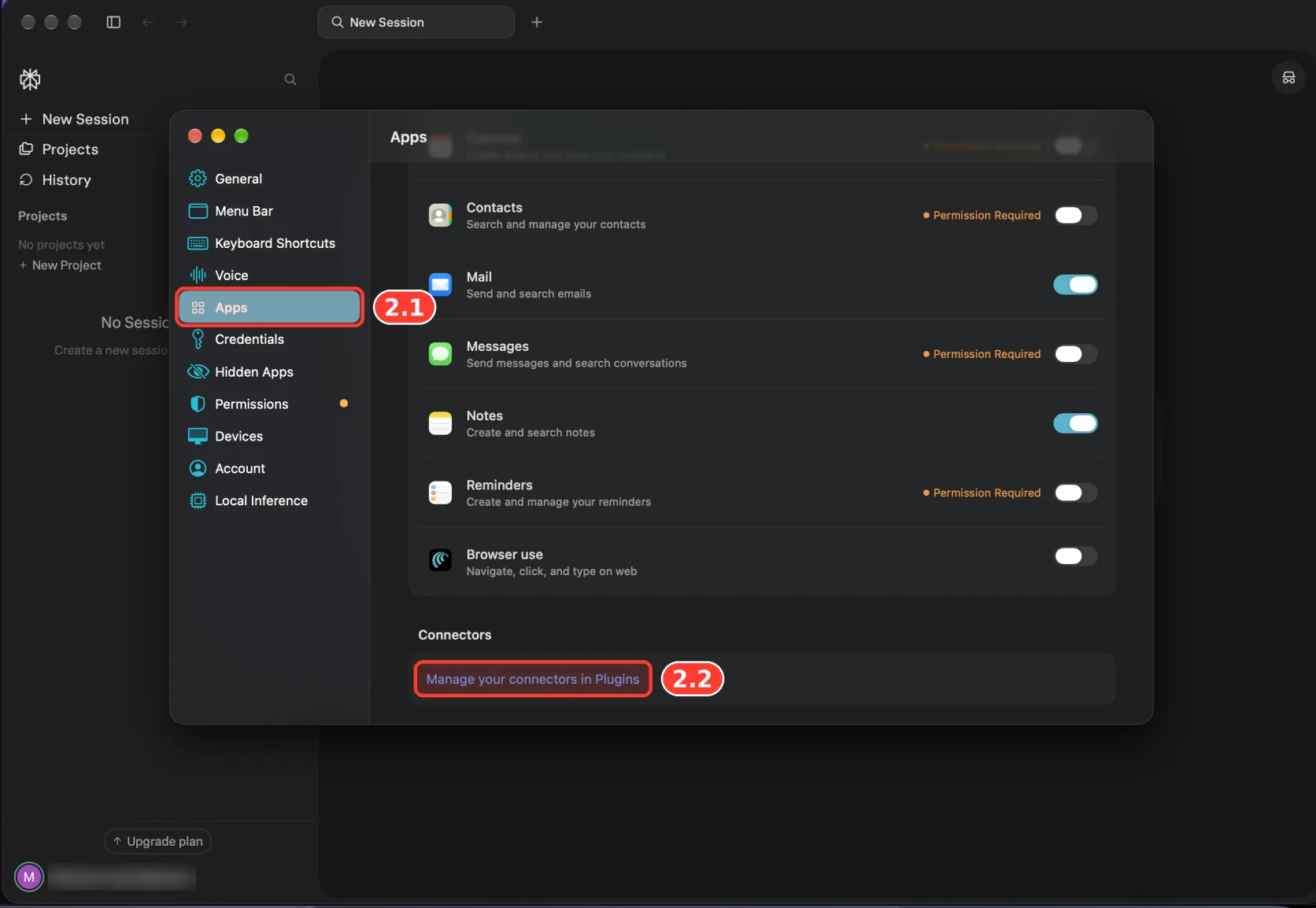
In Settings, choose Apps (2.1). Under Connectors, select Manage your connectors in Plugins (2.2).
Add PostDovo as a Custom Connector
On the Plugins page, choose Add custom (3.1) and open the custom connector form. Enter these details:
| Field | Value |
|---|---|
| Name | PostDovo |
| Description (optional) | Plan, write, schedule and publish social media posts |
| MCP server URL | https://app.postdovo.com/mcp |
- Enter PostDovo (3.2) as the name.
- Paste the complete production MCP server URL (3.3).
- Read the custom-connector notice and check its acknowledgment box (3.4) if you agree.
- Click Add (3.5).
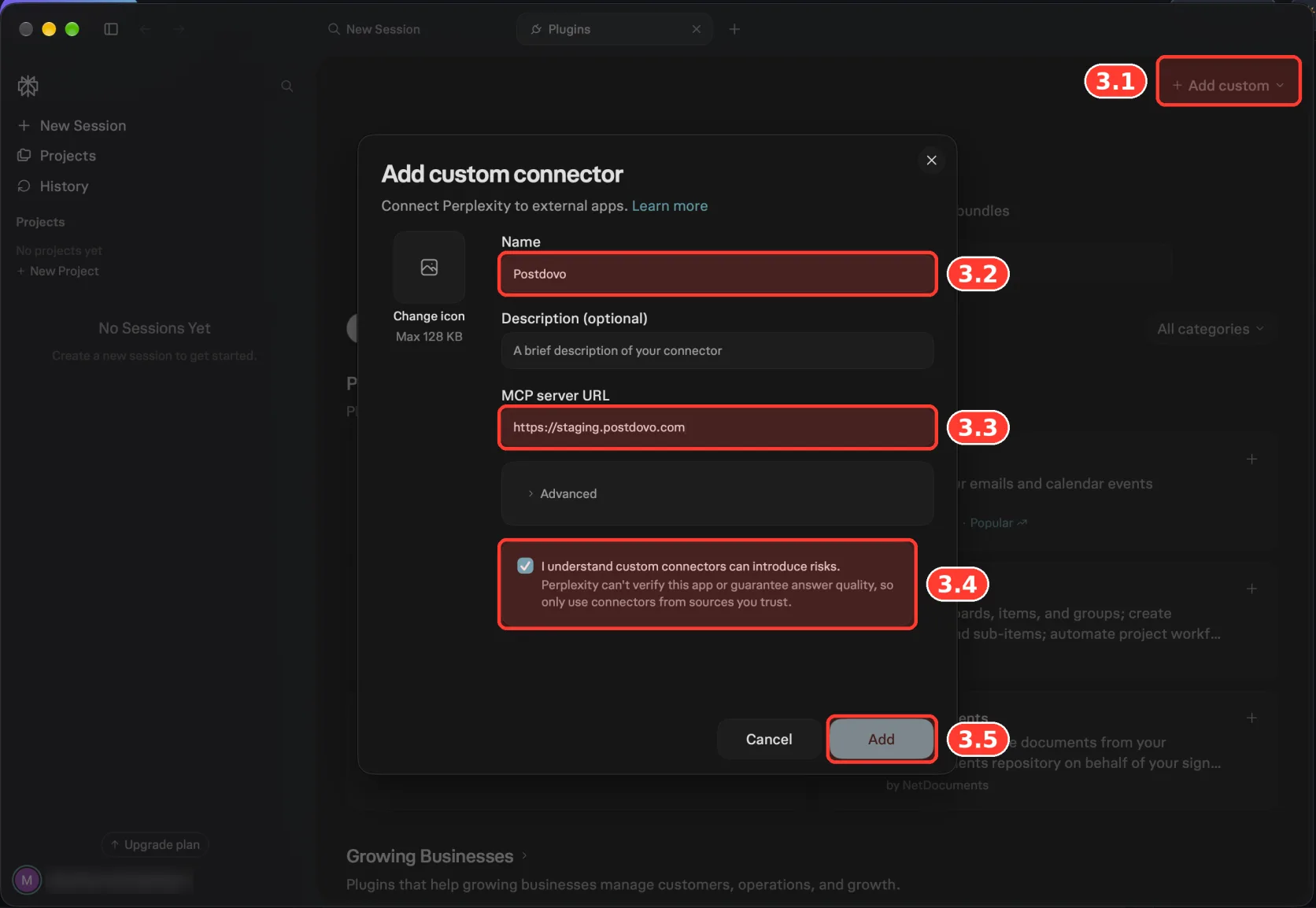
Use the production address above. The screenshot was taken in a staging environment and shows a different address. For your account, enter https://app.postdovo.com/mcp, including /mcp.
Find the New PostDovo Connector
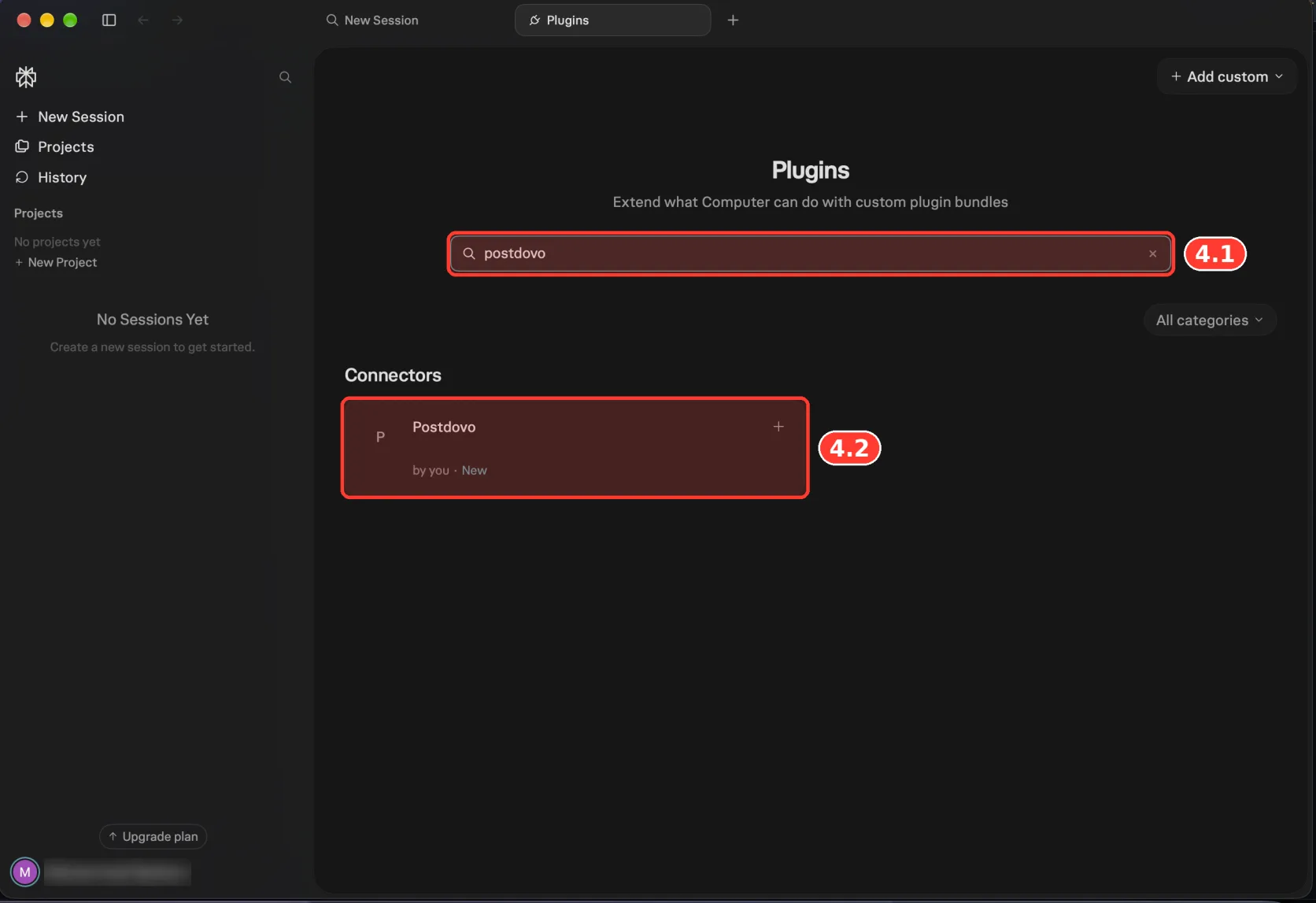
Search for postdovo (4.1) in Plugins. Open the PostDovo connector card (4.2). The screenshot shows a custom connector labeled “by you”; adding it does not mean it is a public marketplace listing.
Connect Your PostDovo Account
On the connector details page, click Connect (5.1).
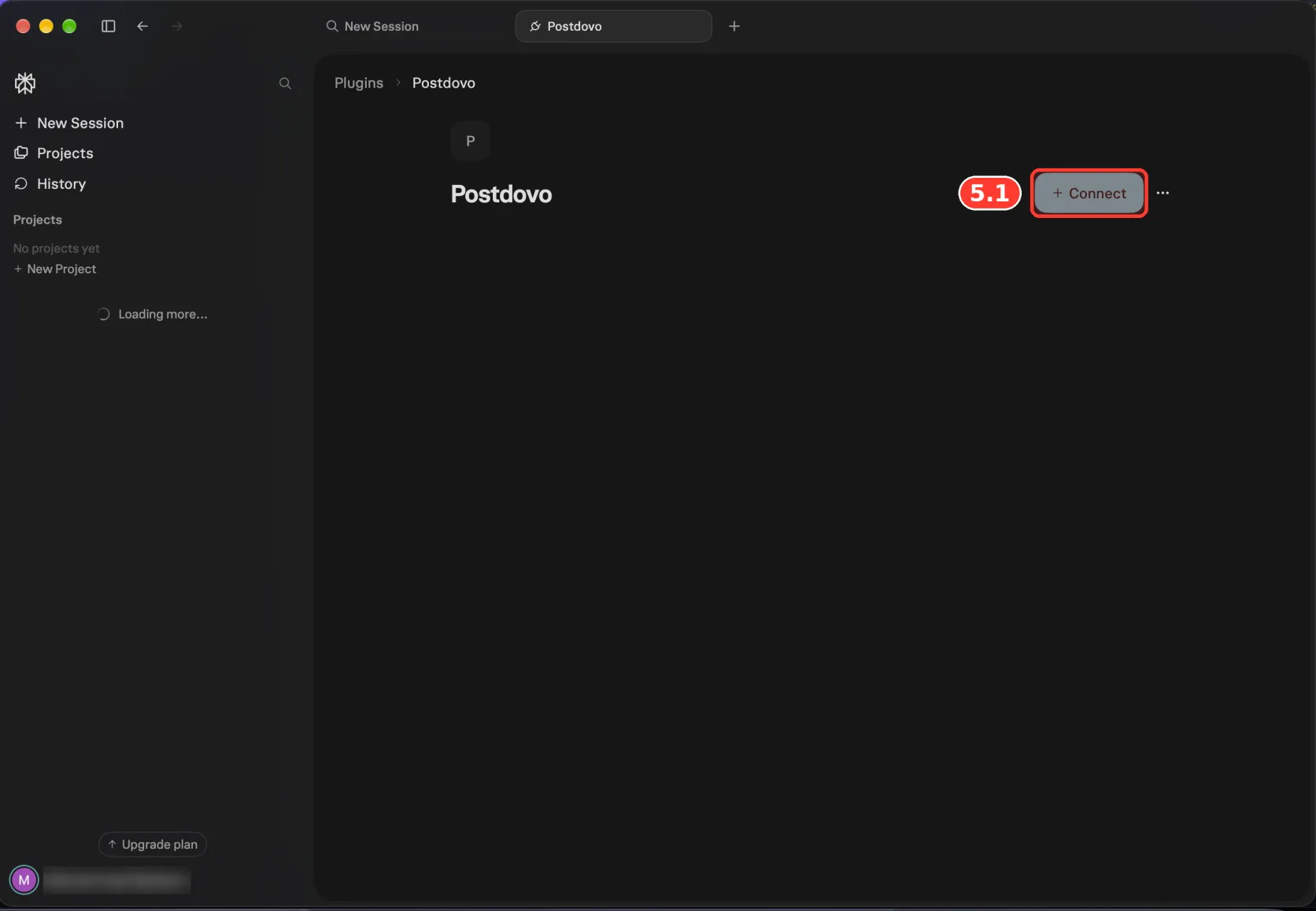
After you press Connect (5.1), a popup will appear asking you to approve Perplexity’s access to your PostDovo account. Sign in to PostDovo if asked, review the permissions, and click Approve. This completes the connection process. Return to Perplexity Computer and check your connected accounts in Step 6.
Adding the connector and authorizing your workspace are separate actions. Confirm access with the account check in Step 6.
Check Your Connected Social Accounts
Start a Computer task and ask:
Using PostDovo, show my connected social accounts.
If Computer asks you to enable the connector for the task, select PostDovo. Confirm that the returned accounts match your intended workspace before requesting drafts or schedules.
Your account details should match the PostDovo workspace you authorized.
Watch the Perplexity Computer Setup Tutorial
Try Your First Perplexity Computer Prompt
After connecting, start with a short draft request:
Using PostDovo, create one post each for Facebook, Instagram, and LinkedIn promoting Zizta at https://app.zizta.com. Save as drafts.
Computer can prepare three platform-specific drafts for Zizta. Review the captions and media before publishing. To schedule a campaign, add the dates, posting time, timezone, and accounts to your request.
What Can Perplexity Computer Automate with PostDovo?
- Create content: write and adapt captions for each connected social platform.
- Plan campaigns: organize a series of posts across multiple days.
- Manage drafts: prepare and update content before publication.
- Schedule and publish: send approved posts to the accounts and times you select.
- Use images and videos: publish media posts, including media created through your agent workflow.
- Check accounts and upcoming content: inspect available workspace information through the connected tools.
PostDovo requires a preview and your approval before immediate publishing. Approved scheduled posts can publish automatically at their scheduled times.
Supported Social Media Platforms
PostDovo provides 19 connection options across social platforms and account types. Supported formats and account requirements vary by destination.
| Platform or connection | Supported |
|---|---|
| ✓ | |
| Instagram (Facebook Business) | ✓ |
| Instagram (Standalone) | ✓ |
| ✓ | |
| LinkedIn Company Page | ✓ |
| X (Twitter) | ✓ |
| TikTok | ✓ |
| ✓ | |
| YouTube | ✓ |
| Threads | ✓ |
| Bluesky | ✓ |
| Dribbble | ✓ |
| LINE | ✓ |
| Nostr | ✓ |
| Lemmy | ✓ |
| Tumblr | ✓ |
| Telegram | ✓ |
| Discord | ✓ |
| Mastodon | ✓ |
Posting on X requires credits. Connect social profiles inside PostDovo before asking Computer to use them.
Is Perplexity Computer Integration Free with PostDovo?
Starter includes AI-agent access and full automation for creating content, planning campaigns, drafting, scheduling, and publishing. Analytics is excluded from the free plan.
Starter includes up to five connected social accounts and unlimited Single Post scheduling and publishing. PostDovo AI generation uses credits separately from automation feature access. You still need a paid Perplexity plan—Pro, Max, or Enterprise—to add the custom MCP connector. PostDovo Starter being free does not make Perplexity’s custom connectors free.
There is no announced end date for PostDovo’s $0 Starter price.
On the Perplexity website instead? See the Perplexity.ai setup.
Troubleshooting the PostDovo Connection
The connector was added, but Computer cannot use it
Select Connect on the connector details page, finish authorization, and enable PostDovo for the task if prompted.
PostDovo does not appear in search
Search Plugins for the exact name you entered when creating the custom connector.
The server address is rejected
Use https://app.postdovo.com/mcp, including /mcp. See the address note in Step 3.
No connected social accounts are returned
Check that you authorized the correct PostDovo account and workspace. Connect your social accounts inside PostDovo, then repeat the account check.
Custom connectors are unavailable
Custom remote connectors require Perplexity Pro, Max, or Enterprise. The Free plan does not include this feature. On an Enterprise account, check whether your administrator permits custom connectors.
Frequently Asked Questions
Is PostDovo free to use with Perplexity Computer?
Starter is $0/month and includes AI agents and full automation; Analytics is excluded. Adding the custom MCP connector requires a paid Perplexity Pro, Max, or Enterprise account.
Can I add PostDovo with a free Perplexity account?
No. Perplexity’s custom remote MCP connectors require Pro, Max, or Enterprise. You can pair a paid Perplexity account with the free PostDovo Starter plan.
Do I need to reconnect my social accounts in Computer?
No. Authorize your PostDovo workspace to use the accounts already connected there.
Can Computer publish images and videos through PostDovo?
Yes. Use your own media or media created through the agent workflow, subject to the destination’s format requirements.
Can I review posts before they go live?
Yes. Ask Computer to save drafts. For scheduled posts, review the content, destinations, dates, and timezone before approving the schedule.
How do I disconnect Computer from PostDovo?
Use PostDovo’s AI Agents page to revoke the connection. You can also manage the custom connector in Perplexity’s Plugins interface.
Prepare Your First Social Post with Perplexity Computer
Add PostDovo, approve access, and check your connected accounts. Then ask Computer to create a draft or plan your next publishing schedule.
Reference: Perplexity custom remote connector announcement, which lists Pro, Max, and Enterprise access.