
How to Schedule Social Media Posts with Antigravity
Connect Google’s Antigravity coding agent to PostDovo and create, schedule, and publish social posts from your terminal or the desktop app.
Install the PostDovo plugin from GitHub, sign in through your browser, and manage your social content with simple prompts. No PostDovo access token is needed.
Starter is $0/month and includes AI agents and full automation; Analytics is excluded.
Already Have Antigravity? Connect in Minutes
- Install the PostDovo plugin in your terminal.
- Start Antigravity with
agy, then enter/plugin. - Open Installed → postdovo → Sign in, then approve access in your browser.
agy plugin install https://github.com/postdovo/postdovo-antigravity
New to Antigravity? Follow the complete six-step guide below.
How Does Antigravity Connect to PostDovo?
Antigravity is Google’s coding agent, available through the agy terminal command and a desktop app. The PostDovo plugin connects it to your PostDovo workspace through MCP, allowing it to work with your connected social accounts.
The plugin contains PostDovo’s server address, not your password, access token, or API key. Browser authorization grants access to your account after you approve it.
Install from GitHub: PostDovo has been submitted to the Antigravity Marketplace. Until Google lists it there, use the GitHub installation command below.
Before starting, have a PostDovo account with at least one connected social account. The plugin works with existing connections; connect new social profiles inside PostDovo first.
How to Connect Antigravity to PostDovo
Already have Antigravity installed? Check its version and skip the installer if the command works. These instructions use browser authorization, so you do not need to create or paste a PostDovo token.
Install the Antigravity CLI
Open a terminal and check whether Antigravity is available:
agy --version
If no version number appears, use Google’s installer for your operating system.
curl -fsSL https://antigravity.google/cli/install.sh | bash
irm https://antigravity.google/cli/install.ps1 | iex
After installation, open a new terminal window and run agy --version again. On macOS and Linux, the installer places agy in ~/.local/bin and adds that folder to your shell profile files.
If Antigravity asks you to sign in during first launch, complete its Google sign-in. That is separate from authorizing PostDovo.
Install the PostDovo Plugin
Run this command in your terminal:
agy plugin install https://github.com/postdovo/postdovo-antigravity
Antigravity downloads the plugin from the PostDovo GitHub repository. The completion message should report that one MCP server was installed.
Open the Installed Plugin List
Start Antigravity:
agy
Inside the interactive session, enter:
/plugin
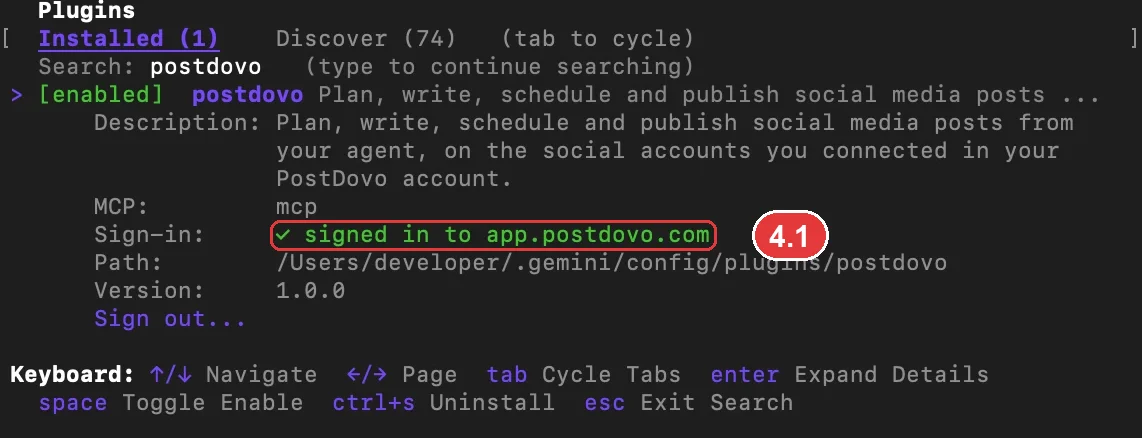
Open Installed and find the enabled postdovo plugin. Before authorization, look for needs sign-in (3.1), as shown below.

Sign In to PostDovo and Approve Access
Highlight postdovo and press Enter to open its details. Choose Sign in. Your browser opens PostDovo: sign in if asked, review the requested access, and choose Approve.
Return to Antigravity and confirm signed in to app.postdovo.com (4.1) in the plugin details. Your PostDovo password stays in the browser sign-in flow; there is no token to paste into the plugin.
Check Your Connected Social Accounts
Close the plugin list with Esc and ask:
Which social accounts do I have connected in PostDovo?
Antigravity shows the PostDovo tool calls (5.1), then lists your connected social accounts (5.2). Confirm that these are the accounts you intend to use before creating content.
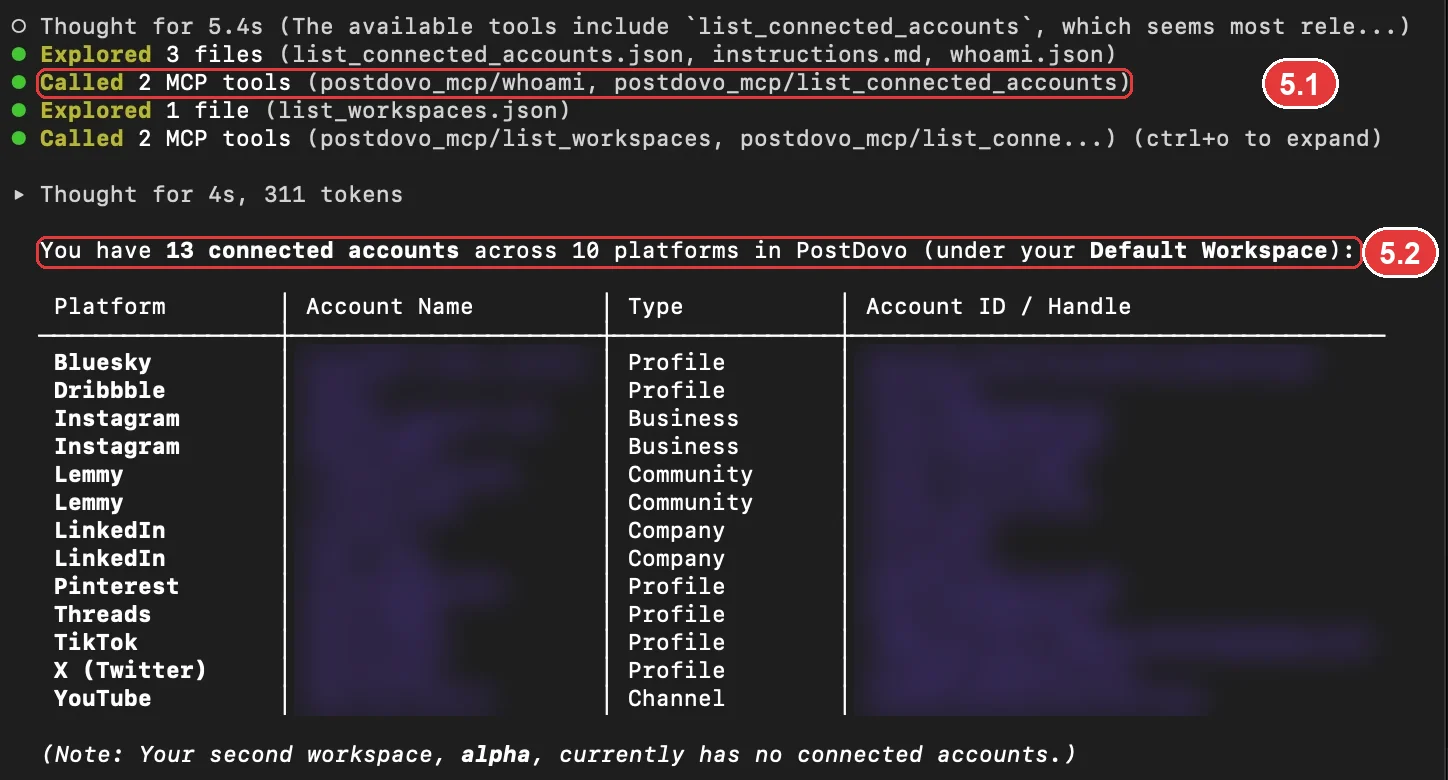
If the correct accounts appear, the plugin can reach PostDovo and read your authorized workspace. You can now ask for a draft or a publishing schedule.
Use PostDovo in the Antigravity Desktop App
Open the Antigravity app and choose Customizations (6.1) in the left sidebar. Then select Installed (6.2) at the top right. The screenshot below identifies these navigation controls; it does not show an installed PostDovo entry.

Look for postdovo in Installed. If it appears, confirm it is enabled and choose Sign in if requested. If it is absent, check plugin discovery in your installed app version before assuming the terminal installation is available there.
The terminal screenshots show successful PostDovo sign-in and connected-account retrieval. The app screenshot demonstrates navigation only; it does not verify plugin sharing or a working app connection. Labels and layout may vary by version.
Watch the Antigravity Setup Tutorial
A Simple Antigravity Prompt to Try
Start with a draft request:
Create 3 posts for my connected Facebook, Instagram, and LinkedIn accounts promoting https://app.postdovo.com. Save as drafts.
For scheduling, include the date, time, timezone, and target accounts. For example, ask for one post each day at 7 PM Asia/Karachi. Review the proposed content and schedule before approving it.
Publishing approval: PostDovo requires a preview and your confirmation before immediate publishing. Approved scheduled posts can publish automatically at their scheduled times.
What Can You Automate with Antigravity?
- Content creation: prepare social copy and adapt it for your connected platforms.
- Drafts: save posts for review before publishing.
- Campaign planning: prepare a series of posts across multiple days.
- Scheduling and publishing: send approved posts to the selected accounts at the times you choose.
- Account and post checks: inspect connected accounts and existing content through the available PostDovo tools.
Antigravity can use PostDovo to schedule and publish posts with images or videos, including media created through your agent workflow.
Supported Social Platforms
Connect the accounts you want to use in PostDovo. Supported formats and account requirements vary by platform.
| Platform | Supported |
|---|---|
| ✓ | |
| Instagram (Facebook Business or standalone connection) | ✓ |
| ✓ | |
| LinkedIn Company Page | ✓ |
| X (Twitter) | ✓ |
| TikTok | ✓ |
| ✓ | |
| YouTube | ✓ |
| Threads | ✓ |
| Bluesky | ✓ |
| Google Business Profile | ✓ |
| Dribbble | ✓ |
| LINE | ✓ |
| Nostr | ✓ |
| Lemmy | ✓ |
| Tumblr | ✓ |
| Telegram | ✓ |
| Discord | ✓ |
| Mastodon | ✓ |
Posting on X requires credits.
Is Antigravity Social Media Automation Free?
PostDovo Starter includes AI-agent access and full automation for content creation, campaign planning, drafts, scheduling, and publishing. Analytics is the only feature restriction on the free plan.
Starter supports up to five connected social accounts and unlimited Single Post scheduling and publishing. AI generation and posting on X require usage credits. These credit requirements are separate from access to the automation features.
There is no announced end date for the $0 Starter price. Google’s Antigravity access and model usage may have separate limits or charges.
Like the terminal better? Gemini CLI works with PostDovo too.
Troubleshooting the PostDovo Plugin
Antigravity cannot see PostDovo
Enter /plugin, open Installed, and check that postdovo is enabled and signed in. Complete browser authorization if it still shows needs sign-in.
The agy command is not found
Open a new terminal after installation. On macOS or Linux, check that your shell loads the installer’s PATH change for ~/.local/bin. Run agy –version before installing the plugin.
No social accounts appear
Check that the PostDovo account you authorized has connected social accounts in the intended workspace. Add social connections in PostDovo, then ask Antigravity to check again.
The plugin is missing from Marketplace
Use the GitHub installation command above. In the app, choose Customizations → Installed and check whether postdovo is listed.
Frequently Asked Questions
Do I need a PostDovo access token?
No. This plugin uses browser sign-in and approval. It contains PostDovo’s server address, not your password, token, or API key.
Can I automate posts on the free Starter plan?
Starter is $0/month and includes AI agents and full automation; Analytics is excluded.
Can I use the plugin in both the CLI and desktop app?
The terminal workflow is demonstrated in the screenshots. In the app, check Customizations → Installed for postdovo and sign in if it appears. The supplied app screenshot shows navigation, rather than a working PostDovo connection.
How do I sign out or disconnect?
Open the PostDovo plugin details and choose Sign out. You can also disconnect Antigravity or switch off drafting, scheduling, and publishing access on the AI Agents page in PostDovo.
How do I uninstall the plugin?
Run the uninstall command below in your terminal. You can also revoke the connection in PostDovo if you no longer want Antigravity to have access.
agy plugin uninstall postdovo
Prepare Your First Post with Antigravity
Install the PostDovo plugin, approve browser sign-in, and check your connected accounts. Then ask Antigravity to prepare a draft or plan your next publishing schedule.
References: PostDovo plugin on GitHub and Google Antigravity documentation.