
How to Schedule Social Media Posts with Gemini CLI
Connect Google’s terminal AI agent to PostDovo, create platform-specific drafts, and schedule approved posts without leaving the command line.
A practical 5-step MCP setup guide, including browser sign-in, an access-token alternative, and a copy-ready publishing prompt.
Use Gemini CLI to Manage Social Media with MCP
Gemini CLI is Google’s open-source AI agent for the terminal. Its support for Model Context Protocol (MCP) lets it work with external tools, including PostDovo’s social media publishing functions.
Ask Gemini CLI to prepare Facebook and LinkedIn captions, save drafts, check connected accounts, or arrange approved publishing dates. PostDovo handles the supported publishing operations; you don’t need to integrate each social platform’s API separately.
On June 18, 2026, Google ended Gemini CLI access through the former free individual Gemini Code Assist flow and Google AI Pro/Ultra consumer plans, directing affected users toward Antigravity. Gemini CLI continues to support eligible Gemini Code Assist Standard/Enterprise and supported paid API or Google Cloud authentication methods.
This is a Google model-access restriction, not a PostDovo subscription restriction. Check Google’s account-transition notice before installing.
Node.js 20 or newer if installing with npm, an eligible Gemini CLI authentication method, internet access, and a PostDovo workspace with the social accounts you want to manage.
Connect Gemini CLI to PostDovo in 5 Steps
Install Gemini CLI
Open PowerShell or Command Prompt on Windows, or Terminal on macOS or Linux. Check your Node.js version:
node --versionIf you’re below Node.js 20 or Node isn’t installed, get a compatible version from nodejs.org. Then install Gemini CLI:
npm install -g @google/gemini-cliConfirm the installation:
gemini --versionOther installation methods: Homebrew, MacPorts, npx
| Method | Command |
|---|---|
| Homebrew (macOS/Linux) | brew install gemini-cli |
| MacPorts (macOS) | sudo port install gemini-cli |
| npx (no global install) | npx @google/gemini-cli |
If using npx, launch with npx @google/gemini-cli instead of gemini. On Windows, if PowerShell blocks npm scripts, use Command Prompt or npm.cmd.
Add the PostDovo MCP Server
Run this complete command in your terminal:
gemini mcp add --scope user --transport http postdovo https://app.postdovo.com/mcp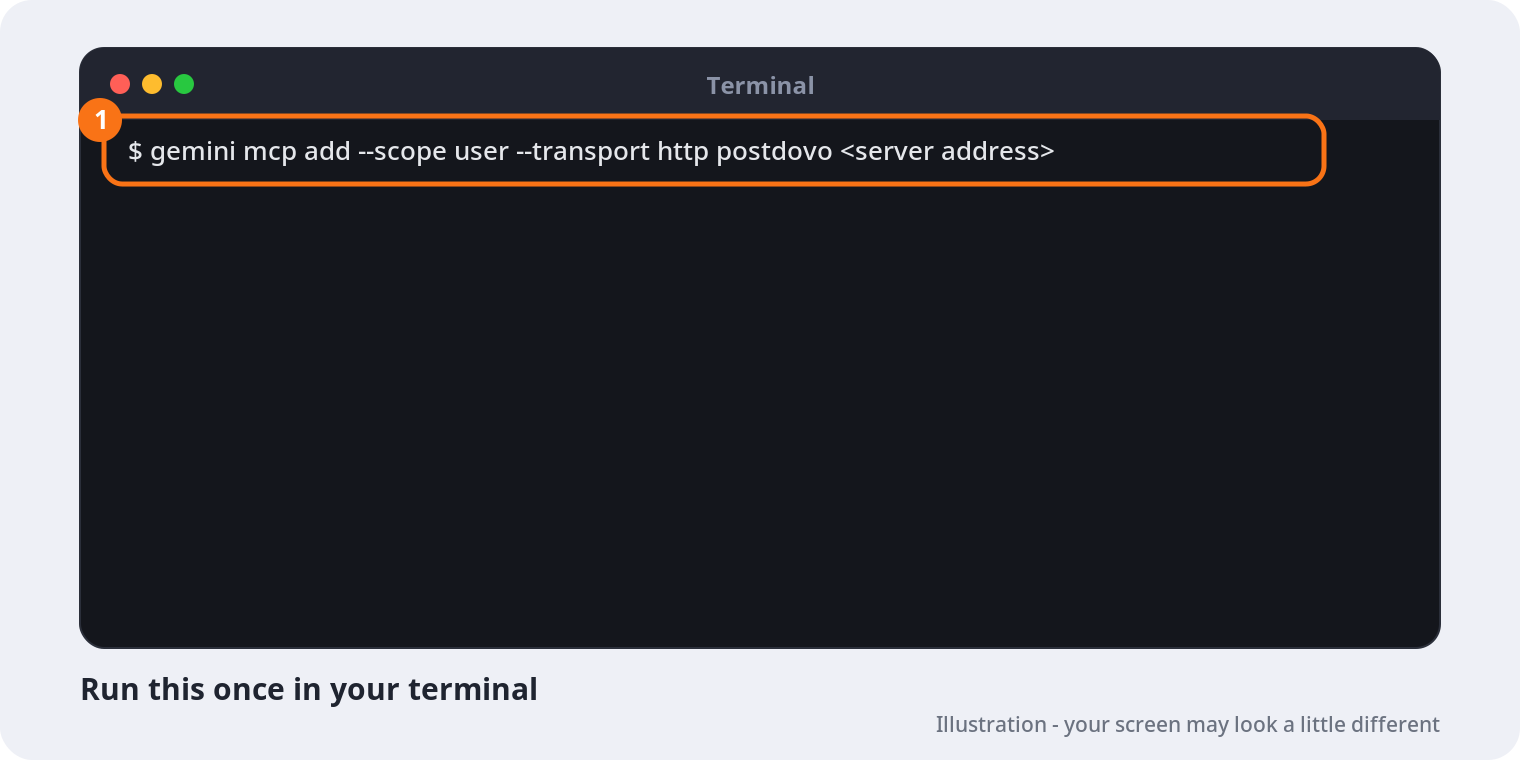
–scope user keeps the connection available across your folders by saving it to ~/.gemini/settings.json. Without that flag, an untrusted project may produce “Cannot modify settings in an untrusted workspace.”
The illustration may show a generic server-address placeholder. Always use the actual PostDovo MCP endpoint shown here.
Start Gemini CLI
geminiOn first launch, configure your Google model authentication through an eligible enterprise account or supported paid API/Google Cloud option. This is separate from signing in to PostDovo.
Authorize PostDovo in Your Browser
Inside the interactive Gemini CLI session, type:
/mcp auth postdovoIf browser OAuth is supported by your environment, the PostDovo authorization page opens. Sign in, review the requested permissions, and select Approve, then return to Gemini CLI.
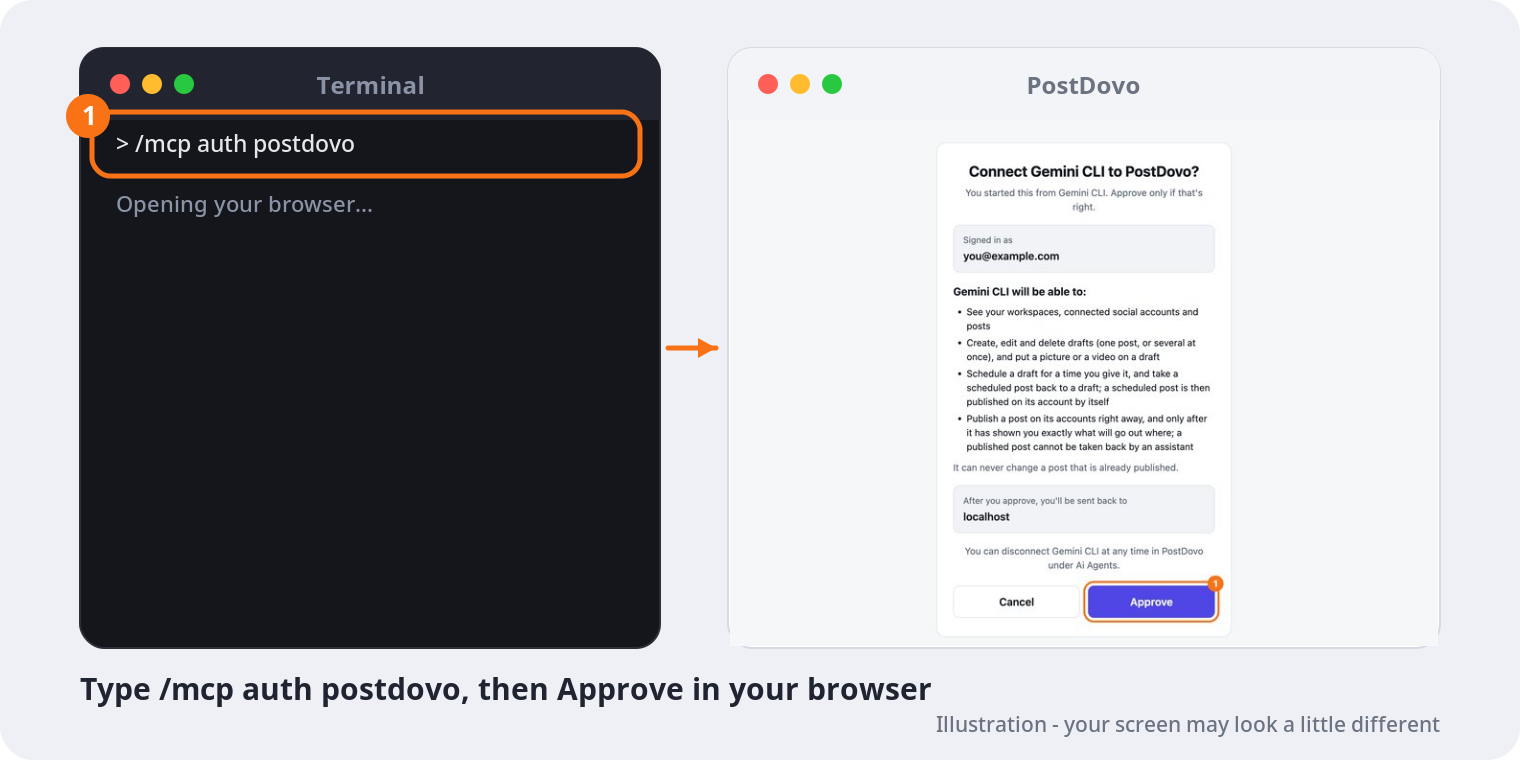
No browser on your machine? Use the access-token method below. It is an alternative to browser OAuth, not an additional mandatory step.
Check That PostDovo Is Connected
Still inside Gemini CLI, enter:
/mcpFind postdovo in the MCP server list. A successful connection should display a connected status with available tools.
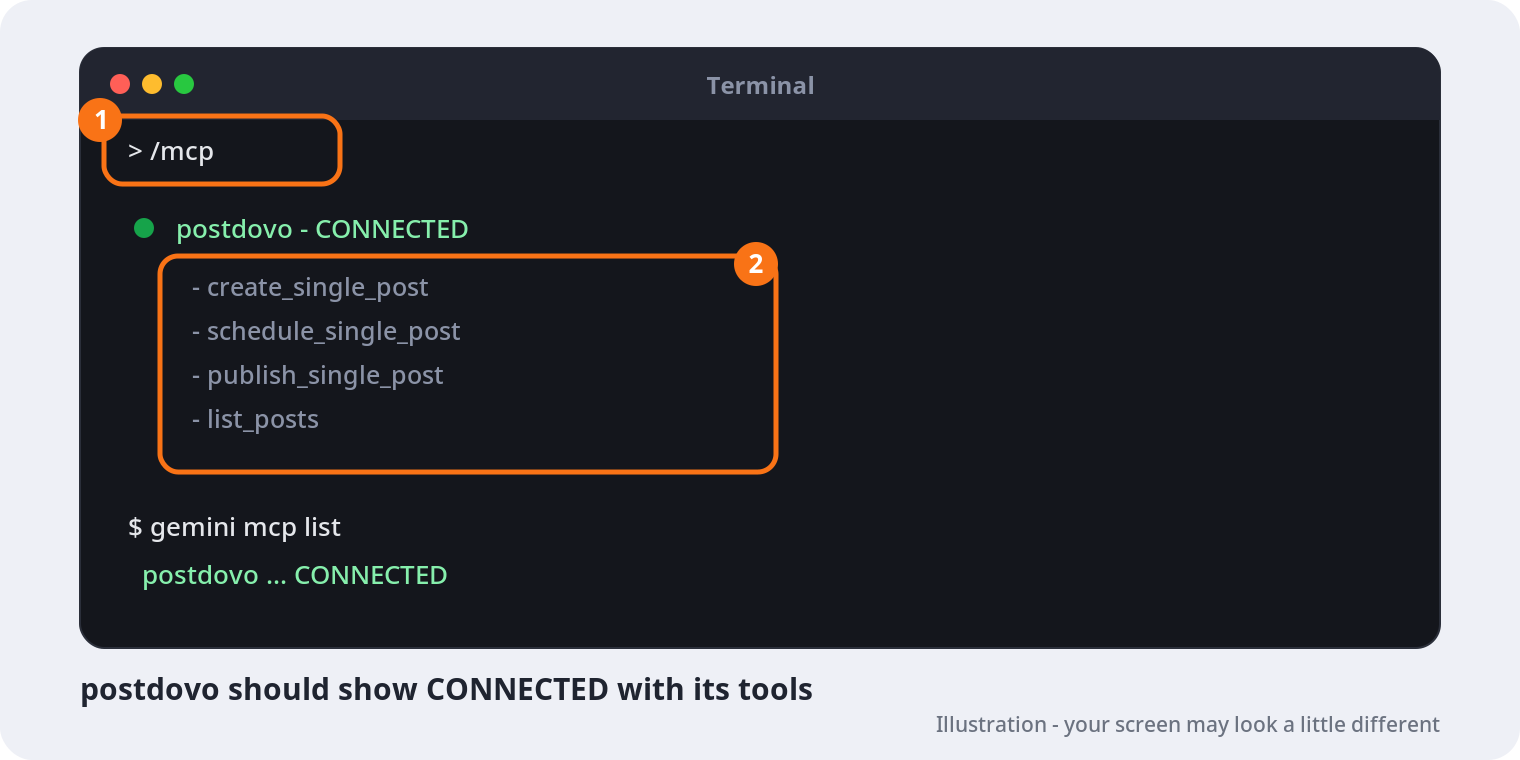
From an ordinary terminal outside the CLI session, you can also run gemini mcp list.
If Gemini CLI returns the expected workspace and accounts, the read-only integration test succeeded. This does not by itself prove publishing was tested.
Watch: Connect Gemini CLI to PostDovo
Use the video walkthrough to follow the terminal commands, browser authorization, connection verification and your first publishing request.
PASTE_YOUTUBE_URL_HERE
with the complete YouTube link.
Schedule Social Media Posts with Gemini CLI
After the read-only connection check, use a short prompt to prepare a multi-day plan for your connected Facebook and LinkedIn accounts.
Using PostDovo, prepare 3 days of text-only posts about https://postdovo.com for Facebook and LinkedIn.

Write a unique caption for each platform. Schedule one post per platform daily at 7 PM London time, starting tomorrow.

Keep all posts in one group. Show me the complete plan for approval before creating or scheduling anything.
The prompt requests six platform-specific text posts in one group. These are expected results, not confirmation that a post was created or scheduled. Check the accounts, captions, calendar dates and timezone before approving.
What Can Gemini CLI Do Through PostDovo?
| Supported operation | Use case |
|---|---|
| Draft creation and editing | Prepare posts without immediate publication |
| Platform-specific captions | Customize copy for connected social accounts |
| Media attachment | Attach compatible images or videos to drafts |
| Scheduling and unscheduling | Manage approved publishing dates and times |
| Account and workspace checks | Inspect authorized social profiles and posts |
| Immediate publishing | Publish only after the required preview and explicit approval |
Single Post vs. Generate Campaign: These MCP publishing tools support PostDovo’s Single Post workflow, including grouped posts for multiple accounts and dates. The separate Generate Campaign feature automatically creates multi-day content from a website or topic.
For image and video posts, confirm the file has actually been attached through a supported operation. Mentioning a local file path does not automatically upload the media, and each destination has its own requirements.
Supported Social Media Platforms
PostDovo provides 19 social media connection options. Actual publishing depends on the connected account and each platform’s content-format rules.
| Social media platform | Create | Schedule | Publish |
|---|---|---|---|
 Facebook | ✓ | ✓ | ✓ |
 Instagram (Facebook Business) | ✓ | ✓ | ✓ |
 LinkedIn | ✓ | ✓ | ✓ |
| LinkedIn Company Page | ✓ | ✓ | ✓ |
| Instagram (Standalone) | ✓ | ✓ | ✓ |
 X (Twitter)* | ✓ | ✓ | ✓ |
 Pinterest | ✓ | ✓ | ✓ |
 TikTok | ✓ | ✓ | ✓ |
 YouTube | ✓ | ✓ | ✓ |
 Bluesky | ✓ | ✓ | ✓ |
 Threads | ✓ | ✓ | ✓ |
 Mastodon | ✓ | ✓ | ✓ |
 Telegram | ✓ | ✓ | ✓ |
| Discord | ✓ | ✓ | ✓ |
 Dribbble | ✓ | ✓ | ✓ |
 LINE | ✓ | ✓ | ✓ |
 Nostr | ✓ | ✓ | ✓ |
 Lemmy | ✓ | ✓ | ✓ |
 Tumblr | ✓ | ✓ | ✓ |
* X (Twitter): Credits are required to publish on X, including scheduled posts. ✓ indicates a platform has supported publishing functionality; it does not mean every post format is accepted.
Connect Your Social Media Accounts
Open PostDovo, select Connect Accounts, and authorize the social platforms you want to manage. Gemini CLI works only with the accounts available in the PostDovo workspace it is authorized to access.
No Browser? Connect with a PostDovo Access Token
If your machine cannot complete browser OAuth—for example, when using a remote server—you can use a PostDovo access token instead.
Open ~/.gemini/settings.json (Windows: %USERPROFILE%\.gemini\settings.json). Under mcpServers, configure PostDovo as follows:
{
  "mcpServers": {
    "postdovo": {
      "httpUrl": "https://app.postdovo.com/mcp",
      "headers": {
        "Authorization": "Bearer ${POSTDOVO_TOKEN}"
      }
    }
  }
}
Do not overwrite existing settings. If the file already includes other options or MCP servers, modify only the postdovo entry and preserve everything else. Don’t add a second duplicate PostDovo connection.
Set the token using your environment configuration, or use Gemini CLI’s user-level file ~/.gemini/.env (Windows: %USERPROFILE%\.gemini\.env):
POSTDOVO_TOKEN=YOUR_ACTUAL_POSTDOVO_TOKEN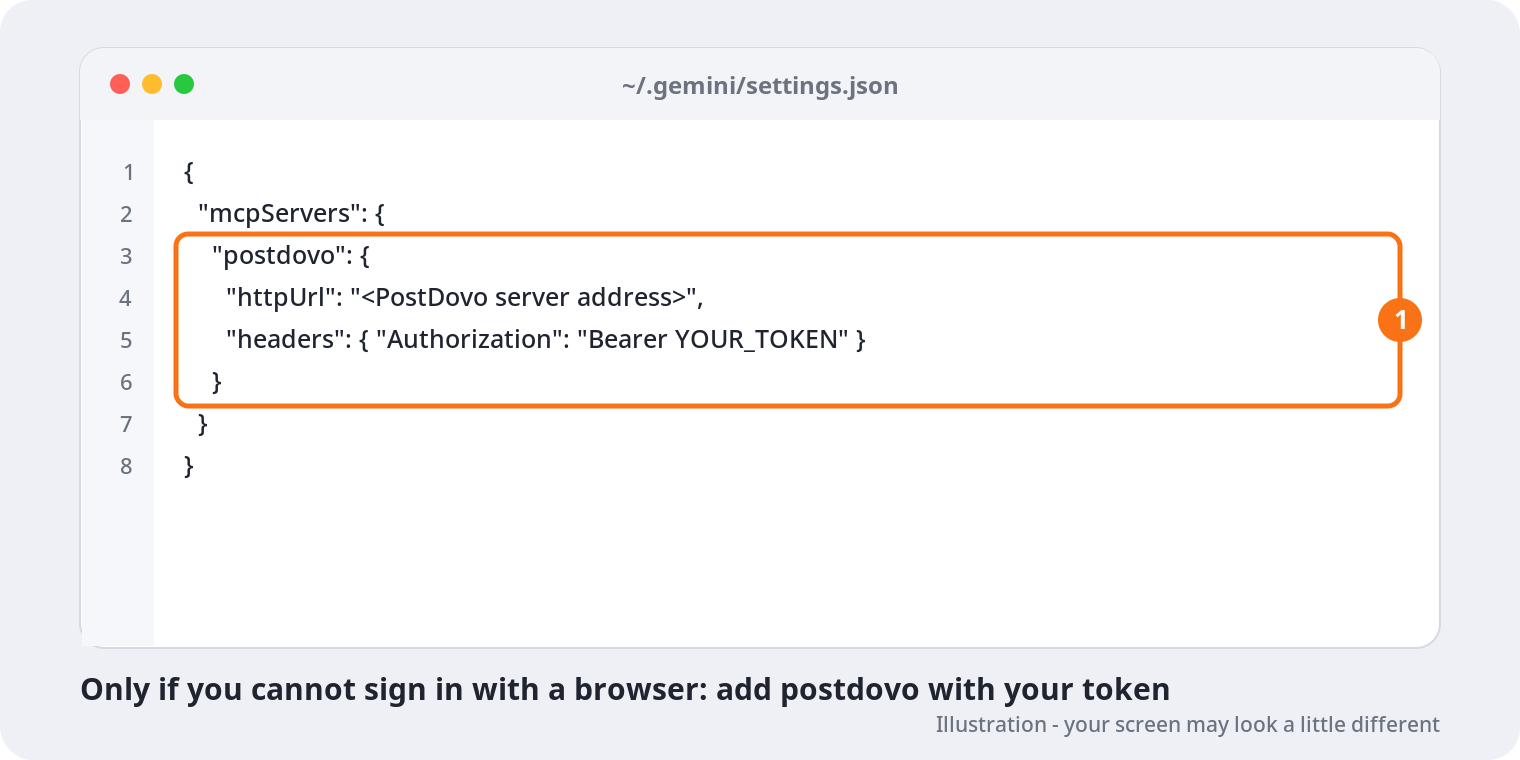
Never share your token or commit it to a public repository. It is separate from your Google model API key. Revoke it through PostDovo if it is exposed. Browser OAuth and bearer-token authentication are alternatives; choose one.
Is Gemini CLI Social Media Scheduling Free?
PostDovo Starter costs $0/month and includes compatible AI-agent connectivity and unlimited Single Post scheduling for up to five connected social accounts.
| Starter feature | Included |
|---|---|
| Social accounts | Up to 5 |
| Workspaces | 1 |
| Single Post creation | Unlimited |
| Single Post scheduling | Unlimited |
| Supported AI-agent connectivity | Included |
| Single Post publishing | Unlimited, except X credit requirements |
Google’s model access may have a separate cost; credit-based AI generation and posting to X have separate PostDovo credit requirements. PostDovo Starter’s $0 rate is current pricing, not a promise of an unchangeable lifetime price.
Prefer the Gemini app? Here’s how to connect Gemini on the web and desktop.
Fix Common Gemini CLI Connection Problems
“gemini” is not recognized
Confirm Node.js and Gemini CLI are installed with node –version and gemini –version. Install the CLI using npm install -g @google/gemini-cli, then reopen the terminal if needed.
“Cannot modify settings in an untrusted workspace”
Register PostDovo at user scope with –scope user instead of saving the MCP server to a project folder.
Google account cannot sign in to Gemini CLI
Check the June 18, 2026 account-eligibility change. The former individual / Google AI Pro or Ultra consumer login route is no longer supported for Gemini CLI. Use a currently supported model authentication method.
PostDovo is disconnected
Run /mcp, verify https://app.postdovo.com/mcp, complete browser OAuth if using it, or check that your token is valid and available. Restart Gemini CLI after editing settings.
Browser authorization does not open
Retry /mcp auth postdovo. For environments without a working browser authorization flow, use the access-token method above.
Facebook or LinkedIn accounts are missing
Open PostDovo → Connect Accounts and confirm that your accounts are authorized in the correct workspace. Adding an MCP server does not itself connect external social profiles.
Gemini CLI + PostDovo FAQs
Can Gemini CLI schedule social media posts?
Yes. Gemini CLI can use supported PostDovo MCP tools to prepare drafts and schedule approved posts to connected accounts.
Do I need a separate PostDovo plugin for Gemini CLI?
No. Gemini CLI supports a direct HTTP MCP server connection using the gemini mcp add command.
Does it support Facebook, Instagram and LinkedIn?
Yes, through compatible PostDovo tools and properly connected social accounts. Publishing restrictions depend on the destination platform.
Is the integration free with PostDovo?
PostDovo Starter is $0/month with supported AI-agent access and unlimited Single Post scheduling. Google model access and some credit-based publishing may have separate costs.
Can I connect without browser OAuth?
Yes. Configure PostDovo using its access token and a bearer authorization header, especially on headless servers.
How do I disconnect Gemini CLI from PostDovo?
Run gemini mcp remove –scope user postdovo. Also revoke OAuth access from PostDovo → AI Agents or revoke the token in Access Tokens, as appropriate. Removing the local server entry alone does not invalidate existing credentials.