
How to Schedule Social Media Posts with DeepSeek Harness
Connect the PostDovo plugin to DeepSeek Harness, prepare drafts and manage approved publishing schedules from your local AI agent.
Install the plugin, securely configure a PostDovo access token, and start with a simple Facebook and LinkedIn scheduling request.
PostDovo AI-agent connectivity is included with Starter at $0/month. DeepSeek model API usage is separate.
Connect a Local AI Agent to Your Social Accounts
DeepSeek Harness is a local, plugin-based AI agent environment, distinct from the regular DeepSeek chatbot. The PostDovo plugin connects Harness to PostDovo’s Model Context Protocol (MCP) server.
Unlike browser-based connectors that use an interactive OAuth sign-in, this integration uses a PostDovo access token saved locally. Your social accounts remain authorized separately inside PostDovo.
You’ll need DeepSeek Harness (desktop or local web interface), a DeepSeek API key or supported model provider, a PostDovo workspace, and Git for the repository-based plugin installation. DeepSeek Harness is a developer preview, so some settings may change.
How to Connect DeepSeek Harness to PostDovo in 7 Steps
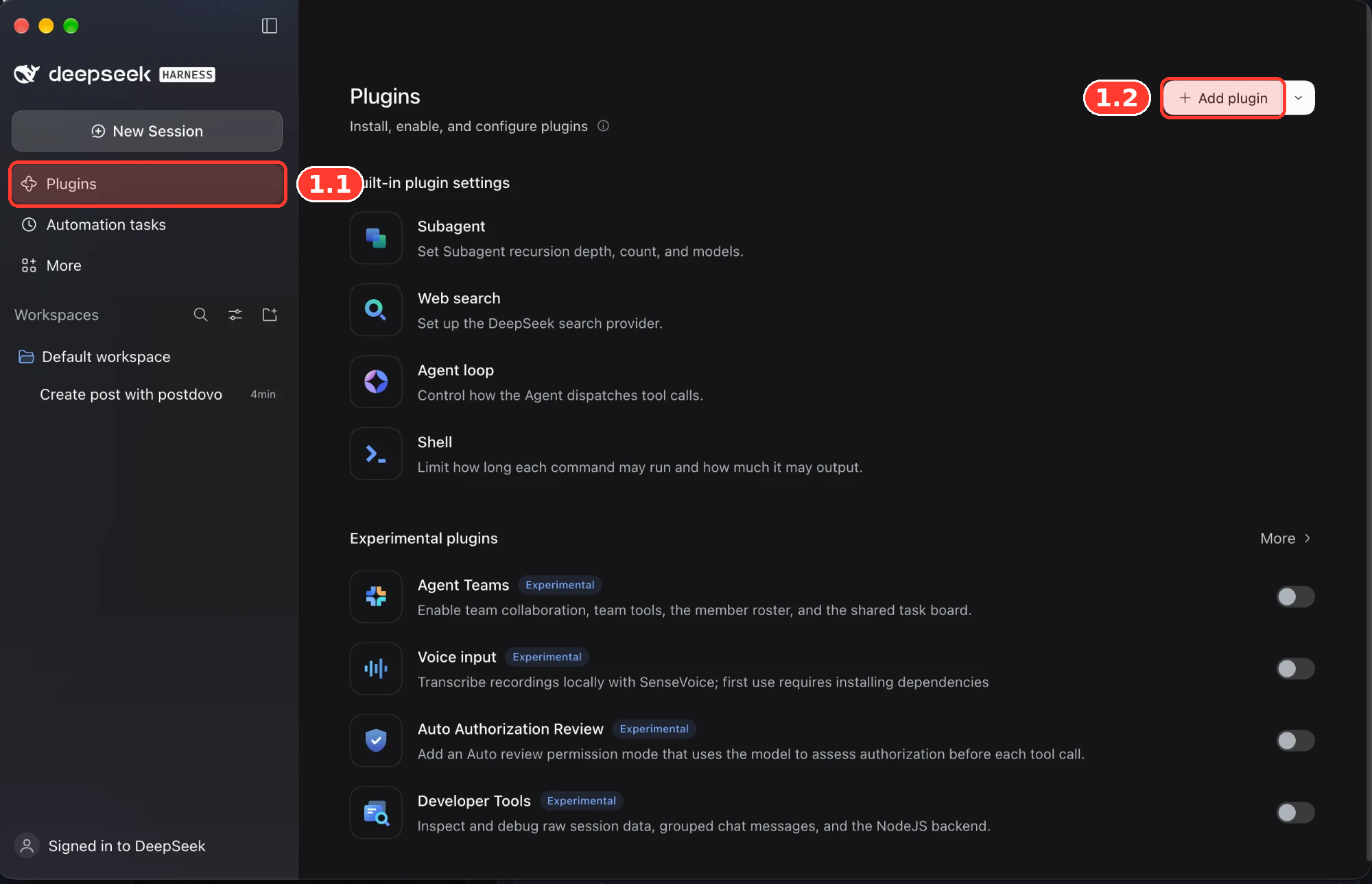
Open Plugins in DeepSeek Harness
- 1.1Click Plugins in the left sidebar.
- 1.2Click + Add plugin in the upper-right corner.
Install the PostDovo Plugin
- 2.1Enter the plugin address below.
- 2.2Under Registry, choose Official npm registry — registry.npmjs.org.
- 2.3Click Install.
github:postdovo/dsh-postdovo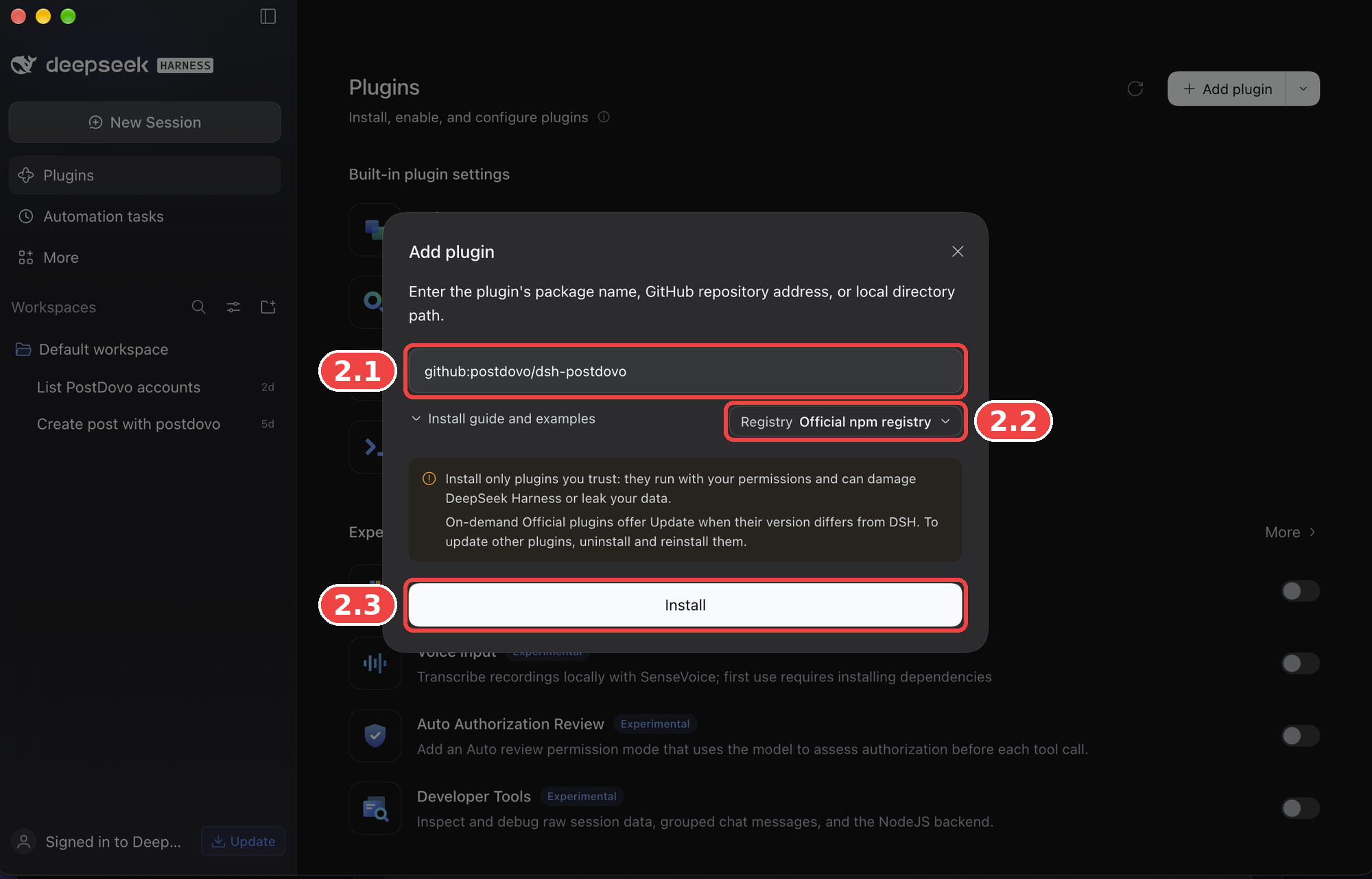
Registry vs. MCP URL: The npm registry downloads software packages. It is not the PostDovo server. Don’t enter https://app.postdovo.com/mcp as a Custom Registry Address; the plugin configures that endpoint separately.
For GitHub-based installation, Git must be available. Check with:
git --versionIf Git is missing, install it from git-scm.com.
Already installed? If Harness says the package is already installed, don’t install it again. Open the existing dsh-postdovo plugin and continue with Step 3.
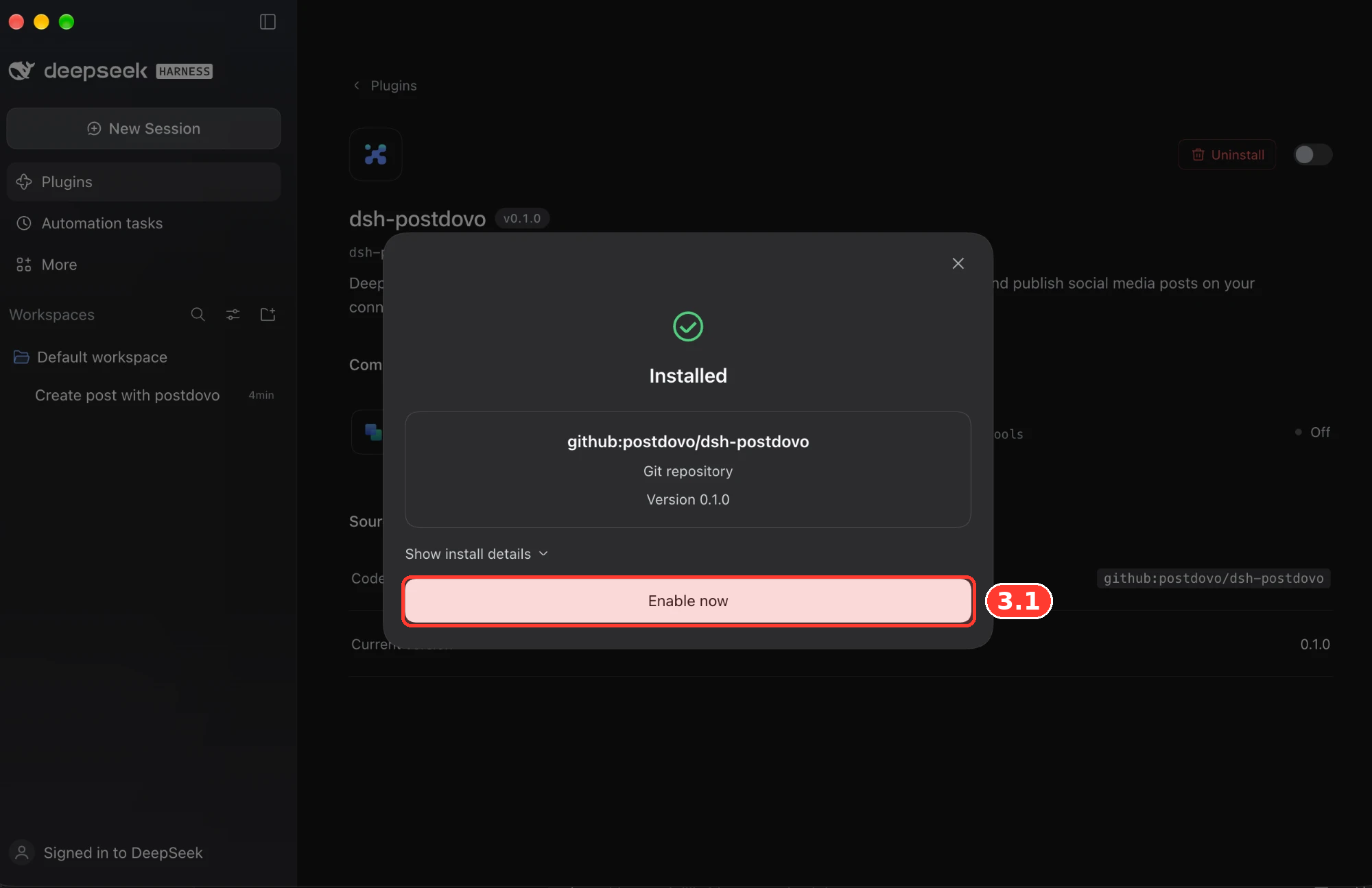
Enable the Plugin
- 3.1When you see Installed, click Enable now.
If you closed the confirmation window, go to Plugins → dsh-postdovo and turn on its switch. An installed but disabled plugin cannot provide tools.
Create a PostDovo Access Token
Open PostDovo, go to Access Tokens, and create a token for DeepSeek Harness. Copy it when shown—it is displayed only once.
Don’t put it in screenshots, a public repository, shared documents or an AI chat. This token authorizes PostDovo access; it is different from your DeepSeek model API key.
Save the Token on Your Computer
DeepSeek Harness reads your token from the environment variable POSTDOVO_TOKEN. In the setup described here, store it in a plain .env file inside your .dsh home folder.
POSTDOVO_TOKEN=YOUR_POSTDOVO_ACCESS_TOKENReplace YOUR_POSTDOVO_ACCESS_TOKEN with your actual token. Use the instructions for your operating system:
Windows — PowerShell
Open PowerShell and run the commands below. They create the folder if needed and open the configuration file in Notepad.
New-Item -ItemType Directory -Force "$HOME\.dsh" | Out-Null
notepad "$HOME\.dsh\.env"
Paste the token line, save and close Notepad. The file is located at %USERPROFILE%\.dsh\.env.
macOS / Linux — Terminal
mkdir -p ~/.dsh
nano ~/.dsh/.env
Add the token line and save. To restrict file access, you can run:
chmod 600 ~/.dsh/.envIf you use a custom DSH_HOME, save the file there instead. The file contains a secret in plain text, so keep it private and out of Git.
Restart DeepSeek Harness
Completely close and reopen the desktop app so it reloads the environment file. If you’re running the browser-based Harness, stop its terminal process with Ctrl + C and start it again:
npx @deepseek-ai/dsh webThe desktop and browser environments can use different plugin profiles. If you need to install PostDovo specifically for the browser profile, use:
npx @deepseek-ai/dsh plugin --profile web add "github:postdovo/dsh-postdovo"Verify Your PostDovo Connection
Start a new DeepSeek Harness session and ask for a read-only account check.
PostDovo tools may appear as mcp__postdovo__list_connected_accounts. If Harness returns the expected account information, the read-only connection is working.
Connection complete. Your authorized PostDovo tools are ready to use. Start with drafts and review publishing actions before approving them.
Watch: Connect DeepSeek Harness to PostDovo
Follow the plugin installation, token configuration and connection verification in one video.
Schedule Social Media Posts with DeepSeek Harness
Once connected, Harness can use PostDovo’s supported tools to prepare content and plan publishing for your connected accounts.
Example: Three Days of Facebook and LinkedIn Posts
Using PostDovo, prepare 3 days of text-only posts about https://postdovo.com for Facebook and LinkedIn, with unique captions for each platform.

Schedule daily at 7 PM London time, starting tomorrow. Keep all posts in one group and show me the plan for approval before scheduling.
What Should This Request Prepare?
These are the expected quantities in the request, not confirmation that the posts have already been created. The first action is to show the plan for approval.
Draft, Schedule and Publish Are Different Actions
| Action | Result |
|---|---|
| Create Draft | Saves content without publishing |
| Schedule Post | PostDovo publishes at the approved date and time |
| Publish Now | Requires preview and explicit approval |
The MCP integration uses PostDovo’s Single Post workflow, including posts across multiple accounts or dates. This is separate from the automated Generate Campaign feature. Image and video posting is also supported when media can be accessed, attached, and accepted by the destination platform.
Supported Social Media Platforms
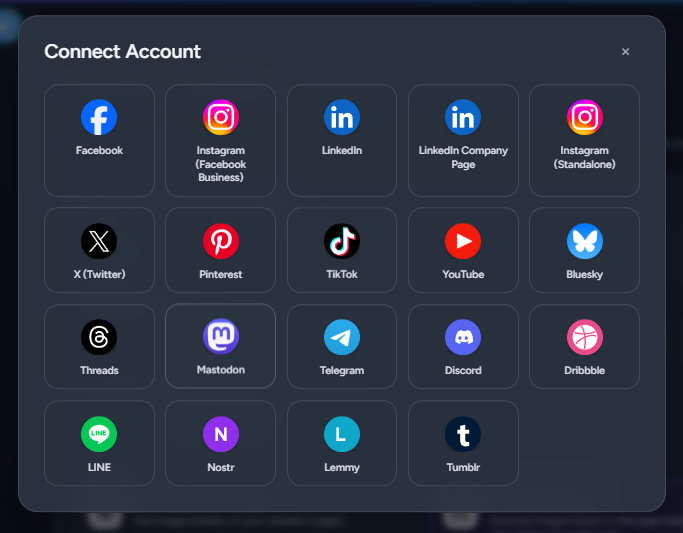
PostDovo provides 19 social media connection options. Connected accounts can be used for supported creation, scheduling and publishing activities; media formats and requirements vary by destination.
| Social media platform | Create | Schedule | Publish |
|---|---|---|---|
 Facebook | ✓ | ✓ | ✓ |
 Instagram (Facebook Business) | ✓ | ✓ | ✓ |
 LinkedIn | ✓ | ✓ | ✓ |
| LinkedIn Company Page | ✓ | ✓ | ✓ |
| Instagram (Standalone) | ✓ | ✓ | ✓ |
 X (Twitter)* | ✓ | ✓ | ✓ |
 Pinterest | ✓ | ✓ | ✓ |
 TikTok | ✓ | ✓ | ✓ |
 YouTube | ✓ | ✓ | ✓ |
 Bluesky | ✓ | ✓ | ✓ |
 Threads | ✓ | ✓ | ✓ |
 Mastodon | ✓ | ✓ | ✓ |
 Telegram | ✓ | ✓ | ✓ |
| Discord | ✓ | ✓ | ✓ |
 Dribbble | ✓ | ✓ | ✓ |
 LINE | ✓ | ✓ | ✓ |
 Nostr | ✓ | ✓ | ✓ |
 Lemmy | ✓ | ✓ | ✓ |
 Tumblr | ✓ | ✓ | ✓ |
Credits are required to publish to X, including scheduled posts. All platforms have their own content-format and authorization requirements.
Connect Your Social Media Accounts
Open PostDovo → Connect Accounts, choose your platforms and authorize each account. DeepSeek Harness can use only the accounts available in its active PostDovo workspace.
Is DeepSeek Harness Integration Free?
PostDovo includes supported AI-agent connectivity with its Starter plan at $0/month. DeepSeek’s model API access may involve separate charges.
| Starter feature | Included |
|---|---|
| Connected social accounts | Up to 5 |
| Workspaces | 1 |
| Single Post creation | Unlimited |
| Single Post scheduling | Unlimited |
| Single Post publishing | Unlimited, except X credit requirements |
| Supported AI-agent connections | Included |
AI content generation and other PostDovo credit-based features may have separate limits or costs.
Using another terminal agent? The general terminal setup works for most of them.
Fix Common DeepSeek Harness Connection Problems
The Plugin Is Already Installed
If Harness says the package is already installed, open the existing dsh-postdovo plugin and check its switch. You don’t need to reinstall it.
Plugin Installation Fails
Verify github:postdovo/dsh-postdovo, confirm that Git is installed and select the Official npm registry. The PostDovo MCP URL is not a package registry.
Plugin Installed but Tools Are Missing
Enable the plugin, confirm you’re using the correct desktop or web profile, and restart DeepSeek Harness.
PostDovo Reports “Server Is Disconnected”
Check that POSTDOVO_TOKEN is present in the correct .dsh/.env file, belongs to the intended PostDovo account, has not expired or been revoked, and was saved before restarting Harness.
Connected Social Accounts Are Missing
Ask Harness which PostDovo workspace is active, then open PostDovo → Connect Accounts for that workspace.
Image or Video Publishing Fails
Check media accessibility, whether the attachment appears on the draft, and the destination platform’s format requirements. Use the actual returned error to diagnose the issue.
Connect Manually Without the Plugin
Advanced users can connect PostDovo using DeepSeek Harness’s built-in MCP client. This is an alternative to installing the plugin, not another required setup step.
Show manual MCP configuration
Save this configuration as postdovo.patch.yml. It uses the same POSTDOVO_TOKEN value configured above.
- insert:
    - id: mcp-postdovo
      name: '@deepseek-ai/dsh-mcp-client'
      config:
        serverName: postdovo
        transport: streamable-http
        url: https://app.postdovo.com/mcp
        headers:
          Authorization: !!js '`Bearer ${process.env.POSTDOVO_TOKEN}`'
Start the web version from the folder containing the patch:
npx @deepseek-ai/dsh web --patch postdovo.patch.ymlDeepSeek Harness remains in preview, so manually configured patch formats may change.
DeepSeek Harness + PostDovo FAQs
Can DeepSeek Harness schedule social media posts?
Yes. It can use supported PostDovo MCP tools to prepare drafts and arrange approved publishing schedules for connected accounts.
Is DeepSeek Harness the same as the DeepSeek chatbot?
No. Harness is a locally running, plugin-based agent environment. This guide does not describe the regular DeepSeek chat interface.
Do I need a PostDovo access token?
Yes, for this token-based DeepSeek Harness setup. Other PostDovo AI-agent connectors may use browser-based OAuth instead.
Which npm registry should I select?
Choose Official npm registry — registry.npmjs.org. Never use PostDovo’s MCP server URL as a custom npm registry.
Is the integration free with PostDovo?
PostDovo includes agent connectivity with the $0/month Starter plan. DeepSeek API use may have separate costs, and publishing to X requires credits.
How do I disconnect DeepSeek Harness?
Disable or uninstall the plugin in Harness and revoke its PostDovo access token. Uninstalling the plugin alone does not necessarily invalidate the token.
Start Scheduling Posts from DeepSeek Harness
Connect the PostDovo plugin, prepare your first draft and review the posting plan before approving a schedule. PostDovo Starter is $0/month with up to five connected social accounts and unlimited Single Post scheduling.