
How to Connect Claude Code to PostDovo for Free
Create, schedule, and publish social media posts with Claude Code, including supported images and videos, using PostDovo.
Turn project updates and product documentation into platform-specific social posts. Prepare drafts, attach media, and publish approved content through your connected PostDovo accounts.
AI-agent connectivity included in the PostDovo Starter plan at $0/month.
Connect Claude Code to PostDovo in 6 Steps
Use the remote Model Context Protocol (MCP) server to connect PostDovo through Claude’s desktop connector interface.
For image and video publishing: In our tested Claude Code/Desktop workflow, media operations failed until network egress was enabled and app.postdovo.com was allowed. Step 6 covers the exact setting.
Before You Start
This graphical workflow does not require terminal commands or a manually generated PostDovo API key.
How to Connect Claude Code to PostDovo
Open Customize and Add a Connector
Open the Claude desktop interface and follow the shortest route to a custom connector.
- 1.1Click Customize in the left sidebar.
- 1.2Select the Connectors tab.
- 1.3Click + Add in the upper-right corner.
- 1.4Choose Add custom connector.
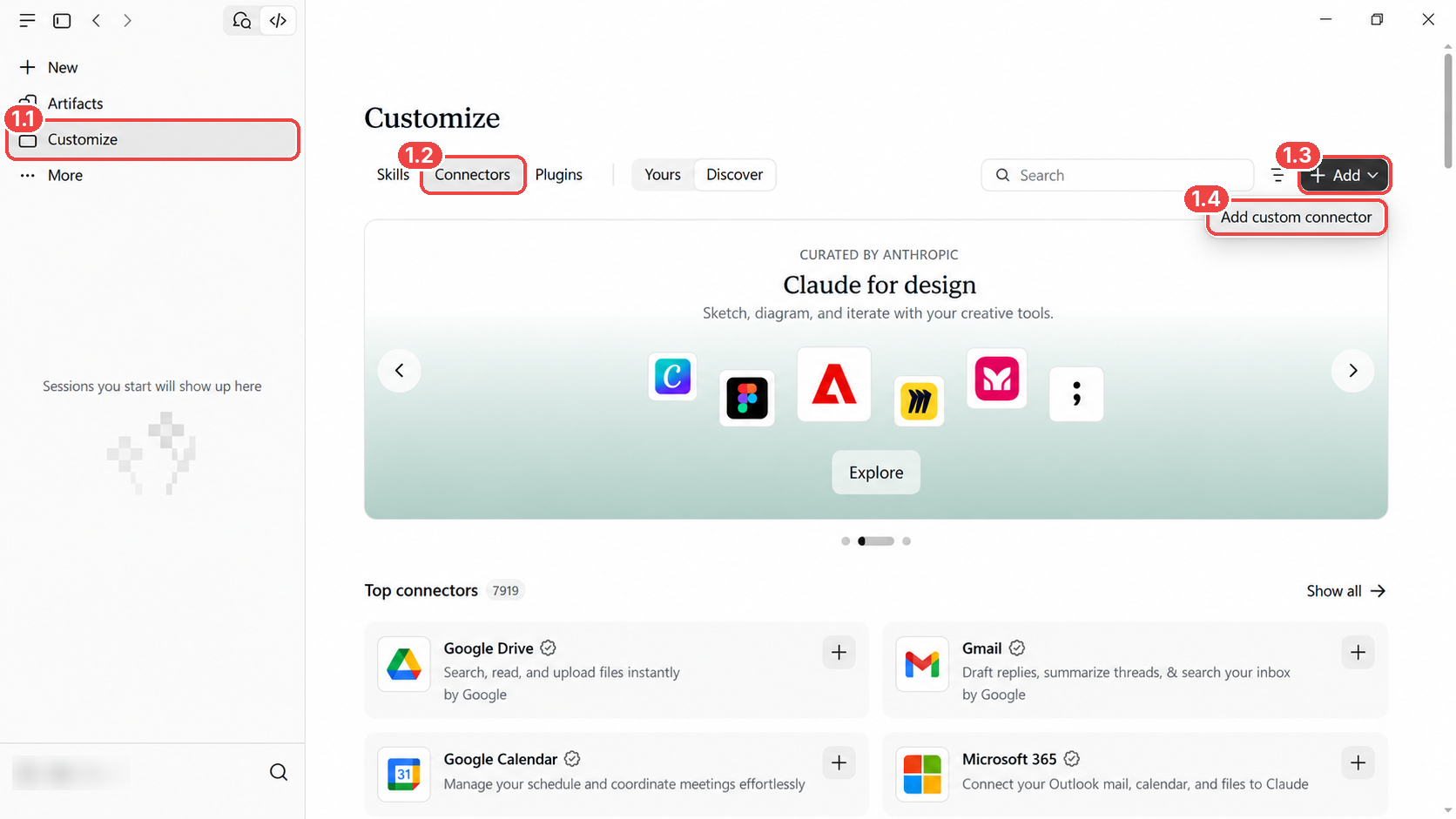
You may also find Connectors through Settings → Customize → Connectors. The direct Customize route is shorter.
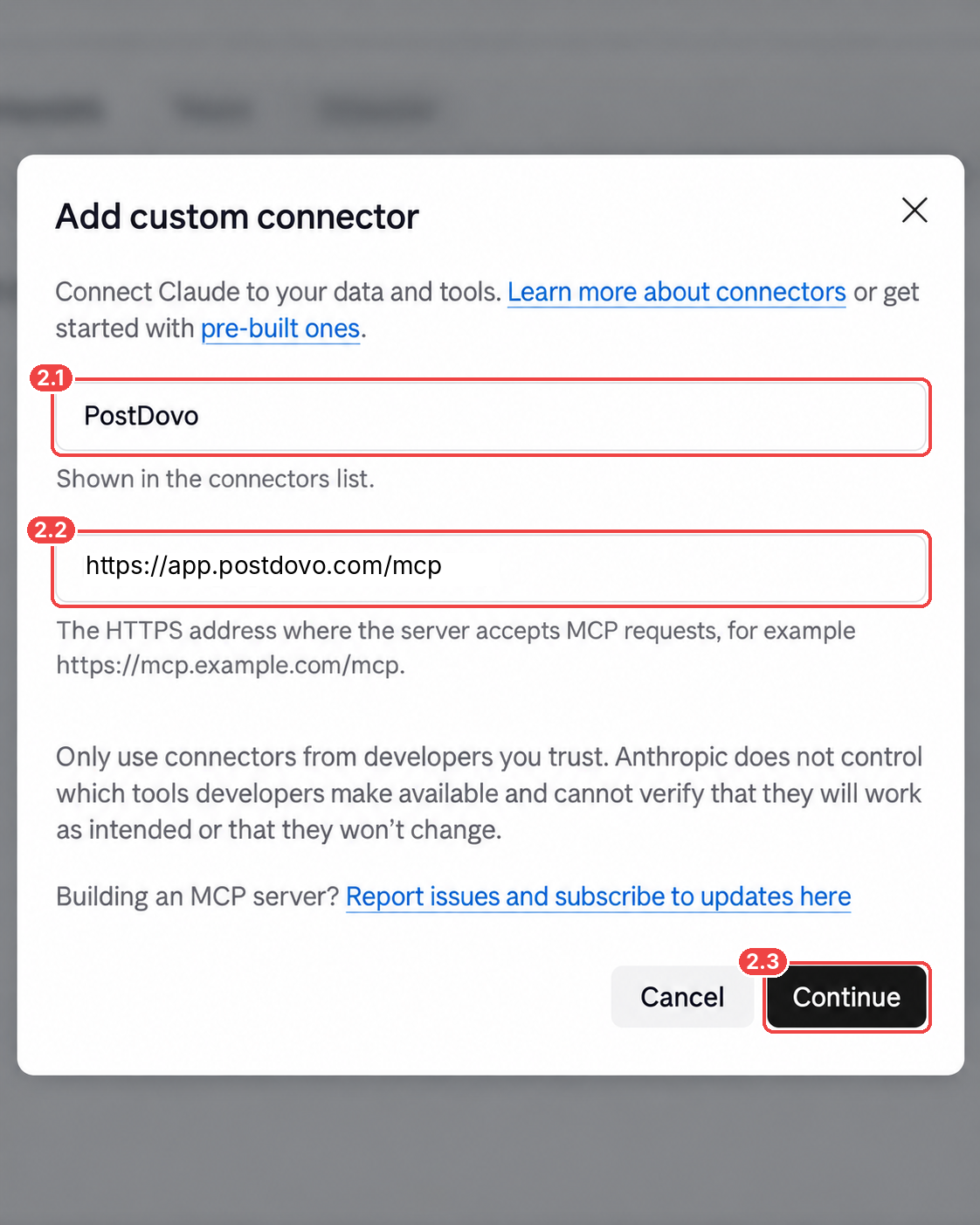
Enter the PostDovo MCP Server Details
Enter the connector name and the complete MCP address:
| Field | Value |
|---|---|
| Connector name | PostDovo |
| MCP server URL | https://app.postdovo.com/mcp |
- 2.1Enter PostDovo.
- 2.2Paste
https://app.postdovo.com/mcp. - 2.3Click Continue.
Configure OAuth Authentication
Claude displays authentication options supported by the PostDovo server.
- 3.1Under Authentication, select Sign in now.
- 3.2Under OAuth client, select Register automatically.
- 3.3Click Add.
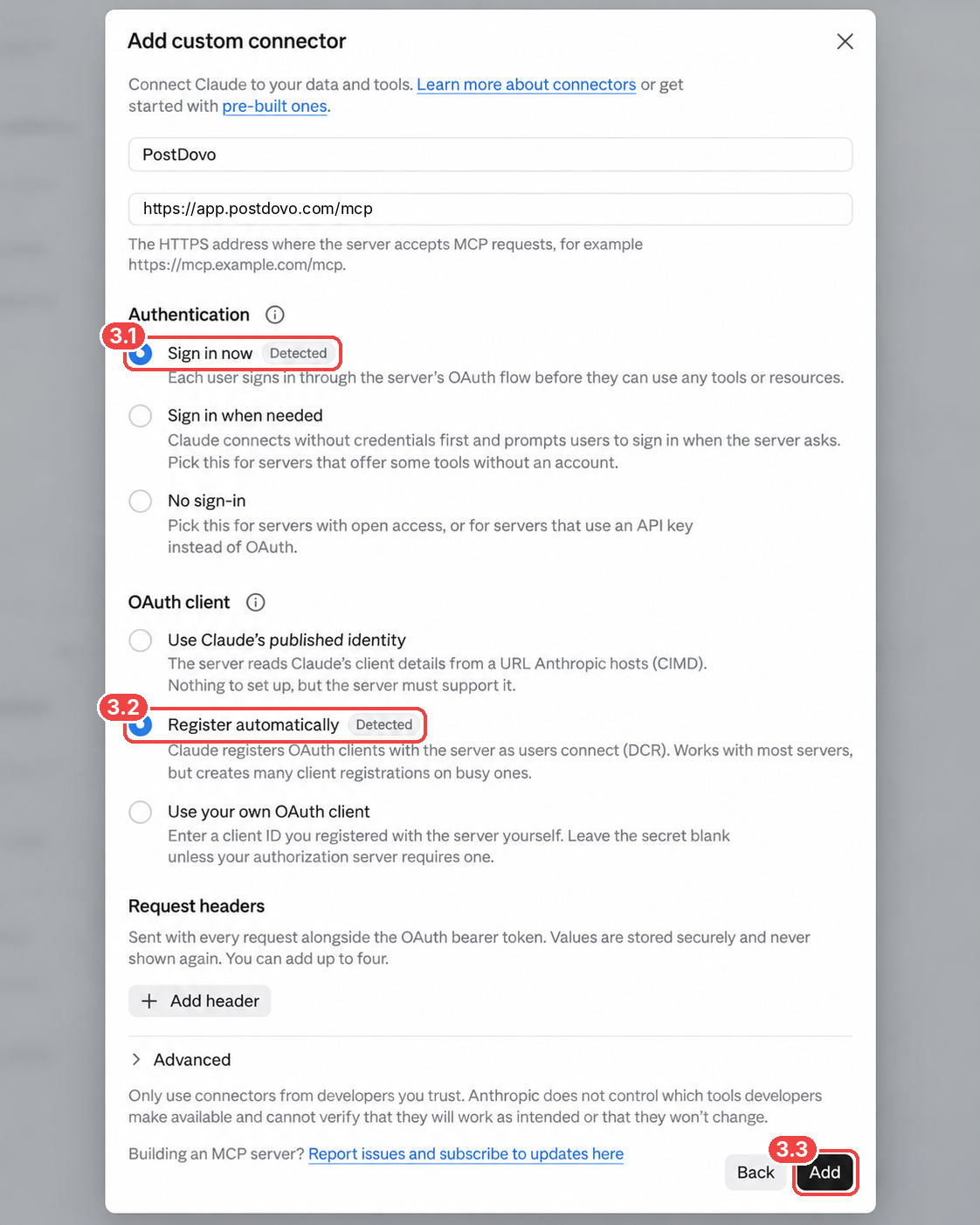
If Claude preselects these settings, verify them before clicking Add.
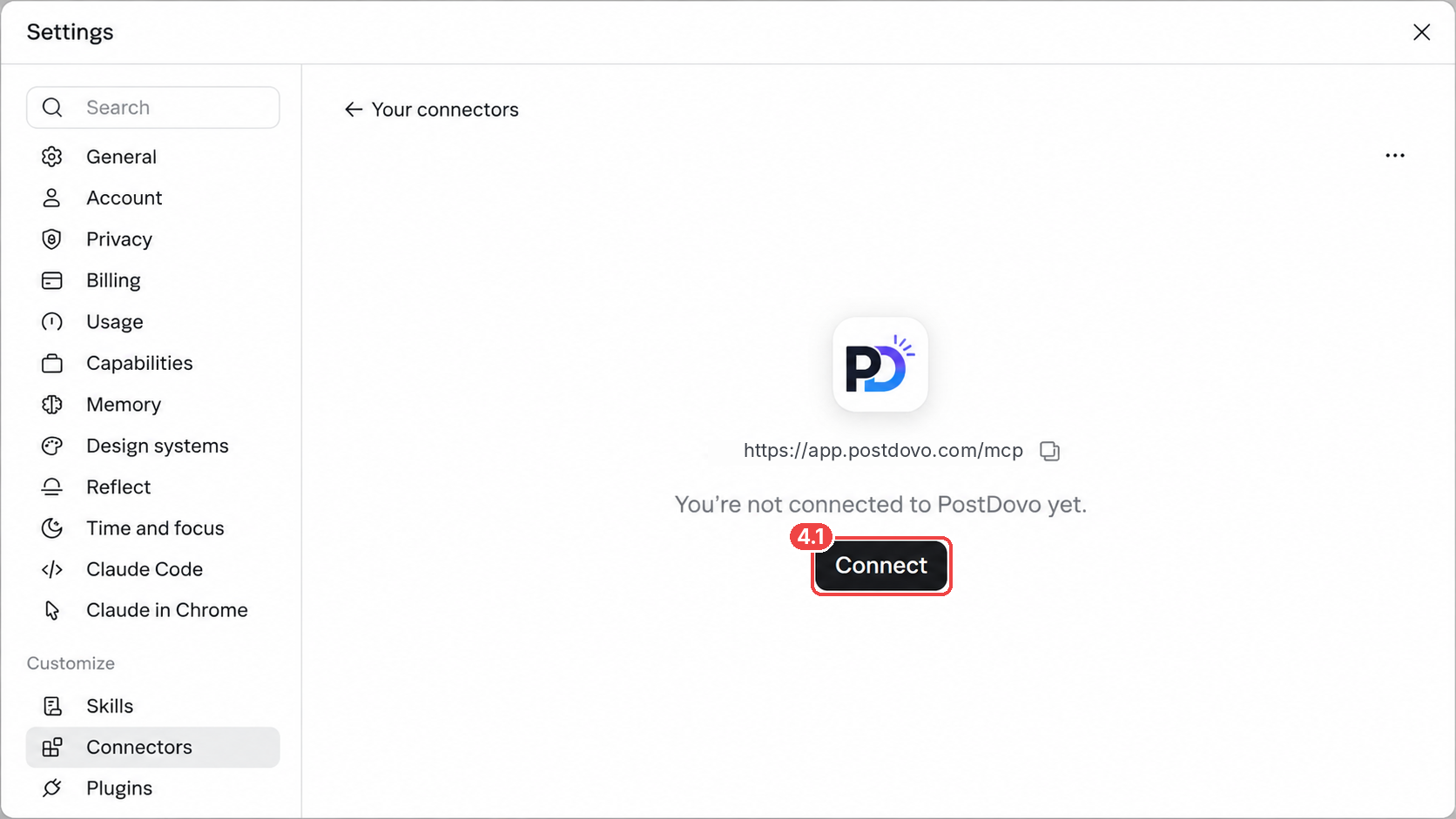
Connect Your PostDovo Account
PostDovo now appears among your connectors, but account access still needs approval.
- 4.1Open the PostDovo connector and click Connect.
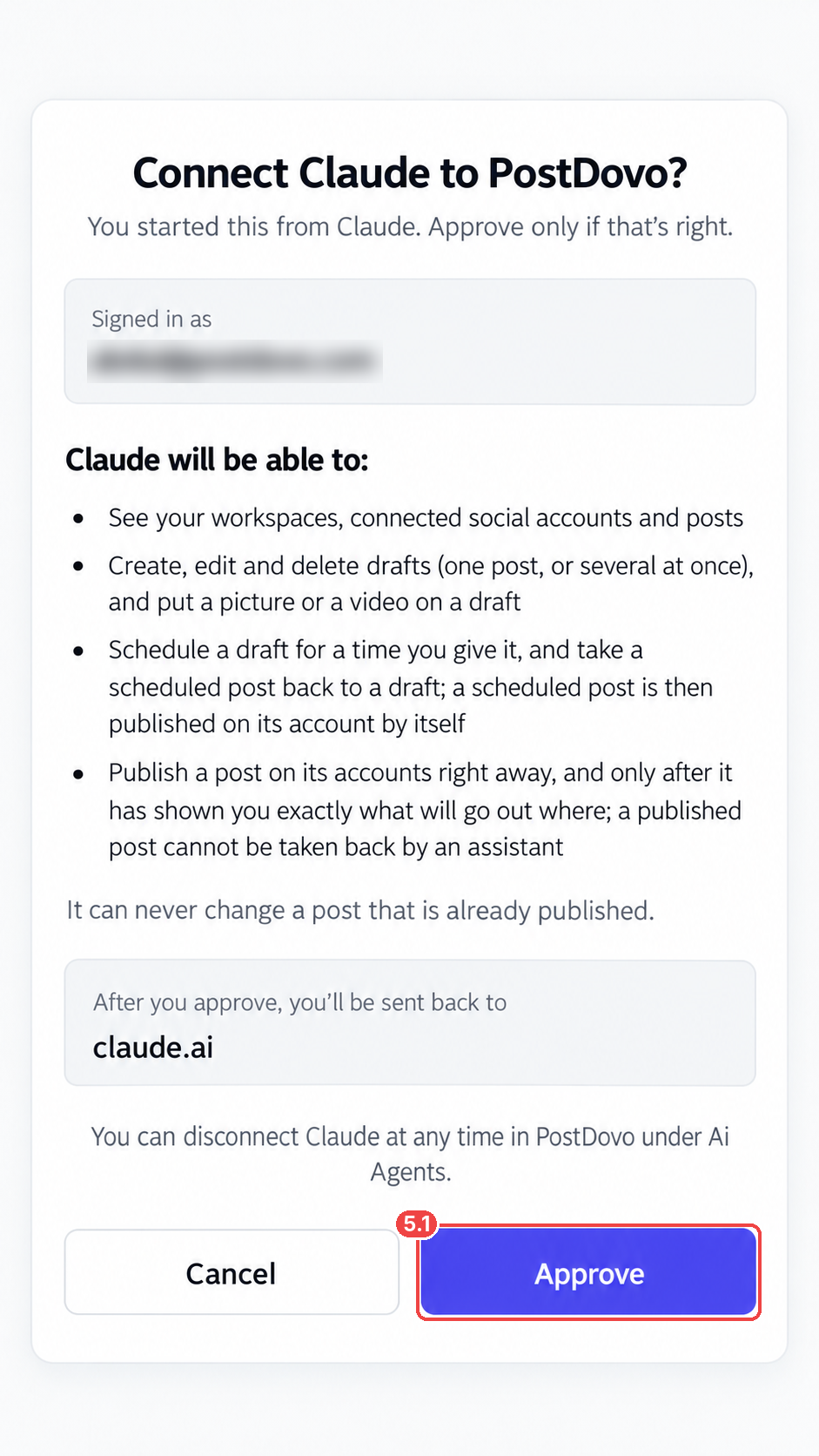
Review Permissions and Approve
PostDovo displays the access requested by Claude, including:
- Viewing workspaces, connected social accounts, and posts.
- Creating, editing, and deleting drafts.
- Attaching supported images and videos to drafts.
- Scheduling posts and returning scheduled posts to drafts.
- Publishing after preview and the required approval.
- 5.1Review the permissions and click Approve.
Enable Network Access for Image and Video Publishing
In our tested Claude Code/Desktop configuration, attaching or publishing media failed without network access. Allow Claude’s execution environment to reach the PostDovo domain.
- 6.1Open Settings → Capabilities.
- 6.2Enable Allow network egress.
- 6.3Under Additional allowed domains, enter
app.postdovo.com. - 6.4Click Add.
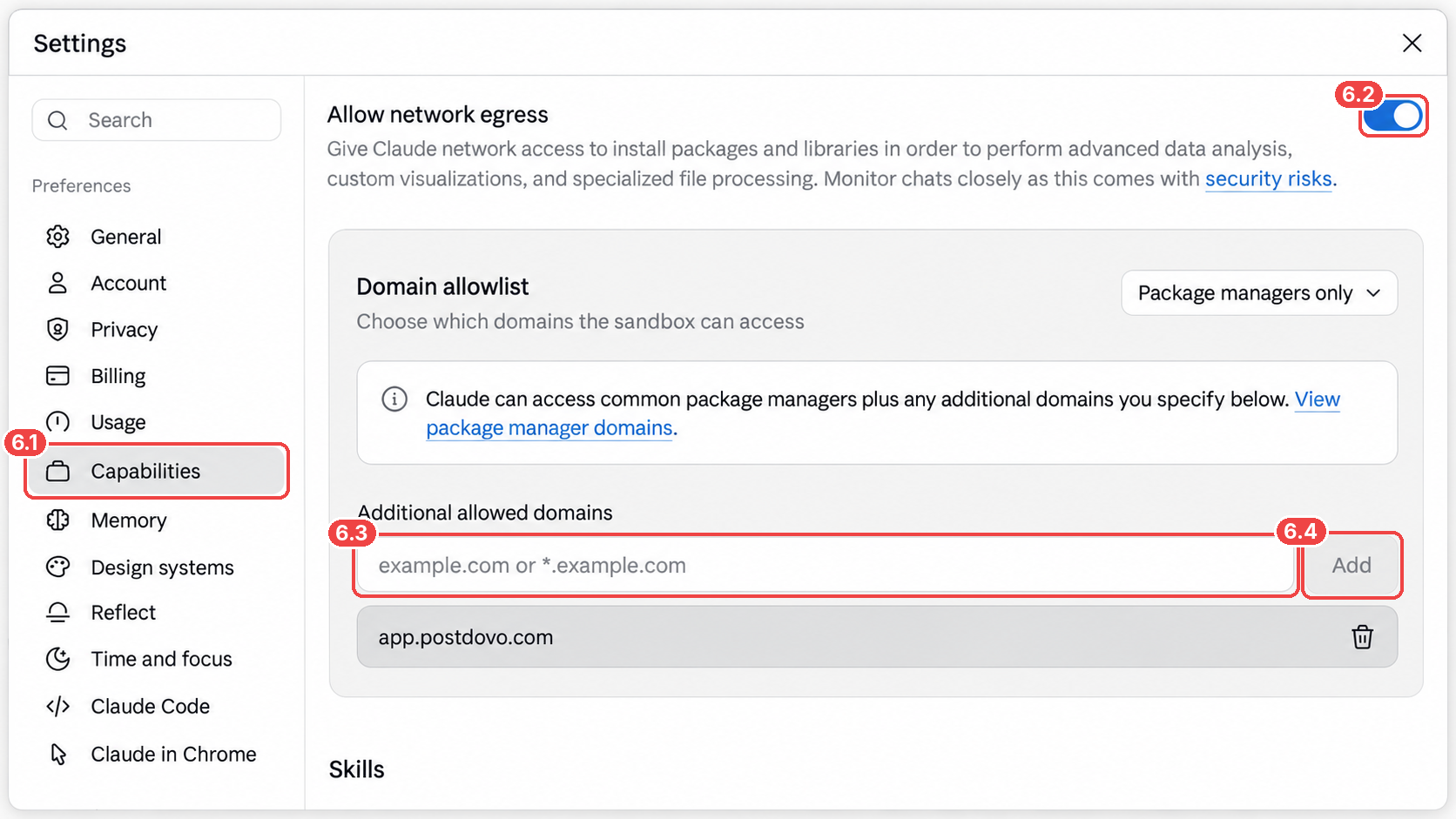
Text-only MCP tasks may work without this setting. Network access expands what Claude’s execution environment can reach, so allow only the domains your workflow needs.
Verify Your PostDovo Connection
Open a Claude conversation with the PostDovo connector enabled and enter a read-only request:
If Claude displays the account information, you can begin preparing drafts.
Watch: Connect Claude Code to PostDovo
Follow the MCP connection, OAuth authorization, and network-access configuration in one video.
Create Text + Image Social Media Posts with Claude Code
Turn verified product-release information into platform-specific announcements. Claude Code can review available project files while PostDovo manages the drafts and their supported attachments.
Before using the example, provide your current README and changelog and an accessible product announcement image. Update the image path and destination website to match your own project.
Using PostDovo, review this project's README and changelog for confirmed details about the latest product update.

Create one Text + Image announcement for Facebook, LinkedIn, and Threads, with a unique caption for each platform.

Use the existing image at ./assets/release-announcement.png and include https://app.postdovo.com as the CTA.

Save all three platform posts as drafts for review. Do not schedule or publish anything.

If the image is missing or release details are unclear, ask me before creating the drafts.
Review Your Prepared Drafts
Claude Code can prepare captions from confirmed information and attach an accessible image using a supported PostDovo media method. Review the image, captions, and destination links before requesting scheduling or publishing.
Image access: A local path is only useful when Claude can read that file and provide it through a supported attachment method. The prompt uses an existing image; it does not require automatic AI image generation. In our tested workflow, Step 6 was necessary for transferring media.
What Can Claude Code Do with PostDovo?
| Capability | What It Enables |
|---|---|
| Create posts | Draft captions tailored to different social platforms. |
| Manage drafts | Create, review, edit, and delete supported drafts. |
| Attach media | Add supported images and videos to drafts. |
| Schedule content | Set publication dates and times. |
| Manage scheduled posts | View schedules and return supported scheduled posts to drafts. |
| Publish | Publish after the required preview and approval. |
| View workspace information | Access authorized workspaces and connected social accounts. |
These actions use PostDovo’s Single Post publishing tools. Single Post is separate from the automated Generate Campaign feature.
Supported Social Media Platforms
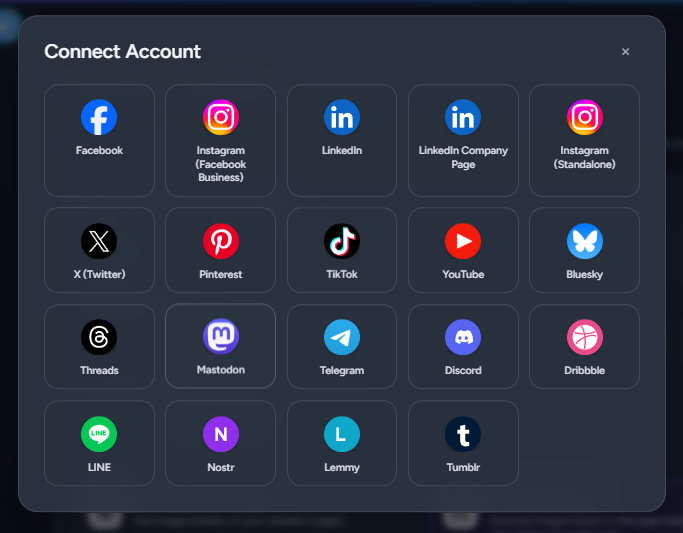
PostDovo offers 19 social media connection options. Claude Code can use PostDovo’s supported publishing tools for authorized accounts in your workspace.
| Social Media Platform | Create Content | Schedule Posts | Publish Posts |
|---|---|---|---|
 Facebook | ✓ | ✓ | ✓ |
 Instagram (Facebook Business) | ✓ | ✓ | ✓ |
 LinkedIn | ✓ | ✓ | ✓ |
| LinkedIn Company Page | ✓ | ✓ | ✓ |
| Instagram (Standalone) | ✓ | ✓ | ✓ |
 X (Twitter)* | ✓ | ✓ | ✓ |
 Pinterest | ✓ | ✓ | ✓ |
 TikTok | ✓ | ✓ | ✓ |
 YouTube | ✓ | ✓ | ✓ |
 Bluesky | ✓ | ✓ | ✓ |
 Threads | ✓ | ✓ | ✓ |
 Mastodon | ✓ | ✓ | ✓ |
 Telegram | ✓ | ✓ | ✓ |
| Discord | ✓ | ✓ | ✓ |
 Dribbble | ✓ | ✓ | ✓ |
 LINE | ✓ | ✓ | ✓ |
 Nostr | ✓ | ✓ | ✓ |
 Lemmy | ✓ | ✓ | ✓ |
 Tumblr | ✓ | ✓ | ✓ |
* X (Twitter): Credits are required to publish to X, including scheduled posts. Content formats, media requirements, and publishing permissions vary by platform.
Connect Your Social Media Accounts
Open PostDovo, navigate to Connect Accounts, choose your social networks, and complete authorization for each account.
Is Claude Code Integration Free with PostDovo?
Yes. AI-agent connectivity is included in the PostDovo Starter plan at $0/month, without requiring a paid PostDovo subscription.
| Feature | Starter Plan |
|---|---|
| Monthly subscription | $0/month |
| Connected social accounts | Up to 5 |
| Workspaces | 1 |
| Single Post creation | Unlimited |
| Single Post scheduling | Unlimited |
| Single Post publishing | Unlimited, except X credit requirements |
| Claude Code connectivity | Included |
| ChatGPT connectivity | Included |
| Other supported AI agents | Included |
Claude’s own subscription or usage costs are separate. AI generation and other PostDovo credit-based features may have their own limits.
Using Claude in the browser or desktop app instead? Follow the Claude connector guide.
Troubleshooting Claude Code and PostDovo
PostDovo Is Added but Not Connected
Open Customize → Connectors, select PostDovo, click Connect, and finish OAuth authorization.
Claude Cannot Find Your Social Accounts
Confirm that the accounts are connected to the correct PostDovo workspace. Ask Claude to show the active workspace and connected accounts.
The MCP Server Cannot Be Reached
Check that the connector address is https://app.postdovo.com/mcp and that the connection has been authorized.
Image or Video Publishing Fails
For the media workflow tested with PostDovo, open Settings → Capabilities, enable Allow network egress, and add app.postdovo.com under Additional allowed domains. Confirm that the media is accessible and compatible with the destination platform before retrying.
Claude Cannot Use a Publishing Tool
Check that the PostDovo connector is enabled and authorized. If the available tools appear outdated, refresh or reconnect the connector.
Claude Code + PostDovo FAQs
1. How do I connect Claude Code to PostDovo?
Open Customize → Connectors → + Add → Add custom connector. Enter https://app.postdovo.com/mcp, complete OAuth, and approve access. For our tested media workflow, configure network access in Step 6.
2. Do I need a PostDovo API key?
No. The custom MCP connector uses OAuth authorization, so you do not need to generate a manual PostDovo API key.
3. Why does image or video publishing fail?
In our tested Claude Code/Desktop setup, media operations required network access. Enable Allow network egress and add app.postdovo.com as an allowed domain. Also verify media access and platform requirements.
4. Can Claude Code create, schedule, and publish posts?
Yes. It can use PostDovo’s supported tools to prepare drafts, attach media, schedule posts, and publish approved content to connected accounts.
5. Is Claude Code integration free?
PostDovo includes AI-agent connectivity with Starter at $0/month. Claude’s own subscription or usage charges may apply, and X publishing requires credits.
6. Can I disconnect Claude Code from PostDovo?
Yes. Revoke authorized access through PostDovo’s AI Agents section or manage the connection in Claude’s connector settings.