
How to Connect Claude and Claude Cowork to PostDovo for Free
Create, schedule, and publish social media posts through Claude or Claude Cowork using PostDovo.
Tell Claude what your business needs, which social accounts to use, and when to publish. PostDovo turns approved requests into drafts, schedules, and supported publishing actions.
Connect Claude on any PostDovo plan, including Starter at $0/month.
Before You Connect Claude or Claude Cowork
You’ll need a Claude account, a PostDovo account or workspace, and the PostDovo MCP server address.
The connector uses OAuth, so you don’t need to enter a PostDovo API key manually. See Step 6 for media network settings.
Working in the terminal rather than the Claude app? The Claude Code setup is a little different.
How to Connect Claude Cowork to PostDovo with a Prompt
Claude Cowork can set up the PostDovo connection from a prompt. Open Cowork in the Claude desktop app and paste the instructions below. You can then complete the PostDovo sign-in and approval flow when prompted.
Option 1: Let Cowork Set Up the Connection
Add PostDovo to yourself as a custom MCP server (a custom connector or plugin) now, so that you can plan, write, schedule and publish my social media posts for me. Do the setup yourself, in your own settings or with your own commands. Do not just explain how.

Details:
* Name: PostDovo
* Description: Plan, write, schedule and publish my social media posts
* Server address (URL): https://app.postdovo.com/mcp
* Transport: streamable HTTP (not SSE)
* Authentication: OAuth. Register yourself with PostDovo automatically (dynamic client registration).
- Send the setup prompt in a Cowork conversation.
- Let Cowork add the PostDovo connector and follow any setup permission requests.
- Sign in to PostDovo when authorization opens, review the requested access, and choose Approve.
- Ask: “Using PostDovo, show my connected social accounts.”
The setup prompt does not ask Cowork to publish content. After the connection works, ask it to create drafts, plan a campaign, schedule posts, or publish approved content. It can work with images and videos, including media created through your agent workflow.
Option 2: Use the Manual Connector Setup
If you prefer to add PostDovo yourself, follow the manual connector instructions below with the same server URL and OAuth authorization. If PostDovo is already connected and available in Cowork, enable the existing connector and check your accounts rather than creating a duplicate.
Starter is $0/month and includes AI agents and full automation; Analytics is excluded. The shared features and platform sections below apply to Claude and Claude Cowork.
How to Connect Claude to PostDovo Manually in 6 Steps
Follow the connection and media-publishing setup shown in the annotated screenshots below. The first five steps authorize PostDovo; Step 6 enables network access needed for image and video publishing in our tested Claude workflow.
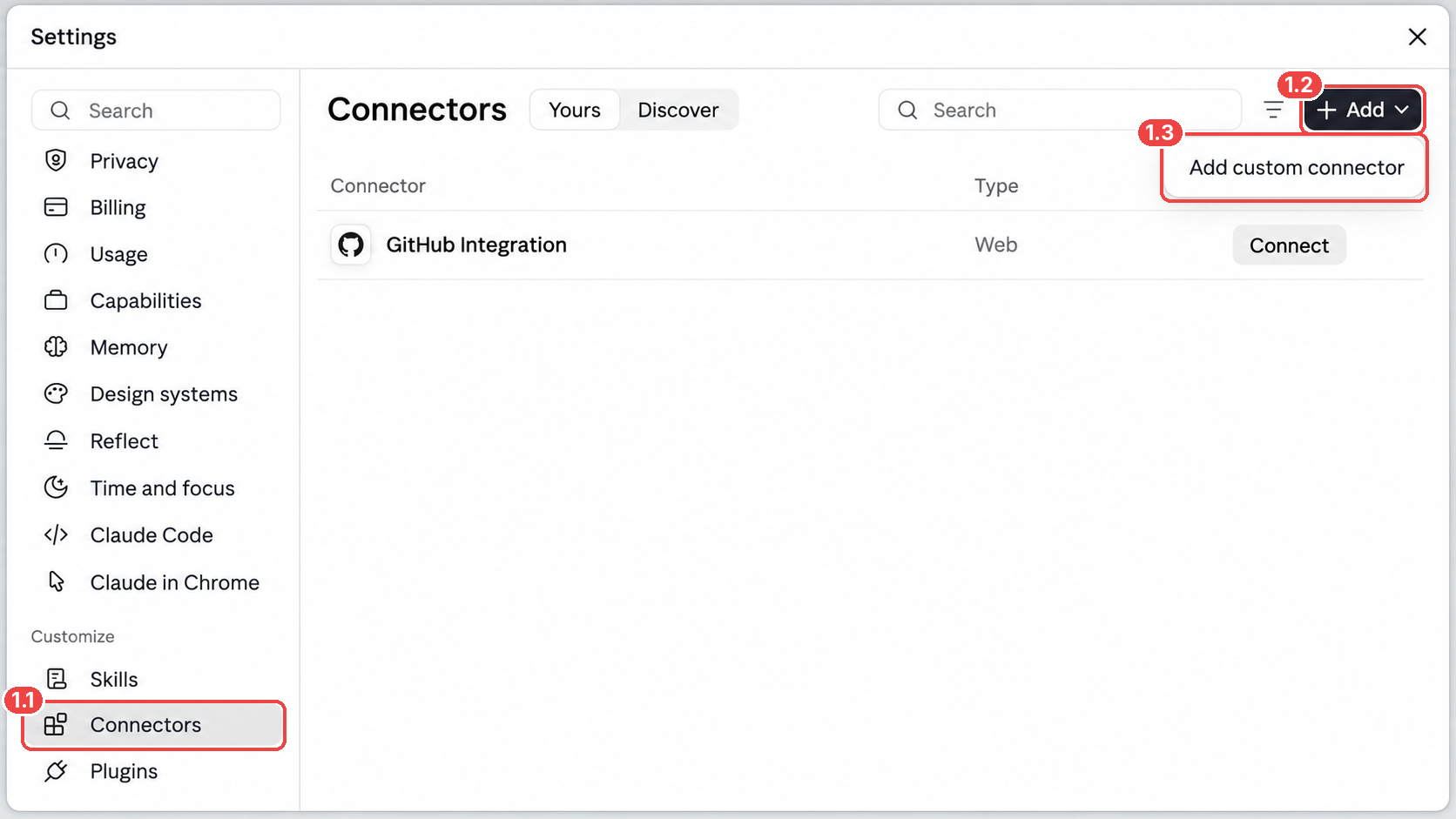
Open Claude’s Connector Settings
In Claude, open Settings.
- 1.1Select Connectors in the sidebar.
- 1.2Click + Add.
- 1.3Choose Add custom connector.
Enter PostDovo’s MCP Address
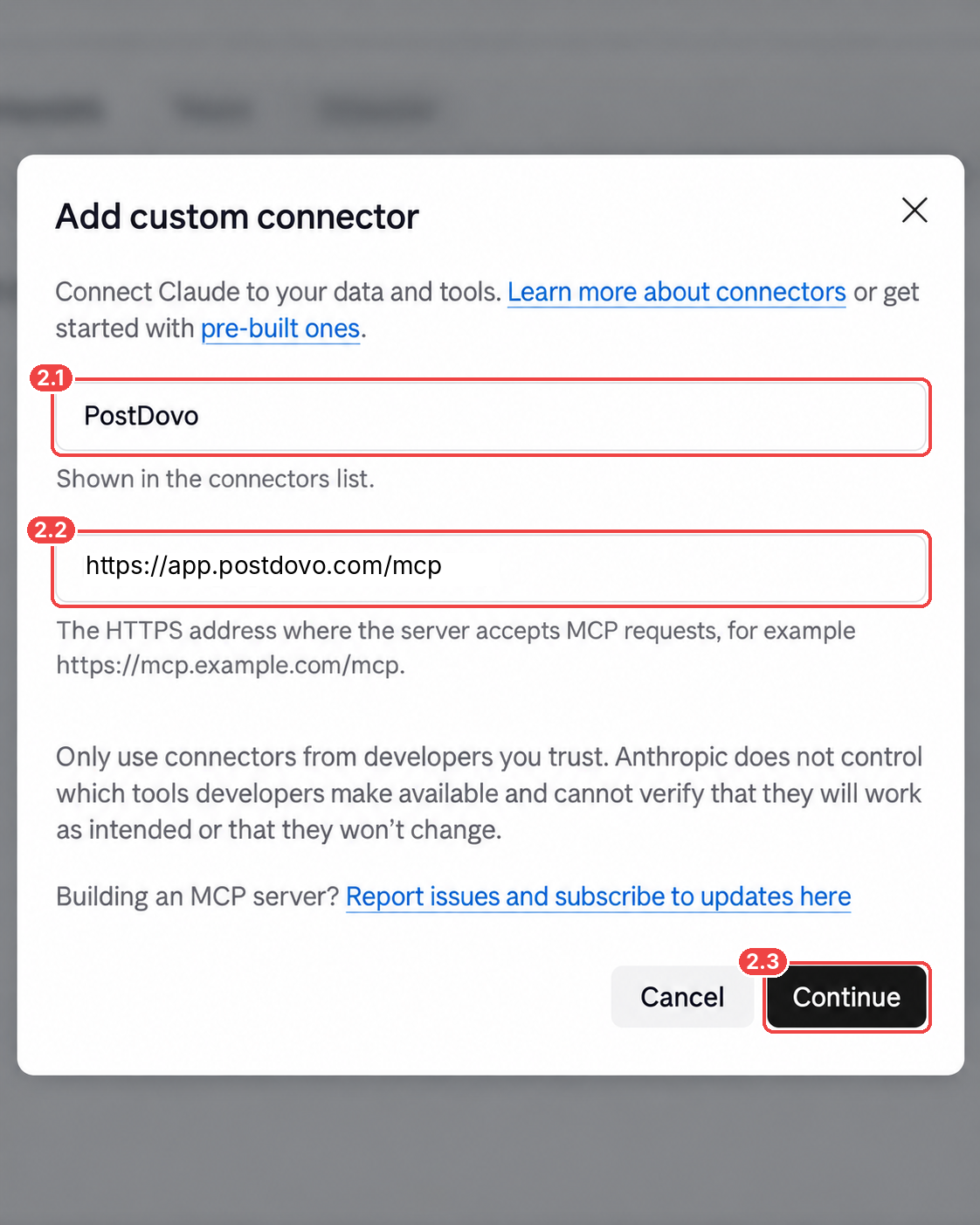
Claude will ask for a connector name and the server’s HTTPS address.
| Field | Enter |
|---|---|
| Name | PostDovo |
| URL | https://app.postdovo.com/mcp |
- 2.1Type PostDovo.
- 2.2Paste
https://app.postdovo.com/mcp. - 2.3Click Continue.
Select the Detected OAuth Options
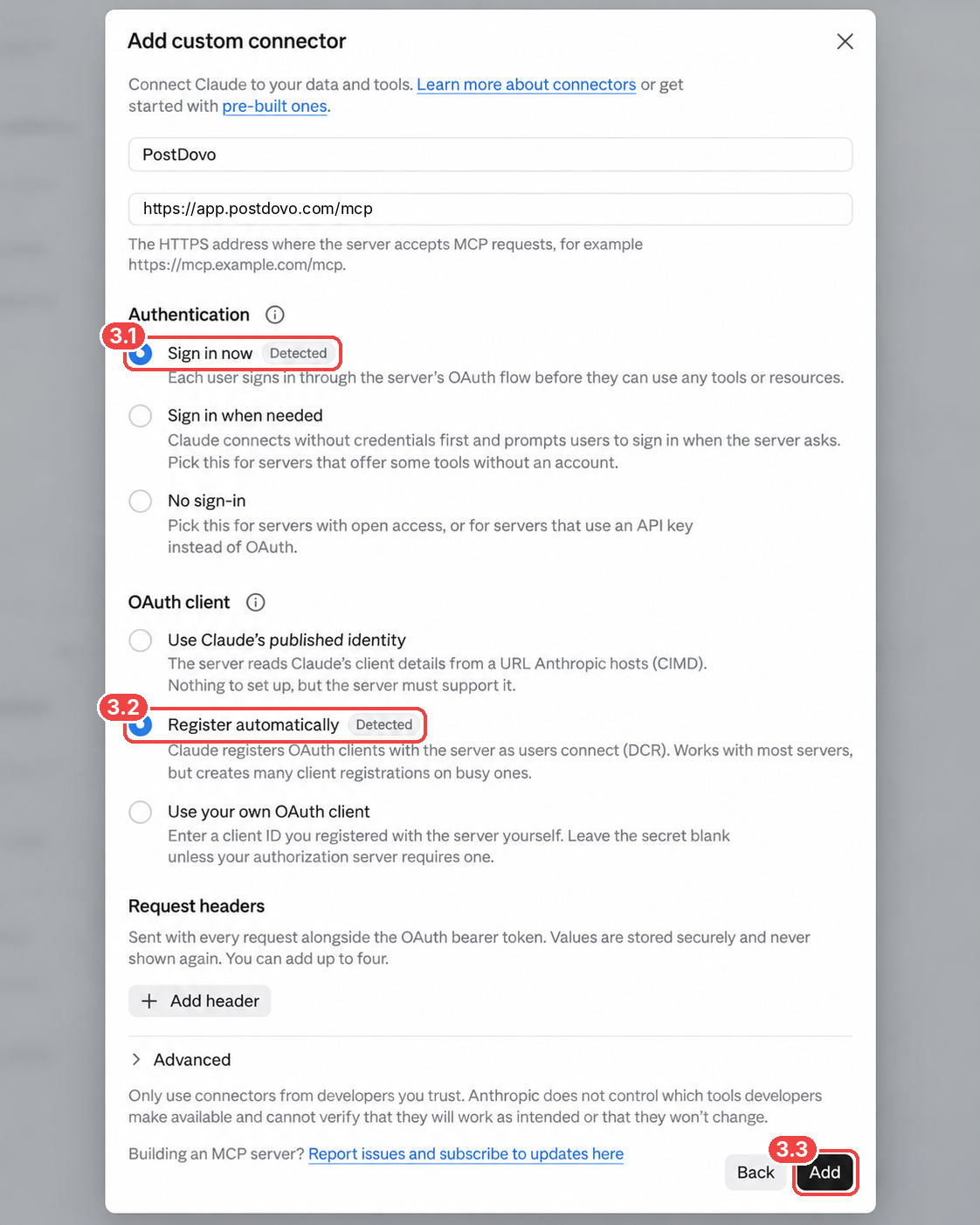
Claude checks the PostDovo MCP server and shows the authentication methods it supports.
- 3.1Under Authentication, choose Sign in now.
- 3.2Under OAuth client, choose Register automatically.
- 3.3Click Add.
Connect Your PostDovo Account
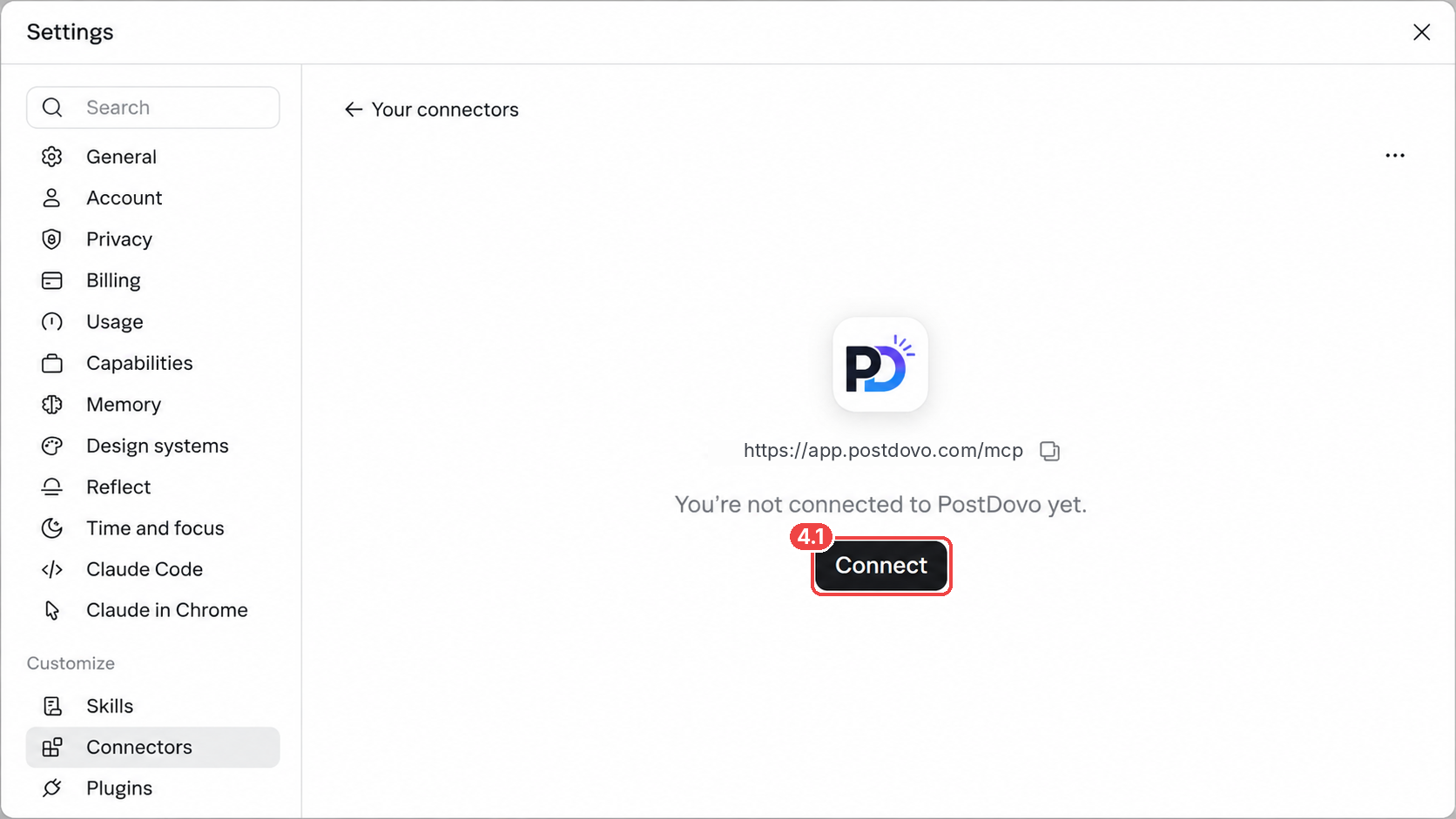
Adding the connector does not authorize your account by itself. Open the newly added PostDovo connector.
- 4.1Click Connect to start authorization.
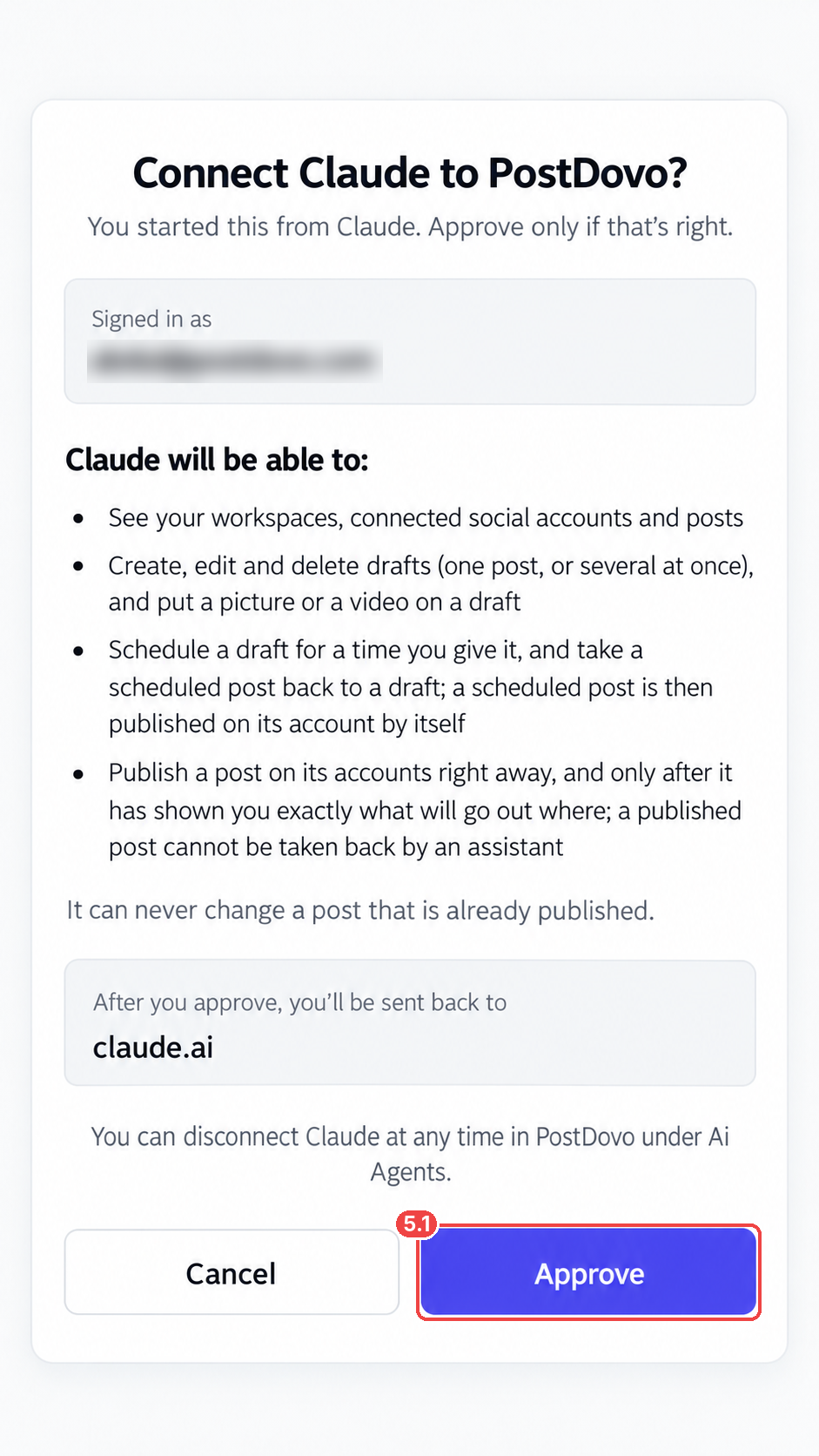
Review Permissions and Approve
PostDovo displays what Claude will be allowed to do. Read the permissions before approving.
- View your workspaces, connected social accounts, and posts.
- Create, edit, or delete drafts, and attach supported images or videos.
- Schedule posts and return scheduled posts to drafts.
- Publish posts after showing the publishing details and receiving the required approval.
- 5.1Click Approve to authorize Claude.
Enable Network Access for Image and Video Publishing
Required for image and video publishing in our tested Claude.ai workflow. The PostDovo MCP connection can be authorized in Steps 1–5, but image and video posting failed in our tests when Claude’s network access was disabled.
To allow Claude’s execution environment to reach PostDovo during media handling, configure the following settings:
- 6.1Open Settings → Capabilities.
- 6.2Enable Allow network egress.
- 6.3Under Additional allowed domains, enter
app.postdovo.com. - 6.4Click Add.
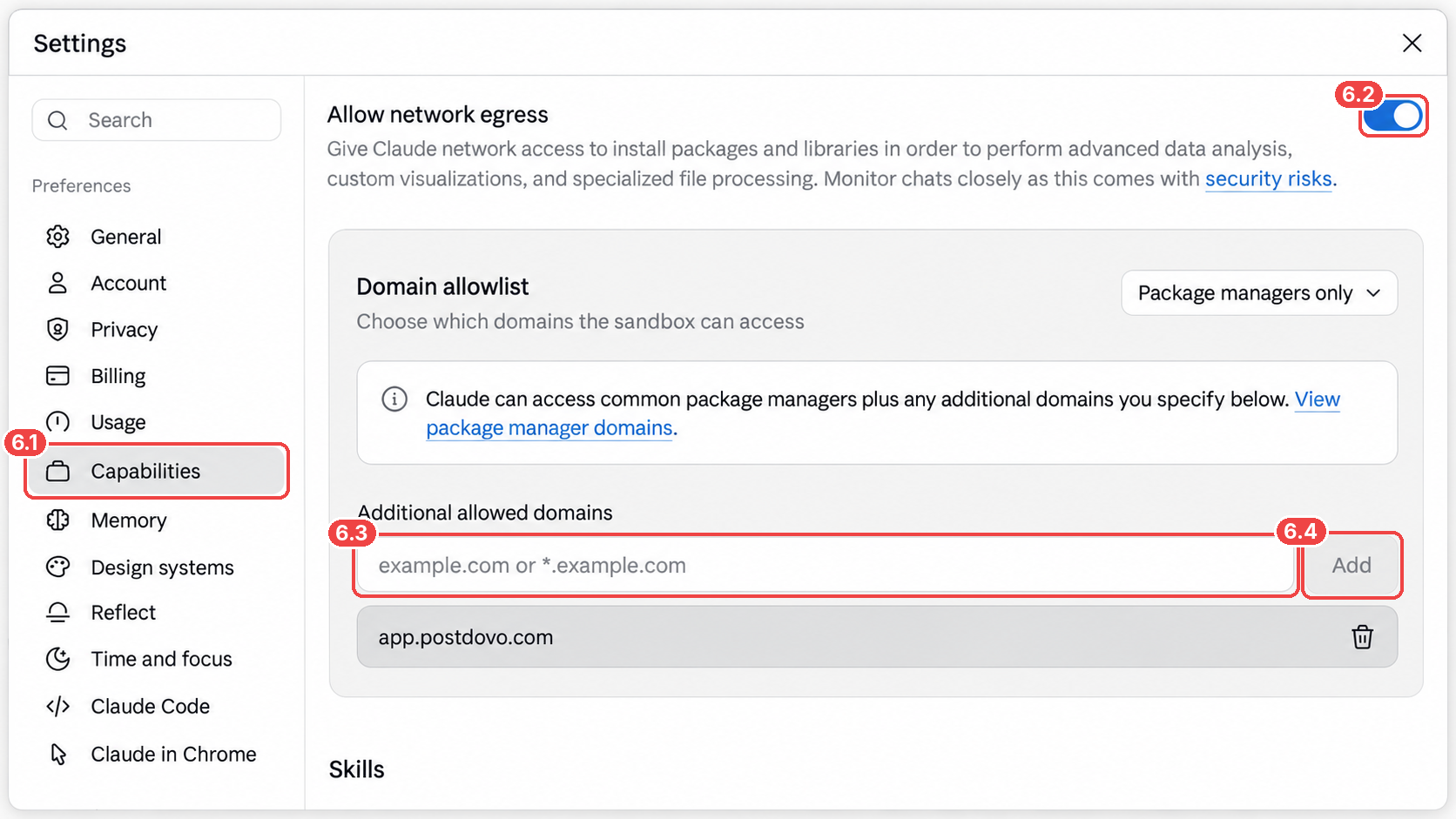
When is this needed? This step is required for the media-publishing workflow we tested. Text-only MCP operations may work without it. Network access expands what Claude’s execution environment can reach, so allow only trusted domains.
Check That Claude Can See Your Accounts
Open a Claude conversation and enable the PostDovo connector if it isn’t already selected. Start with a read-only request:
If Claude returns your connected account information, you can move on to preparing posts. For images and videos, confirm you have also completed Step 6.
Video: Connect Claude to PostDovo
See the connector setup, OAuth authorization, and first request in one walkthrough.
data-youtube-url field above to display the in-page player.Ask Claude to Schedule a Week of Posts
Use this short prompt to request seven different Text + Image posts, with a daily schedule set to London’s local timezone.
Using PostDovo, create 7 daily Text + Image posts about https://postdovo.com for Facebook and Instagram, with unique captions and images.

Schedule at 7 PM London time, starting tomorrow. Keep all posts in one group and show me for approval first.
Claude and Cowork can work with images and videos, including media created through your agent workflow. For the network settings described in this guide, see Step 6.
What Can Claude and Claude Cowork Manage Through PostDovo?
| Action | What It Means |
|---|---|
| Write for each platform | Prepare different captions for Facebook, Instagram, and other connected accounts. |
| Prepare drafts | Create, review, edit, or delete draft posts. |
| Attach media | Add supported images and videos to drafts. |
| Schedule content | Choose publishing dates, times, and destinations. |
| Manage upcoming posts | Check scheduled content and return scheduled posts to drafts when supported. |
| Publish with approval | Publish supported posts after the required review and authorization. |
Claude and Cowork can use PostDovo to prepare individual posts or organize a multi-day publishing campaign. Available actions depend on integration permissions and platform requirements.
Social Platforms Supported Through PostDovo
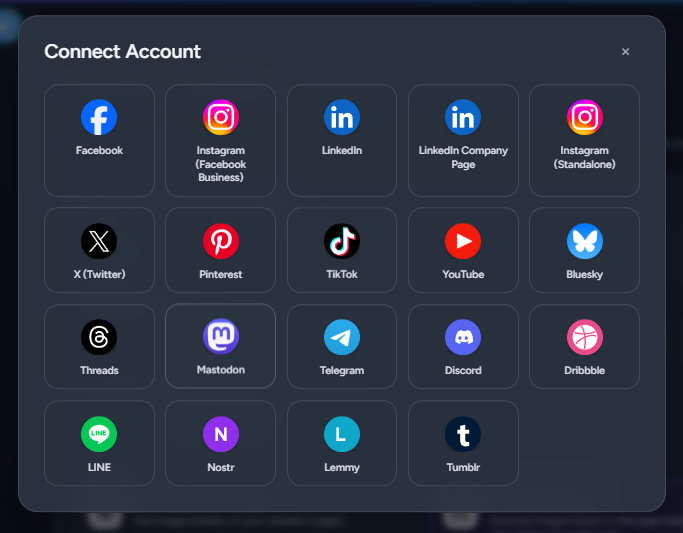
PostDovo offers 19 connection options across social platforms and account types. With supported publishing tools, Claude can help prepare, schedule, and publish to your connected accounts.
| Platform | Create Content | Schedule | Publish |
|---|---|---|---|
 Facebook | ✓ | ✓ | ✓ |
 Instagram (Facebook Business) | ✓ | ✓ | ✓ |
 LinkedIn | ✓ | ✓ | ✓ |
| LinkedIn Company Page | ✓ | ✓ | ✓ |
| Instagram (Standalone) | ✓ | ✓ | ✓ |
 X (Twitter)* | ✓ | ✓ | ✓ |
 Pinterest | ✓ | ✓ | ✓ |
 TikTok | ✓ | ✓ | ✓ |
 YouTube | ✓ | ✓ | ✓ |
 Bluesky | ✓ | ✓ | ✓ |
 Threads | ✓ | ✓ | ✓ |
 Mastodon | ✓ | ✓ | ✓ |
 Telegram | ✓ | ✓ | ✓ |
| Discord | ✓ | ✓ | ✓ |
 Dribbble | ✓ | ✓ | ✓ |
 LINE | ✓ | ✓ | ✓ |
 Nostr | ✓ | ✓ | ✓ |
 Lemmy | ✓ | ✓ | ✓ |
 Tumblr | ✓ | ✓ | ✓ |
* X (Twitter): Credits are required to publish posts on X, including scheduled posts. Other platform-specific content formats and requirements still apply.
Connect Your Social Accounts First
In your PostDovo workspace, open Connect Accounts, choose your social platforms, and complete their authorizations. Claude can only work with accounts that are connected and accessible through your workspace.
Is PostDovo Free for Claude and Claude Cowork?
Starter is $0/month and includes AI agents and full automation; Analytics is excluded.
| Starter Feature | Included |
|---|---|
| Monthly subscription | $0/month |
| Social accounts | Up to 5 |
| Workspaces | 1 |
| Single Post creation | Unlimited |
| Single Post scheduling | Unlimited |
| Single Post publishing | Unlimited, except X credit requirements |
| Claude, Cowork, ChatGPT, and supported AI agents | Included |
| Agent automation: content, campaigns, drafts, scheduling, and publishing | Included |
| Analytics | Excluded from Starter |
AI-agent connections and full automation are included in Starter. PostDovo AI generation uses credits, separately from automation feature access. Claude may have its own feature and usage requirements.
If your team also uses ChatGPT, you can connect it the same way, and both agents share one PostDovo workspace.
Claude Cowork Troubleshooting
PostDovo is connected but unavailable in Cowork
Check that the existing PostDovo connector is enabled for your Cowork task. Ask it to list your connected social accounts before requesting new posts.
The connector still needs authorization
Open PostDovo in your connector list, choose Connect, and complete browser sign-in and approval. Adding the connector alone does not authorize your PostDovo workspace.
The setup prompt only returns instructions
Ask Cowork to perform the setup using the prompt above. If it cannot change the connector settings in your current environment, follow the manual connection steps, then return to Cowork and enable PostDovo.
Claude and Claude Cowork + PostDovo FAQs
Can I connect PostDovo to Claude Cowork with a prompt?
Yes. Paste the Cowork setup prompt above, let Cowork add the connector, and complete PostDovo browser sign-in and approval. You can also follow the manual connector setup.
Is Claude integration free on PostDovo?
Starter is $0/month and includes AI agents and full automation; Analytics is excluded.
What MCP URL do I enter?
Use https://app.postdovo.com/mcp when adding your custom Claude connector.
Do I need an API key?
No manual PostDovo API key is needed for this setup; the connector uses OAuth authorization.
Why does PostDovo still say “not connected”?
Adding a connector and authorizing your account are separate actions. Open PostDovo in Your connectors, click Connect, and complete approval.
Can Claude schedule posts for multiple accounts?
Yes, for supported connected accounts and with the appropriate permissions. Review dates, timezones, and destinations before scheduling.
Can Claude generate and publish images?
Claude can use available media tools to create images and use PostDovo to attach and publish supported media. You can also use images and videos created through your agent workflow. Destination-platform requirements still apply; see Step 6 for network settings.
Why do image or video posts fail in Claude?
In our tested workflow, image and video publishing failed when network access was disabled. Go to Settings → Capabilities, enable Allow network egress, and add app.postdovo.com under Additional allowed domains. Also verify that the media is accessible and meets the destination platform’s requirements. Text-only MCP access may work without this setting.
Can I disconnect Claude later?
Yes. You can disconnect it through PostDovo’s AI Agents section.
Start Scheduling Social Posts with Claude or Claude Cowork
Connect PostDovo once, then use Claude to prepare captions, organize drafts, schedule posts, and publish approved content across your connected social accounts.
Starter is $0/month, with Claude connectivity included.